How to make a product video from a clothing photo with AI (2026)
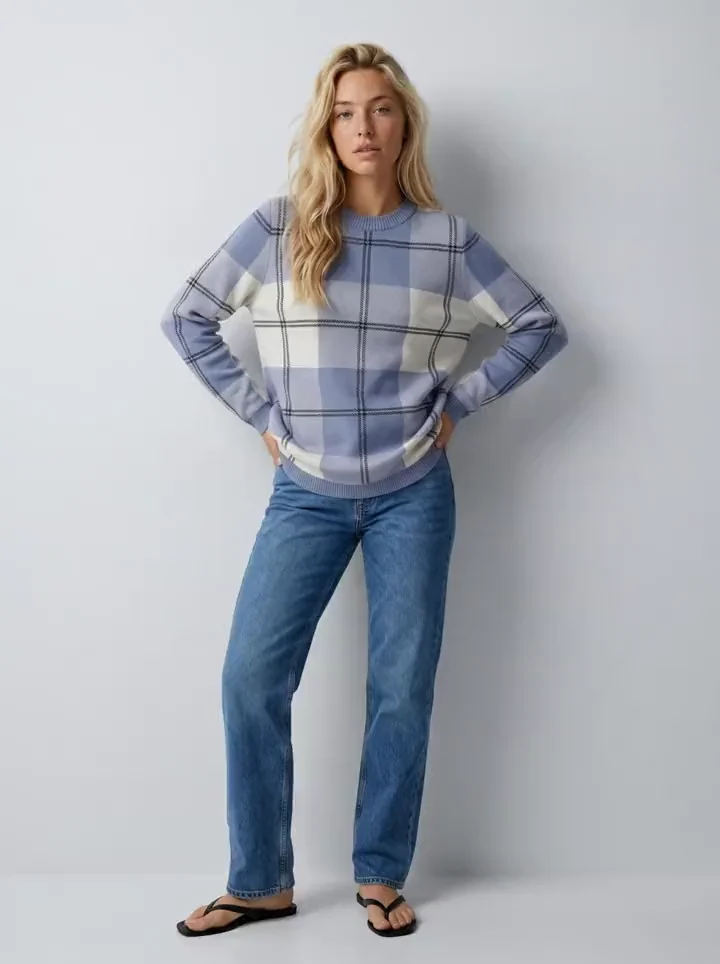 0:05
Updated November 16, 2026. Video models and prices change often: check each vendor’s page before you buy.
What is the short recipe?
Get an on-model photo of the garment first, then run image-to-video with that photo as the first frame and a short motion prompt: one slow movement, a still camera. Make the clip 5 to 10 seconds long, in the ratio of the place it plays, and check the garment frame by frame against the product photo before you publish it. If you only have a flat lay or a ghost mannequin photo, turn it into an on-model photo first, and check it against the product photo: in image-to-video, the photo becomes the first frame, so the clip opens on the photo you approved. [10][31][16]
Disclosure. We make Uwear. We have not tested the other tools hands-on; their facts come from their own pages, linked below and read on November 16, 2026. The clip on this page was made in Uwear.
How do you make a product video from a clothing photo, step by step?
- Get an on-model start frame. The first frame decides the garment, the model, the pose, the light and the background of the clip, and its flaws carry into the video. Use a sharp, well-lit photo at least as large as the video you will export, with the whole garment in the frame and some room around the body for movement. If you start from a flat lay, ghost mannequin or packshot, make the on-model photo first, in a fashion tool, and check it against the product photo before you animate it. [11][31]
- Choose an image-to-video model that takes the frames you have. Check four things: a first frame, a last frame or a back-view reference for turns, the lengths it makes, and the price per second at the resolution you will publish. Kling 4.0, MiniMax H3, Wan 3.0 and Veo 3.1 take first and last frames; Runway Gen-4.5 takes a first frame only. [22][26][36][34][28] To choose between fashion tools, read the comparison of eight AI fashion video generators.
- Write a short motion prompt. The photo already shows the garment, so the prompt describes only the movement and the camera. Runway’s guide says to “focus almost exclusively on motion”, Wan’s formula is “Motion + Camera movement”, and Claid says “Describe one movement.” Use positive camera words such as “locked camera”, and one main action per clip. Examples are in the next section. [31][32][38][10]
- Set the length: 5 seconds for a loop, up to 10 for social. Shorter clips drift less. FASHN’s Studio guide says “5-second clips are easier to control” than 10-second clips. For a longer video, join several short clips instead of one long generation. [16]
- Set the aspect ratio for the channel.
- Product page: the portrait ratio of the product photos in the same gallery. Shopify takes MP4, MOV or WEBM product videos up to 10 minutes, 1 GB and 4K, if the theme shows video. [44]
- Instagram Reels: 9:16. Instagram’s help asks for at least 720 pixels and 30 frames per second; Meta’s Reels ad guide recommends 1440×2560. [40][41]
- TikTok: 9:16, at 720p or more, with the product clear of the on-screen buttons. [39]
- YouTube Shorts: vertical or square; YouTube’s help lists 1080p as the maximum Shorts resolution. [43][42]
Generate in the target ratio when the model lets you. A start photo in a different ratio is cropped or padded, and some models (MiniMax H3, for example) keep the photo’s own ratio. [26]
- Keep the garment stable. These are the usual causes of a garment that changes or warps, and what to do instead:
- A turn without a back view. The model draws a back it never saw. Attach a back-view photo as a reference or a last frame, or choose a movement that keeps the front to the camera. [7][16][6]
- Fast or complex motion. Prefer a slow walk, a small turn or a weight shift to a spin or a dance. [10]
- A wide camera orbit. Wan’s camera guide says to keep an arc under 45 degrees, because wider orbits risk distortion. A locked camera is the safe default. [38]
- Small text, logos and labels. FASHN’s guide says they can change. Make a finished photo first and animate it, and avoid close camera moves on the logo. [15]
- A weak start photo. Runway’s guide says blurry hands and faces can get worse in video. Start from a sharp photo. [31]
- Motion against the pose. Ask for a movement that can start from the pose in the photo; do not ask a seated model to walk. [31]
- Check the garment frame by frame. Pause the clip at each second and compare the garment with the product photo: colour, print and logo position, buttons, pockets, seams, length and fit. Look hardest at the frames that show a side the start photo did not show. We found no measured accuracy rate for video on the vendor pages we checked, so this check is yours. [10][15][20][31][34][26] If one moment is right and the rest drifts, save that frame and start the next clip from it. [5]
- Export for each channel. Product-page clips usually play muted, so turn audio off when the model lets you, or remove the audio track. Claid adds a track to every clip, and its docs say to remove it for real silence. Make one file per ratio, and join several clips in an editor for a longer video. [12]
What does a frame-by-frame check look like?
Four frames of one 5-second clip, made in Uwear on Kling 3 Pro from an approved photo of a saved model. The first frame is the photo, so the front of the sweater is the one that was signed off. The photo never showed the back: at 2 seconds the model has drawn the back of the sweater and the jeans pockets. Those are the frames to compare with a back view of the product. [3][1]
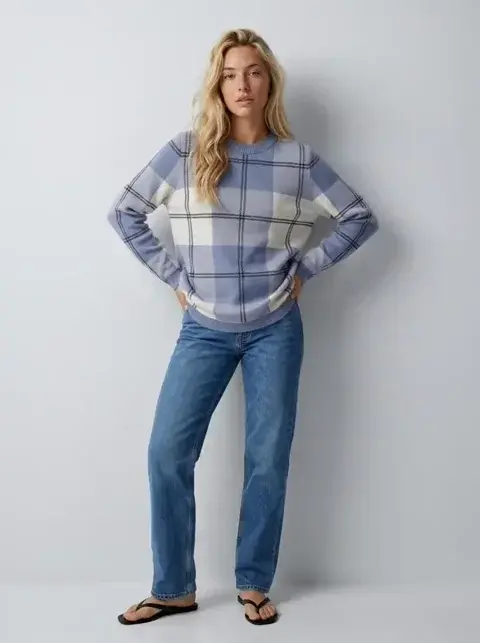
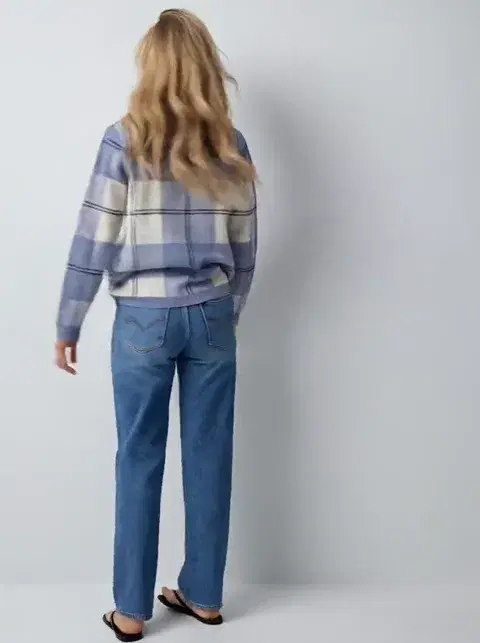
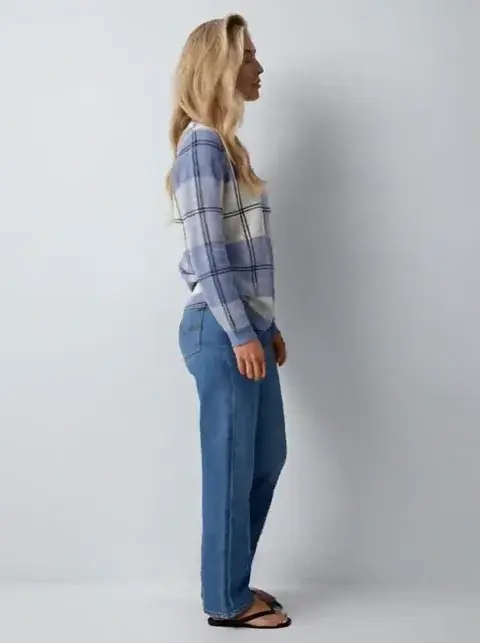
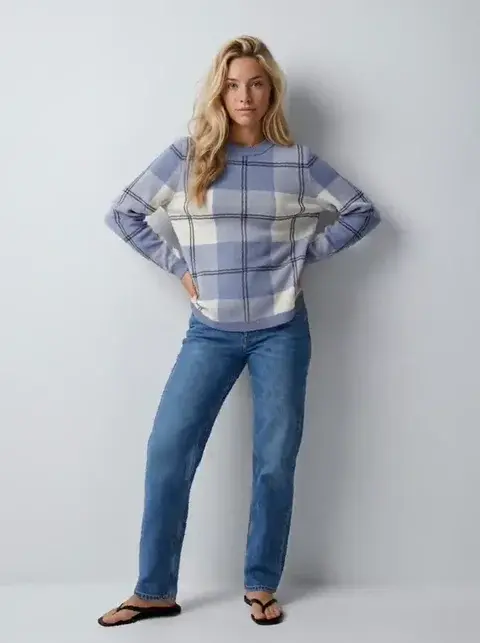
Kling 3 Pro, 5 seconds, 23 credits ($2.30) in Uwear. The clip plays at the top of this page.
What motion prompts work for clothing videos?
Each prompt describes one movement and the camera, not the garment: the start photo already shows it. Use them with any image-to-video model that takes a start frame.
A product-page loop
“The model shifts her weight to one leg and turns her shoulders slightly toward the camera, then back. Locked camera at chest height. Slow, natural movement. Same studio background and light.”
A slow turn that shows the back (attach a back view)
“The model turns slowly to her left until her back faces the camera, pauses for one second, then turns back to face the camera. Locked camera. Even, slow speed.”
A walk for Reels and TikTok (vertical)
“The model walks three slow steps toward the camera, and the fabric moves with each step. The camera moves back at the same speed. Soft daylight.”
A detail move
“The model stays still. The camera pushes in slowly from full body to the neckline and the print, then holds.”
Which AI tools turn a clothing photo into a product video?
Fashion tools take a garment or model photo and add their own steps around the clip. General video models animate the photo you give them and are sold per second. Uwear first as our pick, then alphabetical in each group; the order is not a score. Read on November 16, 2026. “Not published” means we found nothing on the vendor’s product page, docs, help center or pricing page. “Our math” turns a published rate into a 5-second clip, without the start photo and without retakes.
| Tool | What the clip starts from | Length | Resolution and ratios | Price as published | A 5-second clip (our math) |
|---|---|---|---|---|---|
| Uwear (we make it)Fashion tool[1][2][3] | Your garment photo (flat lay, ghost mannequin or product shot): Uwear makes the on-model photo in the same run, and the clip starts from it. Or any photo in your library, with a last frame or reference images where the model takes them | 2 to 30 seconds, by model | 360p to 4K, by model; vertical, square and wide ratios | Credits per clip, by model, length and resolution, at $0.10 a credit. 10 video models | Kling 3 Pro: 23 credits ($2.30). Wan 3.0 at 720p: 20 credits ($2.00). MiniMax H3 Max at 768p: 16 credits ($1.60) |
| ApparelAIFashion tool[7][8][9] | One garment photo, with or without a person (flat lay, hanger, mannequin or on a model), plus up to two extra angles such as the back | 3 to 30 seconds (eight lengths), 10 by default | 720p; 9:16 or 16:9 | 3 credits a second, a promotional rate (5 normally). Plans from US$9 a month for 50 credits; its pages disagree on which plan first includes video | 15 credits: about US$2.55 on Growth (US$34 for 200 credits) |
| ClaidFashion tool[10][11][12][13][14] | An on-model photo. With only a flat lay or ghost mannequin photo, you make the model photo first, at extra cost. Video model: xAI Grok Imagine | 5 or 10 seconds (API) | 720p; output ratios not published | Web: 60 credits for 5 seconds; Essentials $15 a month for 500 credits, Pro $49 for 2,000. API: 35 credits for 5 seconds, from a $59 pack of 1,000 | Web: about $1.47 to $1.80 on monthly plans. API: about $2.07 |
| FASHNFashion tool[16][15][17][18][19] | Studio and API: a finished on-model photo, with an optional end image. Agent: also garment and model reference images | Studio and API: 5 or 10 seconds. Agent: 4 to 15 seconds | 480p, 720p or 1080p (in the app, 1080p from the Pro plan); 9:16 recommended | Studio and API: 1, 3 or 6 credits for 5 seconds at 480p, 720p or 1080p. Agent: 1, 2 or 4 credits a second. API credits US$0.075 each | API, or Studio at the app top-up rate, at 1080p: US$0.45; at 720p: US$0.225. Agent at 1080p, at the app top-up rate: US$1.50 |
| WearViewFashion tool[20][21] | A product, model, flat-lay or ghost-mannequin photo, plus a motion template (catwalk, 360° spin, side reveal) | Not published | 1080p or 4K; 9:16 and 16:9 on its pricing page | 20 credits a video at 1080p, 40 in 4K; starting from garments adds 10 a run. Video starts on Pro, US$49 a month for 200 credits | Clip length not published. A 1080p video is about US$4.90 on Pro |
| Google Veo 3.1Video model[34][35][33] | A first frame, first and last frames, or reference images (Google Cloud) | 4, 6 or 8 seconds | 720p, 1080p or 4K; 9:16 or 16:9 | Google Cloud lists Veo 3.1 with audio at US$0.40 “/ 1 count” at 720p or 1080p and does not define a count. The Gemini API previews shut down on October 22, 2026 | Not computable from the published unit |
| Kling 4.0 (Kuaishou)Video model[22][23][25] | First, middle and last frames plus reference images. Kling 4.0 Flash: a first frame and references | 3 to 30 seconds (Flash: 3 to 20) | 720p or 1080p in the API (Flash: 720p); 9:16 to 21:9 | API, image input: US$0.157 a second at 720p, US$0.235 at 1080p. Flash: US$0.094 at 720p | US$0.79 at 720p, US$1.18 at 1080p. Flash: US$0.47 |
| MiniMax H3Video model[26][27] | A first frame, first and last frames, or reference images and videos | 4 to 15 seconds (H3 Max: 5 to 15) | H3: 768P or 2K. A photo input keeps the photo’s ratio | API: US$0.08 a second at 768P, US$0.13 at 2K; the first five images of a task are free | US$0.40 at 768P, US$0.65 at 2K |
| Runway Gen-4.5Video model[28][29][30] | One image as the first frame, plus a text prompt | 2 to 10 seconds | 720p (720×1280 vertical); 4K only through a separate upscale | API: US$0.12 a second (Gen-4 Turbo: US$0.05). App: 12 credits a second; Standard US$15 a month for 625 credits | API: US$0.60 (Gen-4 Turbo: US$0.25) |
| Wan 3.0 (Alibaba)Video model[36][37] | A first frame, first and last frames, or up to 10 reference images | 2 to 30 seconds | 480p, 720p or 1080p; 9:16 to 21:9 | API (Singapore): US$0.05, US$0.10 or US$0.20 a second at 480p, 720p or 1080p, with a limited-time 30% discount. Wan 3.0 Prime: US$0.068 to US$0.28. Marked preview | US$0.50 at 720p (US$0.35 with the discount). Prime at 720p: US$0.70 |
Where a vendor contradicts itself, we say so. ApparelAI’s pricing cards first name video on Growth, while the same page and its plan docs say every plan has every feature [9][8]. Google’s Veo docs still describe Gemini API access under a notice that the previews shut down on October 22, 2026 [33]. The Kling 4.0 guide lists 4K, while the 4.0 API lists only 720p and 1080p [24][22]. Uwear runs MiniMax H3 Max, Wan 3.0, Kling 3 Pro and Kling 2.5 Turbo Pro, not the newer Kling 4.0 [1].
What does a 5-second clip at 720p cost on each?
The same job everywhere: one photo in, a 5-second clip at 720p out, no video input. WearView, MiniMax and Veo are not in this table: WearView does not publish a clip length, MiniMax H3 makes 768P, and Veo’s price unit is not defined. A model API sells the clip only. A fashion tool’s price covers its own steps, which differ by tool.
| Tool | Video model and resolution | A 5-second clip | Sources |
|---|---|---|---|
| Uwear | Wan 3.0, 720p | 20 credits ($2.00) | [1][2] |
| Uwear | Gemini Omni Flash 1.1, 720p | 20 credits ($2.00) | [1][2] |
| ApparelAI | Not named, 720p | About US$2.55 (Growth plan, promotional rate) | [7][9] |
| Claid | Grok Imagine, 720p | About $1.47 to $1.80 (web, monthly plans); about $2.07 (API) | [13][14] |
| FASHN | Not named, 720p | US$0.225 (API, or Studio at the app top-up rate); US$0.75 (Agent, at the app top-up rate) | [16][18][19] |
| Kling API | Kling 4.0, 720p | About US$0.79 (Flash: US$0.47) | [25] |
| Runway API | Gen-4.5, 720p | US$0.60 | [29] |
| Alibaba Cloud API | Wan 3.0, 720p | US$0.50 (US$0.35 with the limited-time discount) | [37] |
What is each tool built for?
The same short entry for every tool: what it is built for and up to four facts.
Uwear
Built for clothing brands that shoot whole collections, photo and video in one workspace. Our pick for a product video that has to match the listing photo next to it; we make it.
- It makes the on-model photo from your garment photo, then the clip starts from that photo.
- 10 video models; you choose one per clip. A 5-second Kling 3 Pro clip is 23 credits ($2.30).
- Photos are compared with the product photo during the run; clips are not checked automatically, so you review them.
- Montage joins up to 10 clips into one MP4, and the export costs no credits.
Sources [3][1][4]
ApparelAI
Built for apparel sellers who start from a garment photo and want a clip without a model photo first.
- One garment photo, with or without a person, plus up to two extra angles.
- 3 to 30 seconds at 720p, in 9:16 or 16:9.
- A promotional 3 credits a second, normally 5.
- A public generation API is not published.
Sources [7][8]
Claid
Built for product image and video processing through a web app and an API, with batch.
- It animates an on-model photo with xAI Grok Imagine; you make the model photo first.
- 5 or 10 seconds at 720p.
- Every clip has an audio track; its docs say to remove the track for silence.
- Web and API credits are separate balances.
Sources [10][11][12][14]
FASHN
Built for fashion image tools in an app, with an API for developers.
- Studio animates a finished image for 5 or 10 seconds, at 480p to 1080p.
- The Agent makes 4 to 15 seconds from a start image or from garment and model references.
- Its image-to-video API endpoint is marked Experimental.
- The video model is not named.
Sources [16][15][17]
WearView
Built for brands that want stills, ghost mannequin and template videos in one plan.
- It takes product, model, flat-lay and ghost-mannequin photos.
- Templates include catwalk, 360° spin and side reveal.
- Video starts on the Pro plan, at 20 credits for 1080p and 40 for 4K.
- Clip length and audio are not published; API access is on request.
Sources [20][21]
Google Veo 3.1
Built as a general video model for developers on Google Cloud.
- It takes a first frame, first and last frames, or reference images.
- 4, 6 or 8 seconds, in 9:16 or 16:9, up to 4K.
- The Gemini API previews shut down on October 22, 2026.
- The Cloud price is listed per “count”, which the page does not define.
Sources [34][33][35]
Kling 4.0
Built as a general video model, in the Kling app and a public API.
- It takes first, middle and last frames plus reference images.
- 3 to 30 seconds at 720p or 1080p in the API.
- US$0.157 a second at 720p with image input.
- Native audio is on by default; a silent setting is not published for 4.0.
Sources [22][25]
MiniMax H3
Built as a general video model with native audio, sold through a pay-as-you-go API.
- It takes a first frame, first and last frames, or references.
- 4 to 15 seconds, at 768P or 2K.
- A photo input keeps the photo’s ratio.
- US$0.08 a second at 768P.
Sources [26][27]
Runway Gen-4.5
Built as a general video model, in the Runway app and API.
- One image becomes the first frame.
- 2 to 10 seconds at 720p.
- US$0.12 a second in the API; 12 app credits a second.
- Its guide says the prompt should “focus almost exclusively on motion”.
Sources [28][29][31]
Wan 3.0
Built as a general video model on Alibaba Cloud Model Studio.
- It takes a first frame, first and last frames, or up to 10 reference images.
- 2 to 30 seconds at 480p, 720p or 1080p.
- US$0.10 a second at 720p (Singapore), with a limited-time discount.
- The API is marked preview.
Sources [36][37]
How do you make a product video from a clothing photo in Uwear?
Uwear makes the on-model photo from your garment photo, then the clip starts from that photo on the video model you choose. The photo is compared with the product photo during the run and can be retried; that check costs no credits. Clips are not checked automatically: you approve, flag or retry each one. [3][4]
- From your assistant. Connect the Uwear MCP server to ChatGPT, Claude or Codex. The “Product page set” template makes a front photo, an upper-body crop and a back view from one garment photo, then a 5-second Kling 3 Pro 360-degree clip from the front photo. The assistant shows the plan and its cost before anything is made, and it can propose a Montage of the clips.
- From your own systems. The Uwear API runs the same photo and video jobs from code, for a catalog that makes its clips when products are added.
- By hand. In Uwear Studio, open an approved photo, choose the video model, the length and the resolution, write the motion, and add a last frame or reference images where the model takes them. You can save any frame of a clip as a photo and start the next clip from it, and Montage joins up to 10 clips into one MP4. The first version of the feature is described in the video generation announcement. [5][3]
How can you ask for product videos from chat?
Copy one into an assistant connected to the Uwear MCP server. It becomes a costed brief that you approve before anything generates.
Product page photos and a 360 clip
“Connect to the Uwear MCP server and load the "Product page set" template. Run it on my garment photos with my saved model, and show me the costed brief before generating.”
A Reels montage from approved photos
“Using the Uwear MCP server, make a 9:16 montage for Instagram Reels from my three newest approved photos: one 5-second clip of each on Kling 3 Pro, a slow walk toward the camera with a locked camera, joined in that order. Show me the proposal before generating.”
You pay in credits, at $0.10 a credit. A 5-second clip is 23 credits ($2.30) on Kling 3 Pro (34 credits ($3.40) with audio), 20 credits ($2.00) on Wan 3.0 at 720p and 16 credits ($1.60) on MiniMax H3 Max at 768p. The Montage export costs no credits. Rates for every model are on the models page. [1][2][3]
What else should I know about AI product videos?
How do I make a product video from a clothing photo with AI?
Get an on-model photo of the garment first, then run image-to-video with that photo as the first frame and a short motion prompt that describes one movement and a still camera. Make the clip 5 to 10 seconds long, in the ratio of the place it will play: the product gallery’s portrait ratio, or 9:16 for Reels, TikTok and Shorts. Then check the garment frame by frame against the product photo, mostly where the clip shows a side the photo did not show, such as the back.
Can I make a product video from a flat lay photo?
Yes, in two steps. The flat lay becomes an on-model photo, and that photo is animated. Some fashion tools do both from the flat lay: Uwear makes the on-model photo in the same run, ApparelAI and WearView take a flat lay directly, and FASHN’s Agent takes garment and model references. Claid tells you to make the model photo first. With a general video model such as Kling, Runway or Wan, use the on-model photo as the first frame, so the clip opens on the photo you checked.
How long should an AI product video be?
Five seconds for a product-page loop, and 5 to 10 seconds for a social clip. Shorter clips change less: FASHN’s Studio guide says 5-second clips are easier to control than 10-second clips. For a longer video, make several short clips and join them, rather than one long generation.
Which aspect ratio should a clothing video use?
Match the place it plays. On a product page, use the portrait ratio of the product photos next to it, so the gallery does not jump. For Instagram Reels, TikTok and YouTube Shorts, use 9:16. Instagram’s help asks for at least 720 pixels and 30 frames per second for Reels, and Meta’s Reels ad guide recommends 1440×2560. Many video models export 24 frames per second, so check the file before you post it.
Why does the clothing change or warp in an AI video?
The model has to invent what the photo does not show, and it changes small details when the motion is fast. The usual causes are a turn without a back view, fast or complex motion, a wide camera orbit, a long clip, a blurry or low-resolution start photo, and small text, logos or labels. Fix them with slow single movements, a locked camera, a back-view reference or a last frame, a 5-second clip and a sharp start photo, then check every frame against the product photo.
How much does it cost to turn a clothing photo into a video?
For a 5-second clip at 720p from one photo, read on November 16, 2026: about US$0.50 on Wan 3.0 and US$0.60 on Runway Gen-4.5 through their APIs, about US$0.79 on the Kling 4.0 API, US$0.225 on the FASHN API, about $1.47 to $2.07 on Claid and 20 credits ($2.00) on Wan 3.0 in Uwear. A model API gives you the clip only; the on-model photo, the check and the edit are separate steps, and each fashion tool includes a different set of them.
Sources
We make Uwear. We have not tested the other tools hands-on; their facts come from their own pages, read on November 16, 2026. Dollar amounts marked as our math assume the full use of a plan’s credits on that video setting.
- [1] Uwear models: video models, lengths, resolutions and credit rates. Accessed November 16, 2026.
- [2] Uwear pricing. Accessed November 16, 2026.
- [3] Uwear fashion video: clips from approved photos, Montage editor. Accessed November 16, 2026.
- [4] Uwear quality check: how each photo is compared with its product photo. Accessed November 16, 2026.
- [5] Uwear: save a frame from a video and reuse it as a start frame. Accessed November 16, 2026.
- [6] Uwear: a 360 video with a back-view reference on Kling 3 Pro. Accessed November 16, 2026.
- [7] ApparelAI docs: image to video. Accessed November 16, 2026.
- [8] ApparelAI docs: plans. Accessed November 16, 2026.
- [9] ApparelAI pricing. Accessed November 16, 2026.
- [10] Claid AI fashion video. Accessed November 16, 2026.
- [11] Claid image to video with Grok Imagine. Accessed November 16, 2026.
- [12] Claid docs: image-to-video options. Accessed November 16, 2026.
- [13] Claid pricing. Accessed November 16, 2026.
- [14] Claid API pricing. Accessed November 16, 2026.
- [15] FASHN help: create videos with the Agent. Accessed November 16, 2026.
- [16] FASHN help: Studio image to video. Accessed November 16, 2026.
- [17] FASHN API reference: image-to-video (Experimental). Accessed November 16, 2026.
- [18] FASHN help: app pricing. Accessed November 16, 2026.
- [19] FASHN help: API pricing. Accessed November 16, 2026.
- [20] WearView AI video generator. Accessed November 16, 2026.
- [21] WearView pricing. Accessed November 16, 2026.
- [22] Kling API docs: Kling 4.0 video (Omni). Accessed November 16, 2026.
- [23] Kling API docs: Kling 4.0 Flash video (Omni). Accessed November 16, 2026.
- [24] Kling API docs: Kling 4.0 usage guide. Accessed November 16, 2026.
- [25] Kling API pricing: video. Accessed November 16, 2026.
- [26] MiniMax API reference: video generation (V2). Accessed November 16, 2026.
- [27] MiniMax pricing overview. Accessed November 16, 2026.
- [28] Runway help: creating with Gen-4.5. Accessed November 16, 2026.
- [29] Runway API docs: models and prices. Accessed November 16, 2026.
- [30] Runway pricing. Accessed November 16, 2026.
- [31] Runway help: image to video prompting guide. Accessed November 16, 2026.
- [32] Runway help: Gen-4 video prompting guide. Accessed November 16, 2026.
- [33] Google Gemini API docs: Veo (preview shutdown notice). Accessed November 16, 2026.
- [34] Google Cloud docs: Veo 3.1 generate. Accessed November 16, 2026.
- [35] Google Cloud generative AI pricing. Accessed November 16, 2026.
- [36] Alibaba Cloud Model Studio: Wan 3.0 video API reference. Accessed November 16, 2026.
- [37] Alibaba Cloud Model Studio: model pricing. Accessed November 16, 2026.
- [38] Alibaba Cloud Model Studio: video prompt guide (camera moves). Accessed November 16, 2026.
- [39] TikTok Ads help: creative best practices. Accessed November 16, 2026.
- [40] Instagram help: Reels resolution and size. Accessed November 16, 2026.
- [41] Meta ads guide: Instagram Reels video. Accessed November 16, 2026.
- [42] YouTube help: upload Shorts. Accessed November 16, 2026.
- [43] YouTube help: which videos count as Shorts. Accessed November 16, 2026.
- [44] Shopify help: product media types (video). Accessed November 16, 2026.
Last updated November 16, 2026. Video models, rates and plans change often, so check each vendor’s own page before you buy.