Which garment details does AI get wrong, and how do you test a tool before you trust it?
AI on-model photos keep simple garments right most of the time: a plain tee, a solid knit, jeans. They go wrong most often on six kinds of detail: small lettering and logos, dense or placed prints, sheer and mesh fabric, exact colour matching, hardware and trims, and garments whose back is different from the front. Length and cut can slip too. Test a tool on those garments before you commit a catalog to it, because a demo image of a plain top tells you nothing about them.
This guide covers where each detail goes wrong and why, how to test any tool, Uwear included, in an afternoon on your own hardest garments, what an automatic check can and cannot catch, and how to get better results on the garments that fail.
What has to match, and what is allowed to change?
A garment in a photo on a model is worn, not pasted. It drapes over shoulders, folds at the elbow, pulls across the hips and moves with the pose. Those changes are correct: a jacket that looked exactly like the flat lay on a body would look wrong. What must match is the garment's identity, the things a customer is buying:
- Must match: colour, print and its placement, logo and lettering, trims and hardware, the cut (neckline, sleeve, length) and the fabric (sheer, matte, shiny, knit).
- Allowed to change: drape, folds, creases and how the fit sits on that body in that pose.
Keep that line in mind when you score a test. Marking a photo down because the hem folds differently than on the hanger punishes the right result.
Where does AI get garments wrong?
One row per failure type: what goes wrong, why in plain terms, how to spot it in a few seconds, and what helps. None of the fixes is a guarantee; each makes the right result more likely.
| Detail | What goes wrong | Why | Spot it fast | What helps |
|---|---|---|---|---|
| Small lettering and logos | Letters change, merge or form a different word; a small logo loses its shape or moves | Text is a few pixels in the output, and the model draws what looks like text rather than copying it letter by letter | Zoom to 100% on every word and logo; read it out loud | A product photo where the text is sharp and readable; a close crop of the label or logo; a higher resolution; a person reads it |
| Dense or placed prints | A repeat print gets rescaled or reshuffled; a placed graphic shifts, shrinks or loses an element | A print has to be redrawn on a curved, folded surface, and a busy repeat is easy to approximate | Compare scale (how many repeats across the chest) and the position of placed graphics against the product photo | A flat, unwrinkled product photo; a close crop of the print; a retry, since prints vary take to take |
| Sheer, mesh and lace | Sheer fabric turns opaque, or opaque fabric turns see-through; lace and mesh patterns blur into a texture | Transparency is hard to read from a flat photo, where the fabric lies on a background | Look at the arms, hem and any layer worn under it; is the skin or layer showing through as much as it should? | A product photo on a contrasting background, or worn on a mannequin, so the transparency is visible; a person checks |
| Exact colour | A shade drifts: navy to black, cream to white, a dusty pink to a brighter one | The output is lit by the scene, and the input often carries a colour cast from the room it was shot in | Put the output next to the product photo at the same size; compare in the lit areas, not the shadows | An evenly lit product photo, close to daylight; the same art direction for every colourway so they can be compared |
| Hardware and trims | Buttons added or missing, zips moved, buckles, eyelets and toggles changed or merged | Small repeated parts are easy to miscount, and trims often sit in shadow on the input | Count buttons, check zip position and pull, and look at every buckle and eyelet | A product photo where every trim is visible; a detail crop; a count written down so the check is quick |
| Cut and length | A hem moves (knee-length becomes ankle-length), a neckline changes, sleeves get longer or shorter | Length is relative to a body the flat photo does not show, so the model has to infer where the hem falls | Check where the hem, sleeve and neckline land on the body against your size chart or fit photos | A product photo of the whole garment, not cropped; the length in the product description; a retry |
| Back differs from the front | A back print, rear pockets, a cut-out or a lace-up back is missing or invented | With only a front photo, the back view is the model’s guess | Generate the back view for every garment whose back is not plain, and compare it with the real back | A back product photo, added to the garment before the run |
Small lettering, in Uwear's own test
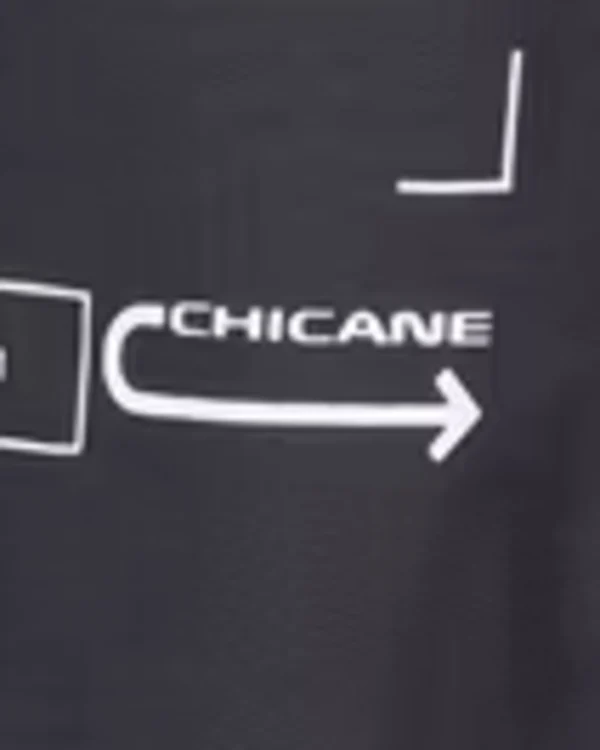
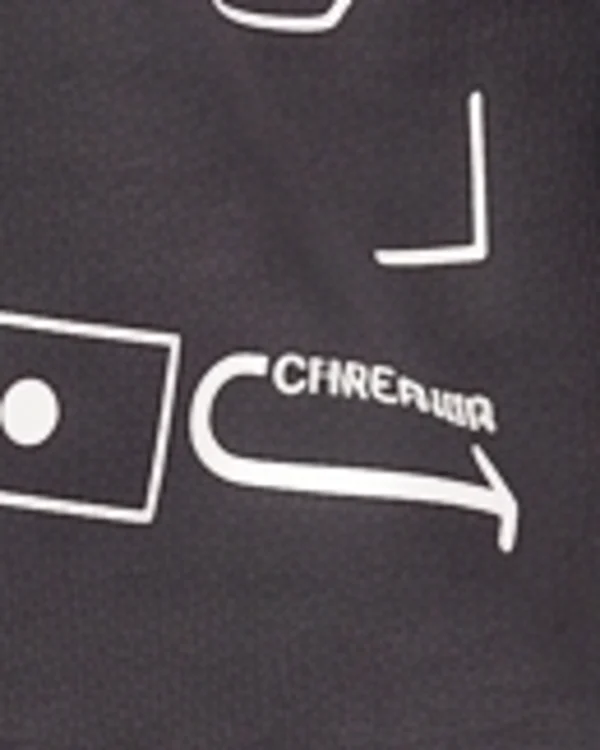
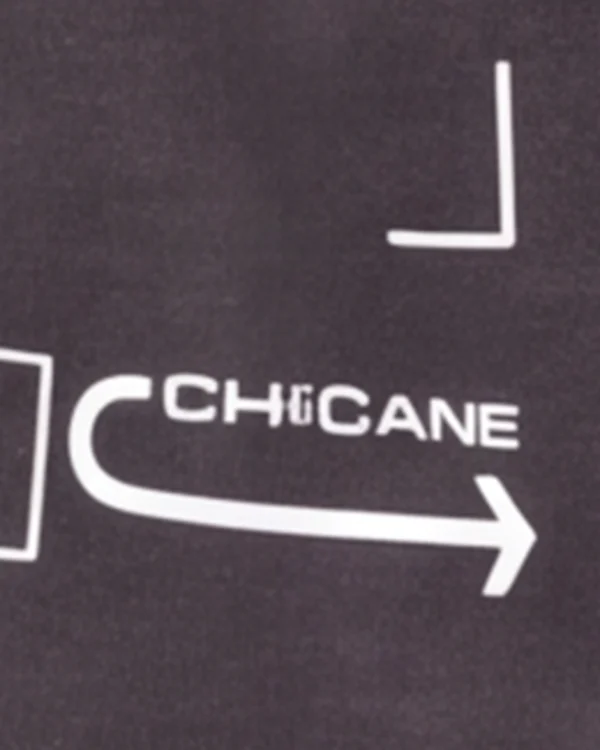
A sweatshirt in Uwear's test set carries a small label that reads CHICANE. Gemini 2.1 (Nano Banana 2.1), Uwear's default and recommended image model, wrote a different word in two runs at 2K and came close in one run at 4K, with one letter still wrong [1]. The large print on the same sweatshirt carried over. In the same test, GPT Image 2.5 wrote the label clearly at 2K; the full comparison is in Gemini 2.1 vs GPT Image 2.5 for fashion photos. Small text is the detail to check first on any tool.
A print and its colour, from a seller photo
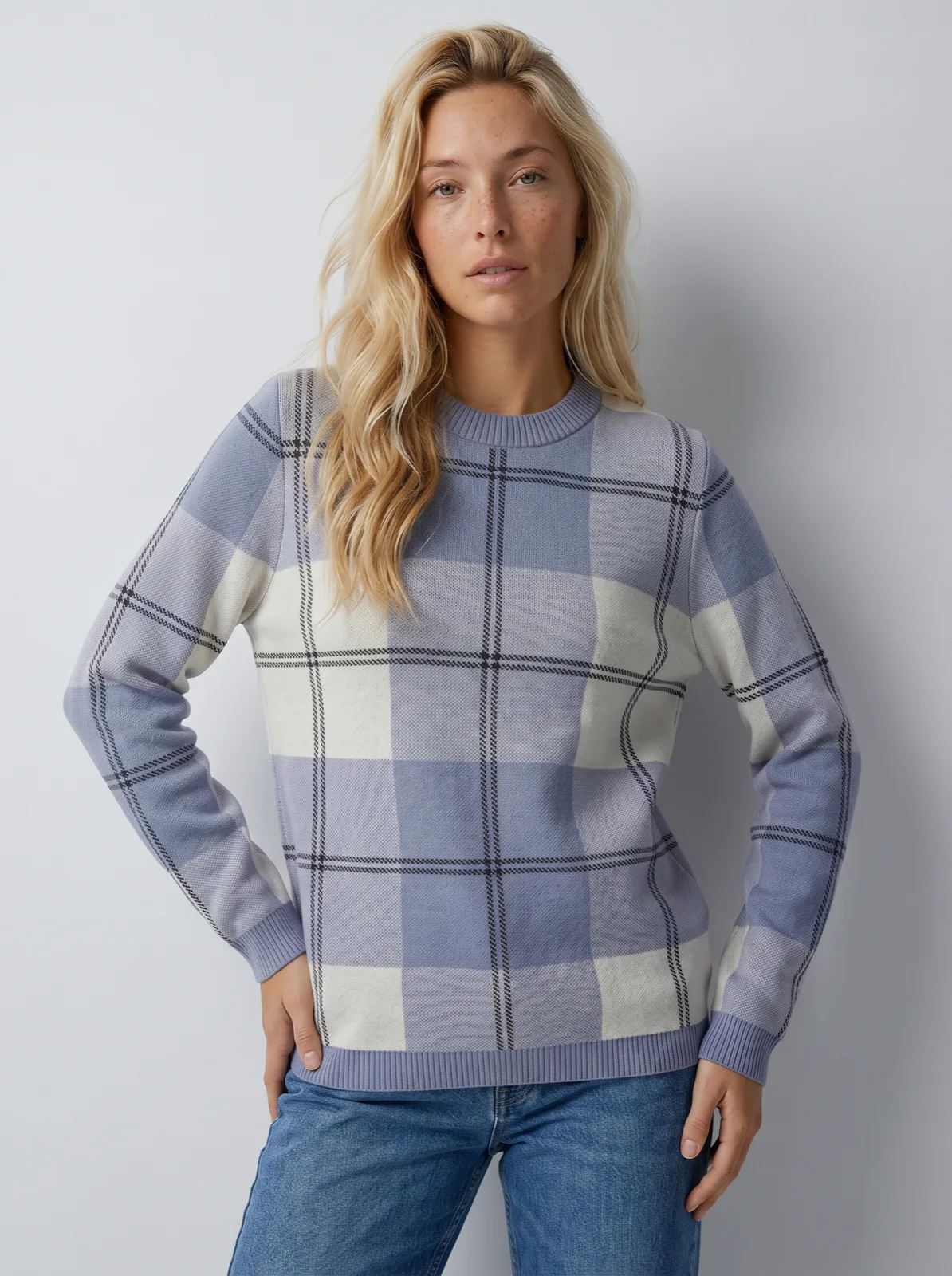
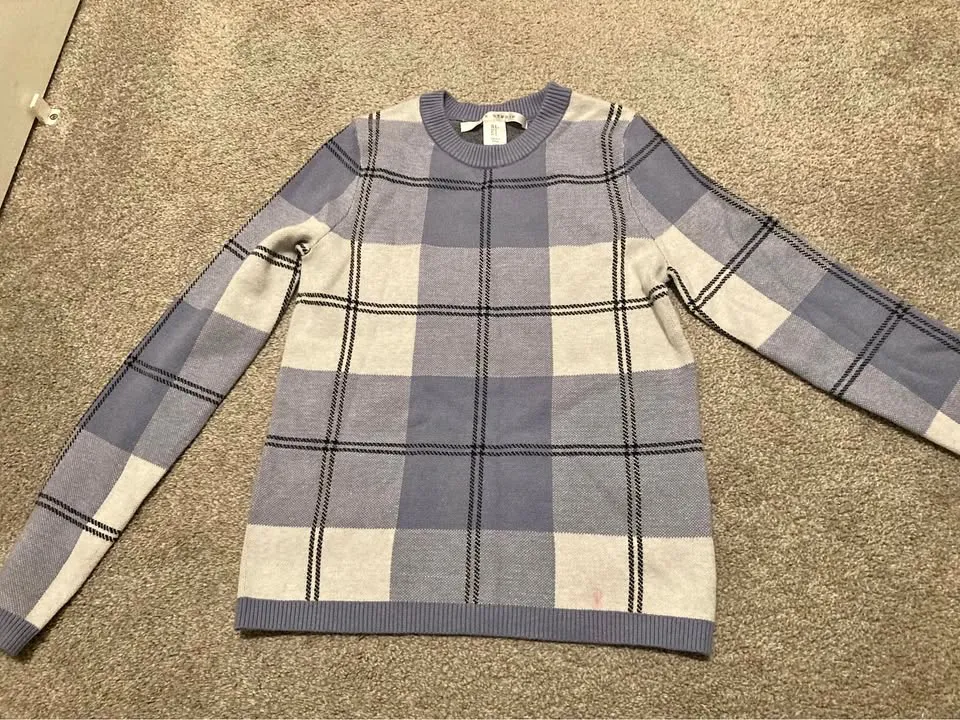
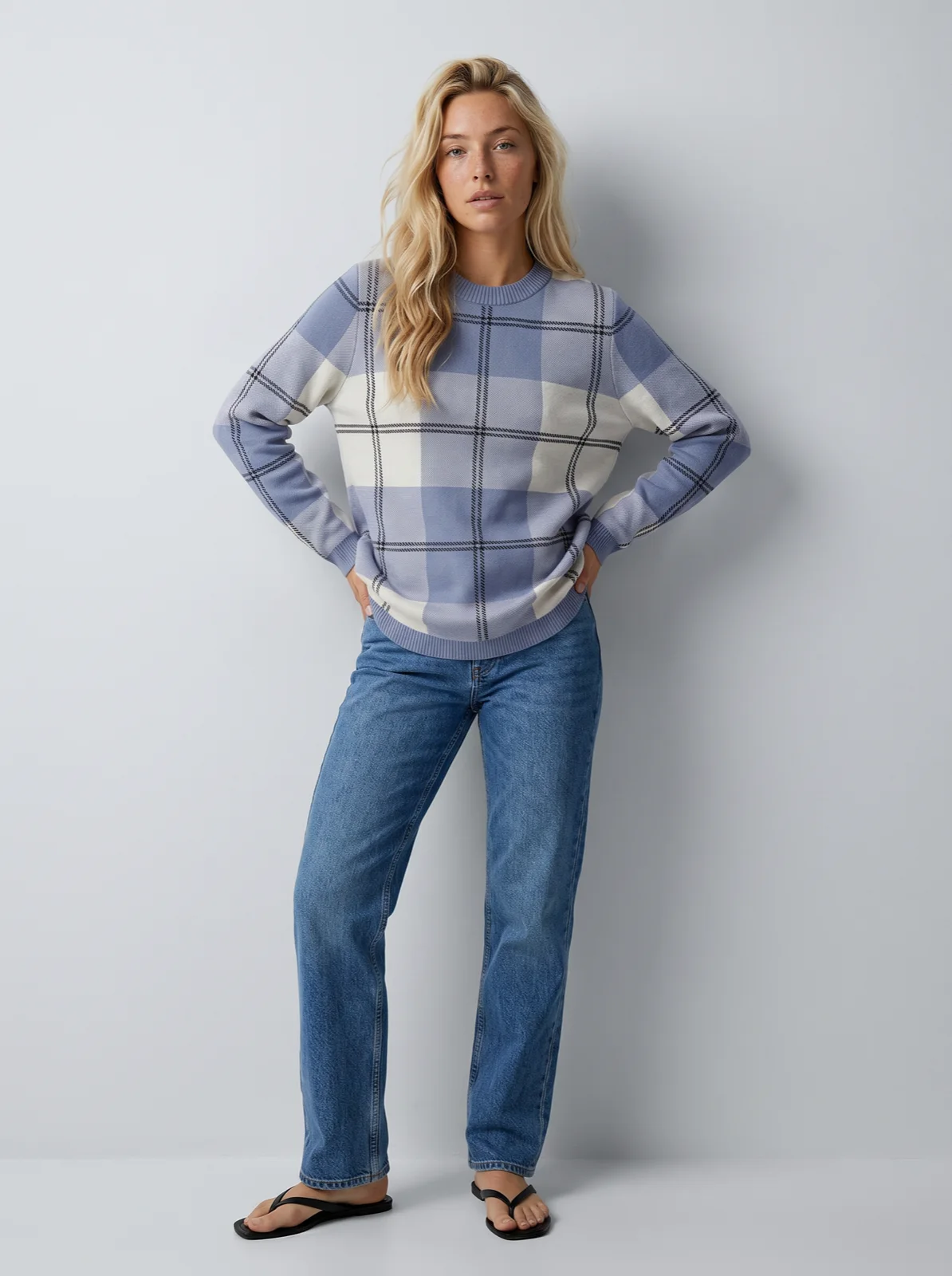
The check sweater in the hero started as a phone photo on a carpet. The check carries over: the block sizes, the double lines, the ribbed trims. Judge the colour with care, though. The seller photo was taken under warm indoor light, so it cannot pin down the exact blue. When colour matters, the fix is in the input: an evenly lit product photo gives the model, and the person checking, a true reference.
How do you test a tool in an afternoon?
One good demo image proves nothing. A demo shows a tool's strongest result, often on an easy garment. The number that matters is how many usable photos you get on your hard garments, and how many retries and minutes of checking it took. Here is a protocol you can run on any tool.
- Pick 10 to 20 of your hardest garments. Cover every row of the table above: a few with small lettering or a logo, a dense or placed print, a sheer or mesh piece, a colour-critical piece, something with many buttons or hardware, and two or three with a back that differs from the front. Add two plain garments as a control.
- Use the product photos you actually have. Not photos retaken for the test. If your supplier photos are poor, that is the input the tool will get in production, so test it. Add a back photo only where you would have one in real life.
- Keep everything else fixed. The same model and the same set for every garment, so differences come from the garment, not the setup. On Uwear that is a saved model, a model you create once and reuse on every product, and a saved art direction, the set, light, framing and styling every run reuses.
- Generate a front, a back and a detail. The front shows colour, print and cut; the back shows whether the tool invents a back; the detail is where lettering and trims are judged.
- Score every photo on the checklist below. Score by eye against the product photo at full size. If the tool has its own automatic check, note its verdict separately and see where you and it disagree.
- Count three things. Usable photos on the first try, usable photos after retries, and the minutes spent checking and re-running. Do it per failure type, so you know which garments the tool handles and which need a person.
The checklist, to copy
One row per check, scored pass or fail for each photo. Put each garment in its own row of a spreadsheet and these checks in the columns.
| Check | Passes when |
|---|---|
| Colour | Same colour as the product photo in the lit areas; a customer would not call it a different shade |
| Print and placement | Same print at the same scale; placed graphics in the same spot and size; nothing added or lost |
| Logo and lettering | Every word spelled right and readable at 100%; logos the right shape and in the right place |
| Trims and hardware | Right number of buttons; zips, buckles, eyelets, drawcords where they are on the product |
| Cut and length | Neckline, sleeve and hem land where your fit photos or size chart say |
| Fabric behaviour | Sheer stays sheer, knit looks like knit, shine and texture match; drape and folds follow the body |
| Back view | Matches the real back of the garment, or is plain when the back is plain |
| Model | The same person as your saved model, when you use one |
| Usable as is | Yes or no: would you publish this photo on the product page without editing? |
At the end you have a usable rate per failure type, for example 9 of 10 plain garments, 6 of 10 placed prints and 2 of 5 small-logo garments usable on the first try. That table, not a demo, is what to compare tools on, and it tells you which garments still need a person.
What does the test cost on Uwear?
A worked example for 15 hard garments, each with a front, a back and a detail at 2K on Gemini 2.1 (Nano Banana 2.1), plus a 4K front for the five garments with lettering. The back and detail are camera edits: the approved front photo re-framed rather than generated again, priced as a photo. Credits are $0.10 each, with no subscription, and never expire [5].
| Line | Basis | Credits · dollars |
|---|---|---|
| 15 front photos | Gemini 2.1 (Nano Banana 2.1) at 2K, 5 credits a photo [4]; a credit is $0.10 [5] | 75 credits · $7.50 |
| 30 camera edits, back and detail | Gemini 2.1 (Nano Banana 2.1) at 2K, 5 credits each [4] | 150 credits · $15.00 |
| 5 lettering garments again at 4K | Gemini 2.1 (Nano Banana 2.1) at 4K, 10 credits a photo [4] | 50 credits · $5.00 |
| AI reviewer | Checks every photo against its product photo; free | 0 credits · $0 |
| Test total, no retries | 50 photos | 275 credits · $27.50 |
| Retries | Assumption, for a batch run or an Automation (a single Studio photo gets a verdict, no retry): 10 to 20% of the 50 photos, 5 to 10, retried once at 2K, 5 credits each | 25 to 50 credits · $2.50 to $5.00 |
| Test total, with retries | The 50 photos and the assumed retries | 300 to 325 credits · $30.00 to $32.50 |
A per-image price misleads on its own. The rate is the smallest part of what a catalog costs. A photo that changes the garment needs a retry, billed again, and someone has to find it first. The time your team spends checking photos and re-running garments usually costs more than the credits, and a wrong photo that slips through shows customers a product you do not sell. Compare tools on the cost of an accepted photo of a hard garment at the same resolution, which is what this test measures.
Run the test from a chat
With the Uwear MCP server, the connector that lets ChatGPT, Claude or Codex plan and run a job, the assistant builds a costed brief and waits for your approval before generating.
Run your hardest garments as a test
“Connect to the Uwear MCP server. Run my 15 garments tagged hard-cases at 2K on Gemini 2.1 (Nano Banana 2.1) with my saved model and my saved studio art direction: a full-body front for each, then a back view and an upper-body detail as camera edits of the front. Show me the costed brief before generating anything.”
Line the photos up for scoring
“Connect to the Uwear MCP server. List every photo from the hard-cases run, grouped by the garment it came from, with that garment’s product photo, so I can score each photo on colour, print, lettering, trims, cut, fabric and back view.”
What can an automatic check do, and what can it not?
Uwear has an AI reviewer: an automatic check that compares each photo with the product photo and gives a verdict with the reason. For each garment in the photo it checks fit, colours, length and details against that garment's own product photo; it also checks that the person is the saved model and that the shot is the one asked for [2]. It is free. What happens after a fail depends on how the photo was made:
- A single photo in Studio, Uwear's web workspace, gets the verdict and the reason, and a person decides what to do.
- A batch run retries a failed photo 0 to 5 times, as you set for the run.
- An Automation, a shoot that starts on its own when new clothing is ready or a garment gets a tag you chose, re-shoots a failed photo once by default.
A retry re-shoots the same request; it does not rewrite the request from the reason. Each retry is a new generation, billed at the photo rate. A photo that still fails ends as rejected, with the reason shown, and a person can approve it or override the verdict in Studio. The reviewer checks photos, not video clips.
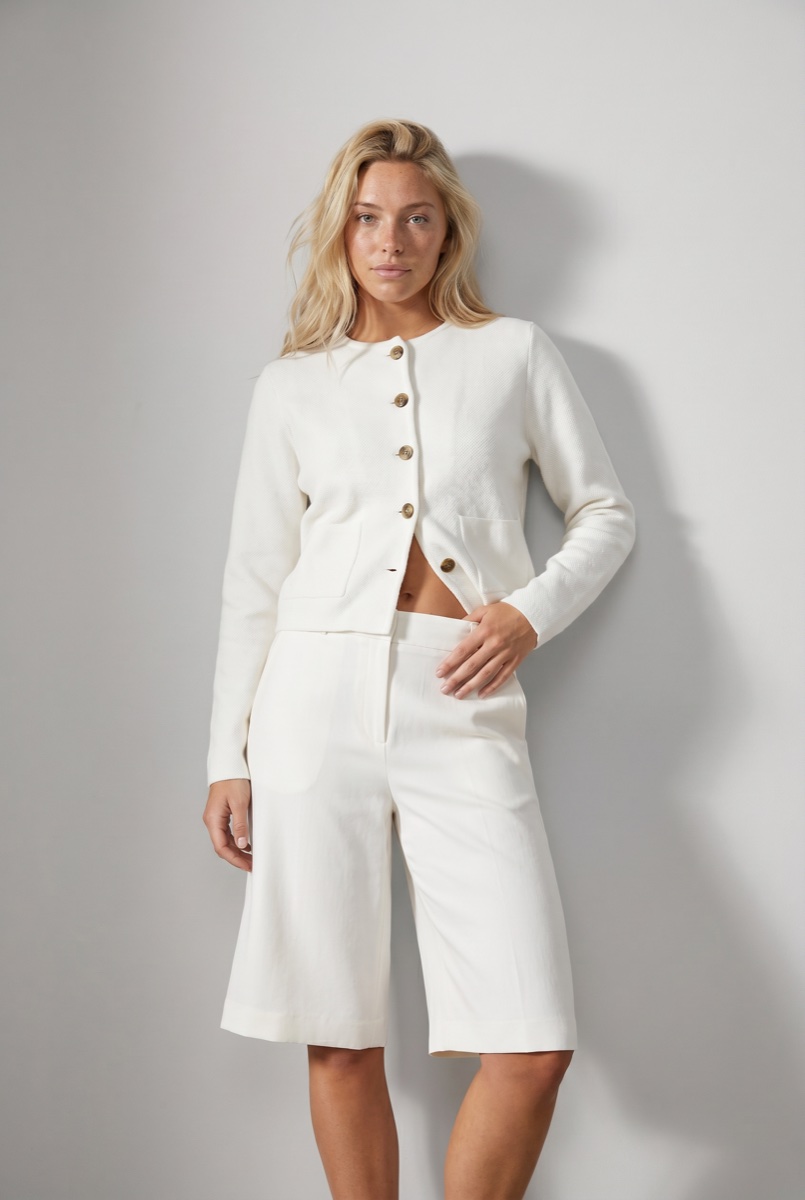
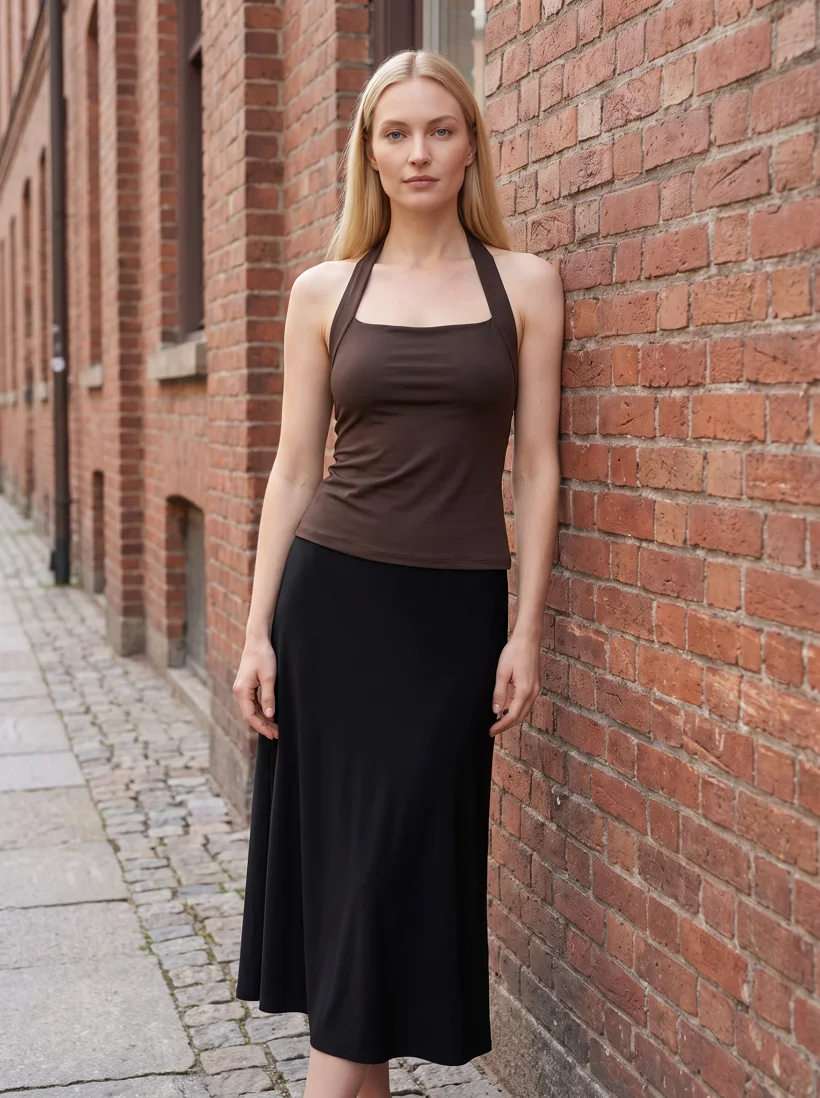
Both of those were caught and both were fixed on one retry. That will not always happen, and an automatic check is not a guarantee. It can miss what a person would see, and it can reject a photo a person would accept. Use it to sort a large run, so people look at the flagged photos first, and still have a person look at your hardest garments: every small logo, every line of lettering, every colour-critical piece. More on how it works on the Review and QA page.
How do you get better results on hard garments?
Many garment errors start in the product photo. The model can only show what the photo shows, so fix the input before you retry blindly: a retry is another roll of the same dice, a better photo changes the odds.
- Shoot flat and evenly lit. No creases across the print, no shadow over trims, light close to daylight so the colour is true. A flat lay, a packshot, a ghost mannequin photo or a clean supplier photo all work.
- Make logos and lettering readable in the input. If you cannot read the word in the product photo at full size, the model cannot copy it. Add a close crop of the label, the logo or the print as an extra product photo.
- Add a back photo when the back is not plain. A back print, rear pockets, a cut-out or lacing. Without it the back view is a guess. On Uwear you add the back photo to the garment before the run.
- Show sheer fabric as sheer. Photograph it on a contrasting background or on a mannequin so the transparency is visible.
- Use a higher resolution for lettering. 4K on Gemini 2.1 (Nano Banana 2.1) is 10 credits ($1.00) a photo against 5 credits ($0.50) at 2K [4]. Run lettering garments at both on the test and keep the one that reads right.
- Run hard garments first. Put them at the start of a run, so problems show up while there is time to fix the input, and let the plain garments run after.
- Fix the input, then rerun that garment only. When a garment fails twice for the same reason, change the input before you try again. Replace or add the product photo, then rerun just that garment.
The flat lay to on-model guide shows the inputs that work, and AI ecommerce product photos shows a range on one saved model, checked photo by photo.
Questions buyers ask about garment accuracy
Is a small colour shift normal in AI fashion photos?
Some shift is normal, and some of it is not the AI. Studio light, shadow and the fabric folding on a body all change how a colour reads, just as they do in a real shoot. What matters is whether a customer would call it a different colour. Check the product photo first: a phone photo under warm indoor light does not carry the true colour, so the output cannot either. For colour-critical garments, shoot the product photo flat in even daylight, judge the result next to it, and decide your tolerance per product, tighter for a colourway sold in three close shades.
Can AI keep a brand’s logo exactly right?
Large logos and big prints usually carry over from a clear product photo. Small logos and fine lettering are where image models still slip: letters change, merge or turn into a different word. In Uwear’s own test, Gemini 2.1 (Nano Banana 2.1) wrote a different word on a small label in two runs at 2K and came close in one run at 4K. No tool should be trusted on this without a person zooming in on each logo before the photo is published.
Why does the jacket look different on the model than in the product photo?
Usually because it is being worn. A jacket lying flat or on a hanger has no shoulders, arms or movement in it; on a body it drapes, folds, opens and creases with the pose. That is correct and is what a customer expects to see. It is an error only when the jacket itself changes: a different colour, a lapel or collar that is not on the product, a missing pocket, the wrong number of buttons, a different length.
Should we disclose that product photos are AI-generated?
The rules depend on the market and the platform, and they are changing. In the EU, the AI Act’s Article 50 transparency rules for AI-generated content have applied since August 2, 2026; marketplaces such as Amazon also ask for a tag on photos of AI-generated people. Check the rules for each market and platform you sell on. Uwear’s guide to the EU AI Act covers the labelling and provenance side.
What resolution should we use for garments with lettering?
Start with 2K on Gemini 2.1 (Nano Banana 2.1), 5 credits or $0.50 a photo. For small text, also run the garment at 4K, 10 credits or $1.00 a photo, and compare the two at full zoom. A higher resolution gives fine lettering more pixels to land in; it helps, but it does not guarantee the word, so check every one.
For disclosure rules in the EU, see the EU AI Act and AI-generated fashion images.
Sources
The garment counts in the test, the example usable rates and the cost example are this page's assumptions, not results. The lettering crops and both rejected photos come from Uwear's own published tests. Uwear rates change with the models it runs; the models page is current.
- [1] Uwear blog: Gemini 2.1 (Nano Banana 2.1) vs GPT Image 2.5 for fashion photos, the small lettering test. Accessed October 26, 2026.
- [2] Uwear Review and QA: what the AI reviewer checks. Accessed October 26, 2026.
- [3] Uwear blog: consistent product photos, with the reviewer verdict on every take. Accessed October 26, 2026.
- [4] Uwear models page: per-model credit rates. Accessed October 26, 2026.
- [5] Uwear pricing: $0.10 per credit, no subscription, credits never expire. Accessed October 26, 2026.