Amazon image requirements for clothing: the main image, sizes, crops and AI models
On Amazon, the main image of a clothing listing must be a photo on a pure white background (RGB 255, 255, 255) that shows the whole product once, filling 85% of the frame, with no text, logos, props or packaging [1]. Adult clothing must be worn by a model who is standing [1][2]. Mannequins of any kind, hangers and holders must not show [1][2], so a ghost-mannequin photo works for an alternate image but not for the main one. Files are 500 to 10,000 pixels on the longest side, 1,000 or more for zoom [1]. If the model in the photo is AI-generated, Amazon asks you to tag the file before upload [1][3]. Everything below is cited to Amazon's own pages; the photos come from Uwear, a system that turns product photos into on-model photos and video on one saved AI model, and the section on Uwear says what it does and does not do for these rules.
The main image: what Amazon requires
The main image is the first photo on the product page and the one shown in search results. If no main image meets the rules, Amazon may remove the listing from search until one does [1].
| Rule | What Amazon says |
|---|---|
| Background | Pure white, RGB 255, 255, 255 (#FFFFFF) [1][2]. The 2021 guide shows grey backgrounds as not allowed [4]. |
| How much of the frame | The product fills 85% of the image [1]. The clothing page adds a shape close to 3:4, width to height [2]. |
| The whole product | Nothing cut off by the edge of the frame [1][2]. |
| One view, one unit | The product once: the front, not the front and the back in one image; no several colors or sizes unless sold together [1][2]. |
| Adult clothing | On a model [1][2]. “All adult apparel should be imaged on-model” [4]. |
| The pose | Standing. Not sitting, kneeling, leaning or lying down [1]. No “selfie” and no black and white only [2]. |
| Mannequins | No part of a mannequin, clear, flesh-toned, a framework or on a hanger [1]. No visible mannequin, hanger or holder [2]. Ghost mannequins are listed by name in 2021 [4]. |
| Children and babies | Undergarments, leotards, swimwear and similar form-fitting items lying flat, without a model [1][2]. |
| Accessories and multipacks | Flat, without a model [1]. |
| Shoes | A single shoe, facing left, at a 45-degree angle [1]. |
| Nothing extra | No borders, logos, watermarks, text, inset images or other graphics; no packaging, tags or brochures; no distracting accessories such as large earrings, bags or sunglasses; no folded products [1][2]. |
| A photo | No sketches, drawings or graphic renderings [2]. The color must match the product [2]. |
The clothing page also bans images that are blurry or pixelated, suggestive poses, and visible intimate areas, and asks for a model to wear clothes under a sheer product [2]. For lingerie, thongs and pasties it has its own rules on when a model may be used [2].
File size, format and naming
Amazon's current help page and its 2021 clothing guide give different numbers in places. The guide is labelled “for informational purposes only” and is five years old, so the current page wins where they differ [1][4]. Meeting the stricter of the two is the safe choice.
| Seller Central today | 2021 clothing guide | |
|---|---|---|
| Size | 500 to 10,000 pixels on the longest side; 1,000+ recommended, which turns on zoom [1] | At least 1,600 pixels in height, at most 10,000 on the longest side [4] |
| Formats | JPEG, TIFF, PNG, non-animated GIF; JPEG recommended [1] | JPEG or TIFF on one page, JPG or PNG on another; JPEG preferred [4] |
| Resolution and color | At least 72 dpi; RGB preferred; clear, not pixelated [1] | 72 dpi; RGB preferred over CMYK [4] |
| File name | Product identifier + variant code + extension, e.g. B000123456.MAIN.jpg [1] | Same pattern: MAIN, PT01, PT02, FL01 for an off-model view [4] |
| How many images | At least one compliant main image; Amazon recommends six more and a video [1]. Up to eight alternates per product [2] | Five to seven per product, including a front and a back [4] |
How to crop each type of garment
The 2021 guide shows main images from the nose down, with hair behind the shoulders so it does not cover the product, and gives a crop for each kind of garment [4]. The current help pages do not repeat these crops, but they are how the guide gets a garment to fill 85% of the frame.
| Crop | Garments |
|---|---|
| Full length | Dresses, suits, sleep sets, one-piece garments, robes, and coats or sweaters that fall at or below the knee |
| Top body | Tops and tees, one-piece swimsuits and rash guards, coats or sweaters that end above the knee |
| Waist down | Trousers, jeans, shorts, skirts, leggings and pajama bottoms: from just above the navel to below the feet |
| Square | Bras, swim tops, underwear and swim bottoms |
| Back as the main image | Athletic tops, bottoms and sports bras, when the back detail is the selling point |
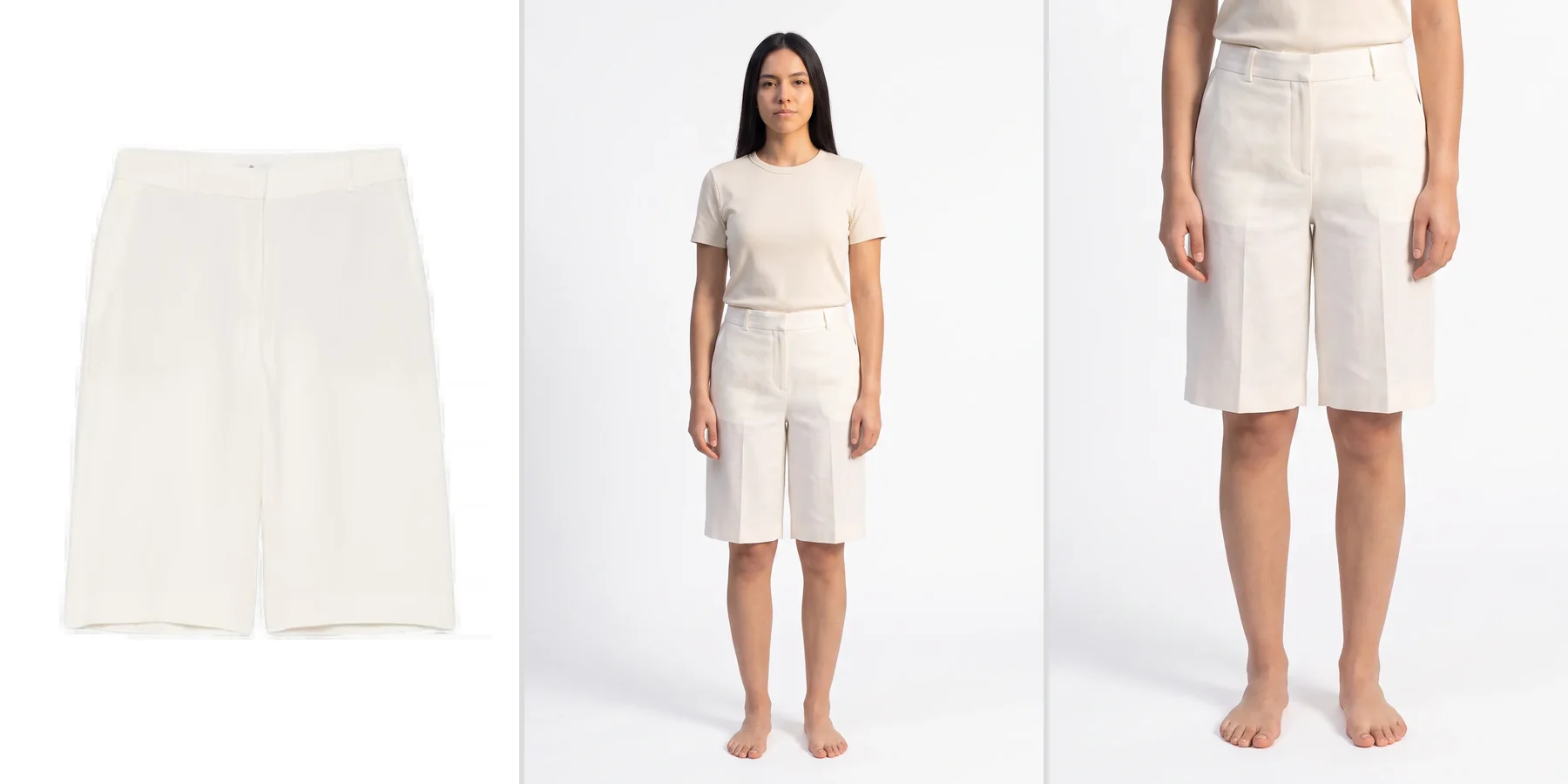
The photo at the top of this page shows the idea for shorts: the middle panel is the full-body photo, the right panel is our waist-down crop of it.
The other images
Alternate images are looser. In the 2021 guide they may use another background, show the full face, zoom in or out, and include props [4]. Its recommended set for a garment is a front and a back on the model, then a detail, a styled photo, and the product laid flat (file code FL01) [4]. Children's form-fitting items still go without a model in every image [1].
Photos with an AI-generated model: the disclosure tag
Amazon's product image guide says some places may require a disclosure when product images contain photorealistic AI-generated people, and that if yours do, you must tag the image before uploading it [1]. The tag is the keyword contains-synthetic-performer in the file's XMP dc:subject field; Amazon then adds a disclosure for shoppers where it applies [1]. The tag is for people entirely generated by AI. Real people edited with AI tools, characters from films or games, and images with no people do not get it [1].
Amazon's tagging page gives three ways to add it [3]. On a Mac, open the file in Preview, press Cmd+I, open Keywords and add the word. On Windows, right-click the file, then Properties, Details, and type it in the Tags field (not Subject). For a whole folder, the command-line tool exiftool does it in one line:
exiftool -XMP-dc:Subject+=contains-synthetic-performer *.jpgRunning it twice writes the keyword twice, which does no harm [3]. Uwear does not add this tag to its files, so add it yourself before upload.
Where Uwear fits, and what it leaves to you
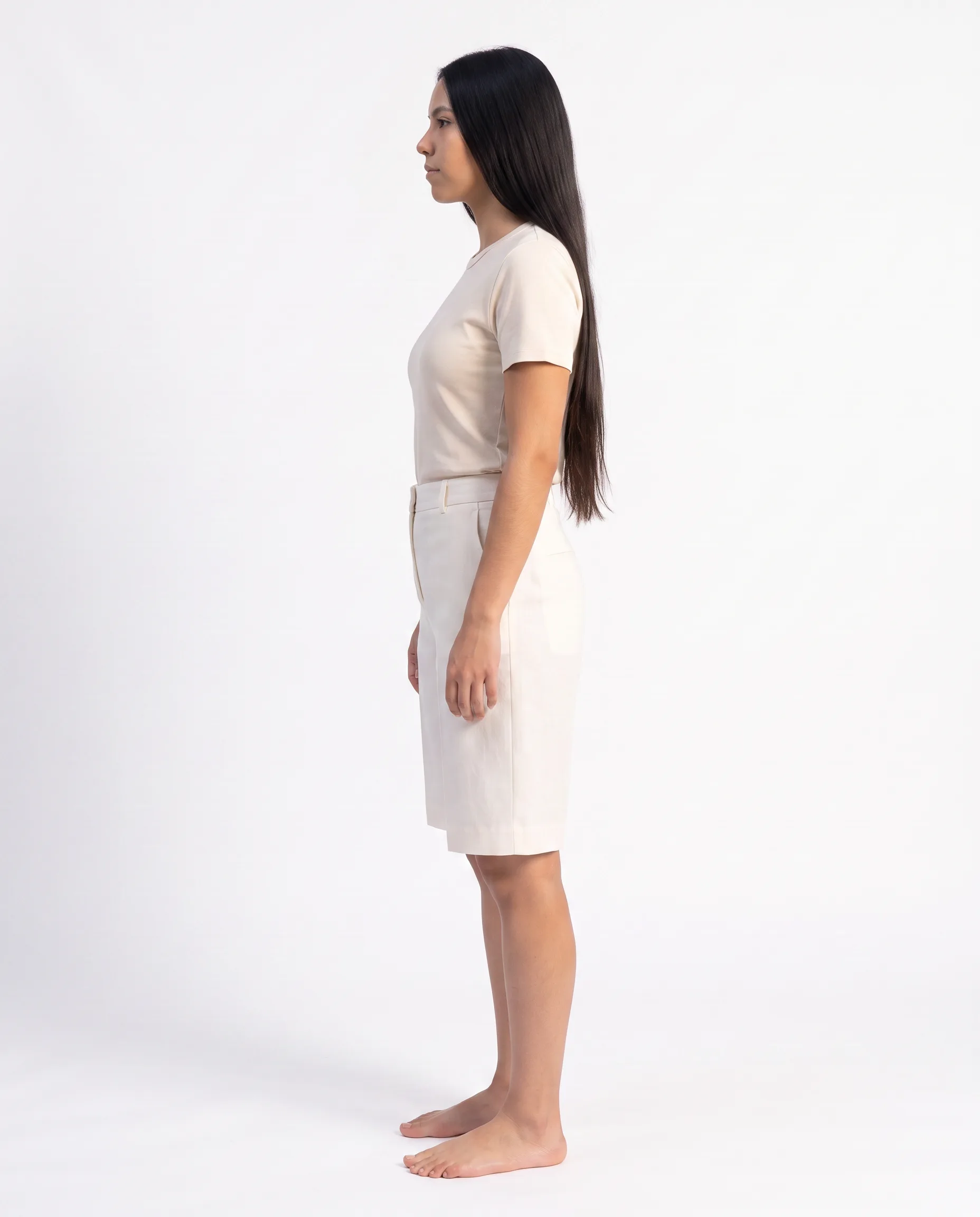
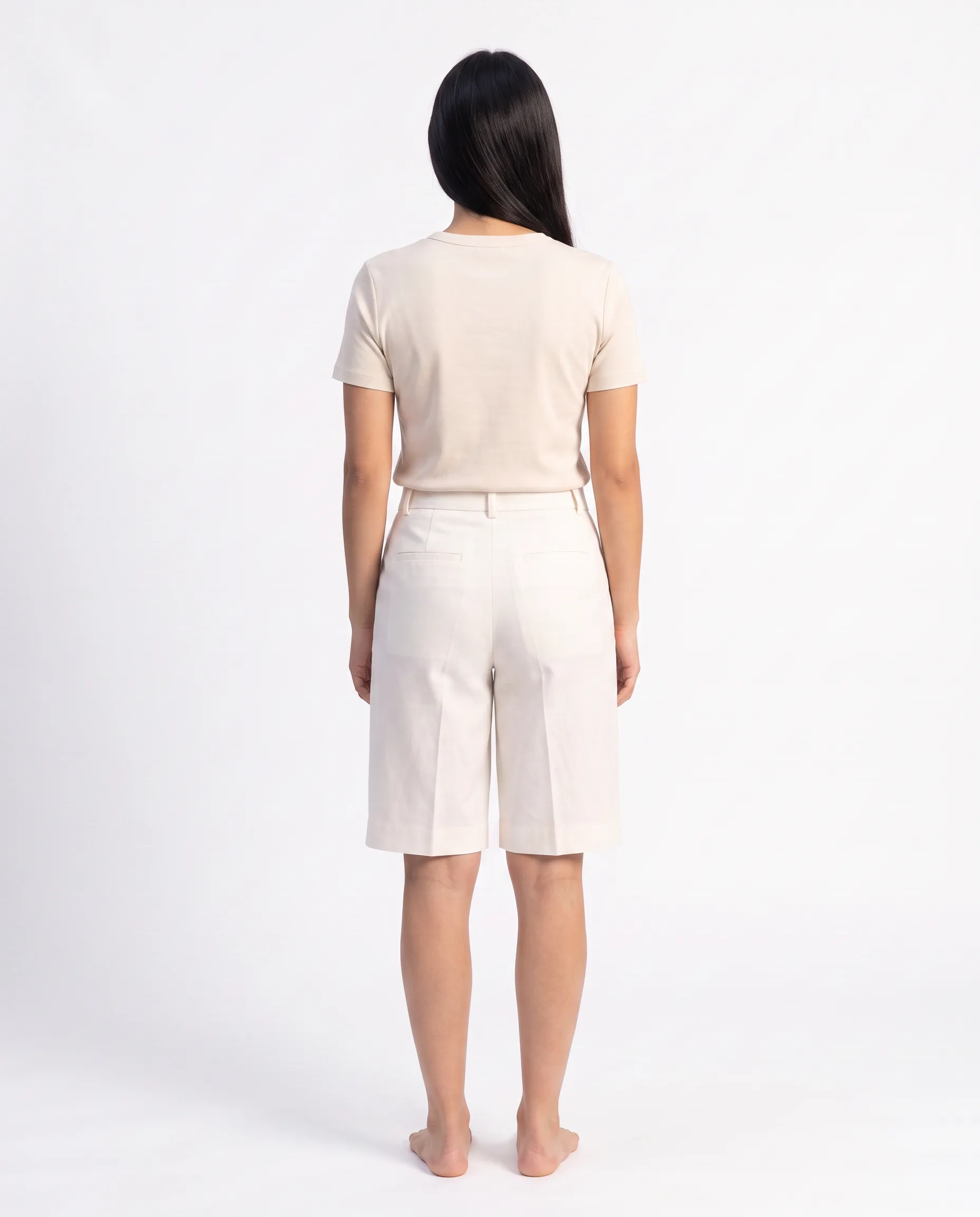
The rule that costs sellers most is the model: adult clothing has to be worn by a person in the main image [1][2], and many sellers start from flat lays, ghost-mannequin shots or supplier photos. Uwear puts the garment on a saved model from those photos. The shorts at the top of this page started as the ghost-mannequin photo on the left and came back as front, side and back photos on one model, standing, with nothing in her hands.
Those photos are not ready main images as they are. The studio backdrop looks white, but its pixels measure between 213 and 249, never 255, in the copies on this page. A white set from an image model is near-white, not Amazon's pure white. That is what Uwear Backdrop is for: it cuts the model out and fills the background with the exact color code you enter, so #FFFFFF behind the model is 255, 255, 255. Where hair or sheer fabric meets the background, the edge pixels are blended, and the photos on this page have not been through Backdrop, so check the file you download rather than taking the white on trust.
- Start from the photo you have. A flat lay, a ghost-mannequin or packshot photo, a garment on a hanger, or a supplier photo.
- Generate on a saved model, standing. A saved model is an AI-generated person kept in your account, so every product is worn by the same person. Pick 2K: at 1K a portrait is about 1,200 pixels tall, under the 1,600 the 2021 guide asked for.
- Make the background pure white. Run Uwear Backdrop with the color #FFFFFF. It cuts the model out and fills everything behind with that exact color, and returns a file up to 2,048 pixels on the long side.
- Crop for the garment type. Waist down for shorts and trousers, top body for tops, full length for dresses: see the table above. Keep the whole garment in the frame.
- Check the file you downloaded. Download as JPG or PNG, then open it in any image editor and read a few background pixels near the corners and around the hair: they should read 255, 255, 255. Check again after converting to JPEG.
- Add the AI tag, then upload. Add contains-synthetic-performer to the file’s keywords, then upload it as the MAIN image in Seller Central.
Uwear does not check your listing against Amazon's rules, crop to your garment type, or upload to Seller Central for you. Category rules can also change, so read the current pages in Seller Central before you replace a main image.
What it costs on Uwear
| Item | Credits |
|---|---|
| A photo on a saved model, default image model (Gemini 2.1) | 3 credits at 1K, 5 at 2K, 10 at 4K |
| A side or back view of an approved photo | Priced as a photo |
| Uwear Backdrop: a solid background color, such as #FFFFFF | 0 credits |
| Front, side and back of one garment at 2K | 15 credits, $1.50 |
| A credit | $0.10, no subscription |
The garment price is an estimate at published rates, not the recorded cost of the photos on this page; it counts each photo once, and a retake costs the same again. Rates for every image model are on the models page [5]. For what studios and photographers charge for the same photos, see clothing product photography cost per image.
Questions about Amazon clothing images
What are Amazon’s image requirements for clothing?
The main image must be a photo on a pure white background (RGB 255, 255, 255) showing the whole product, once, filling about 85% of the frame, with no text, logos, watermarks, props or packaging. Adult clothing goes on a standing model; mannequins, hangers and holders must not show. Files are JPEG, TIFF, PNG or non-animated GIF, 500 to 10,000 pixels on the longest side, and 1,000 or more to turn on zoom.
Can I use AI-generated models in Amazon clothing photos?
Amazon’s product image guide does not list them among prohibited images. It asks you to tag any image with photorealistic AI-generated people by adding the keyword contains-synthetic-performer to the XMP dc:subject field before upload, and Amazon adds a disclosure where applicable. Real people edited with AI tools do not need the tag.
Can I use ghost mannequin photos on Amazon?
Not as the main image for adult clothing. The current product image guide says not to show any part of a mannequin, and the clothing guidelines prohibit a visible mannequin, hanger or holder. The 2021 clothing guide lists ghost mannequins by name. Ghost-mannequin photos can still serve as product photos to generate model photos from.
What size should Amazon clothing images be?
Amazon accepts 500 to 10,000 pixels on the longest side and recommends 1,000 or more, which turns on zoom. The 2021 clothing guide asked for at least 1,600 pixels in height. Aim for 1,600 or more and you meet both.
Do kids’ clothes need to be on a model?
Children’s and baby undergarments, leotards, swimwear and similar form-fitting items must be shown lying flat, without a model, in every image. The 2021 clothing guide went further and asked for all kids’ and baby clothing off-model in the main image. Check your category in Seller Central before a shoot.
Sources
The three Seller Central pages are the US versions, read in English without logging in. The 2021 PDF is labelled for information only; check Seller Central for the current rule in your marketplace and category. Uwear rates are on the models page.
- [1] Amazon Seller Central: Product image guide (applies to selling in the United States). Accessed October 13, 2026.
- [2] Amazon Seller Central: Image guidelines for clothing (applies to selling in the United States). Accessed October 13, 2026.
- [3] Amazon Seller Central: How to tag media that contains an AI-generated person. Accessed October 13, 2026.
- [4] Amazon: Seller Imaging Guidelines, Clothing & Accessories, Spring 2021 (PDF, “for informational purposes only”). Accessed October 13, 2026.
- [5] Uwear models page: per-model credit rates, including Uwear Backdrop. Accessed October 13, 2026.