Uploaded Files Gallery & Batch Masonry Grid
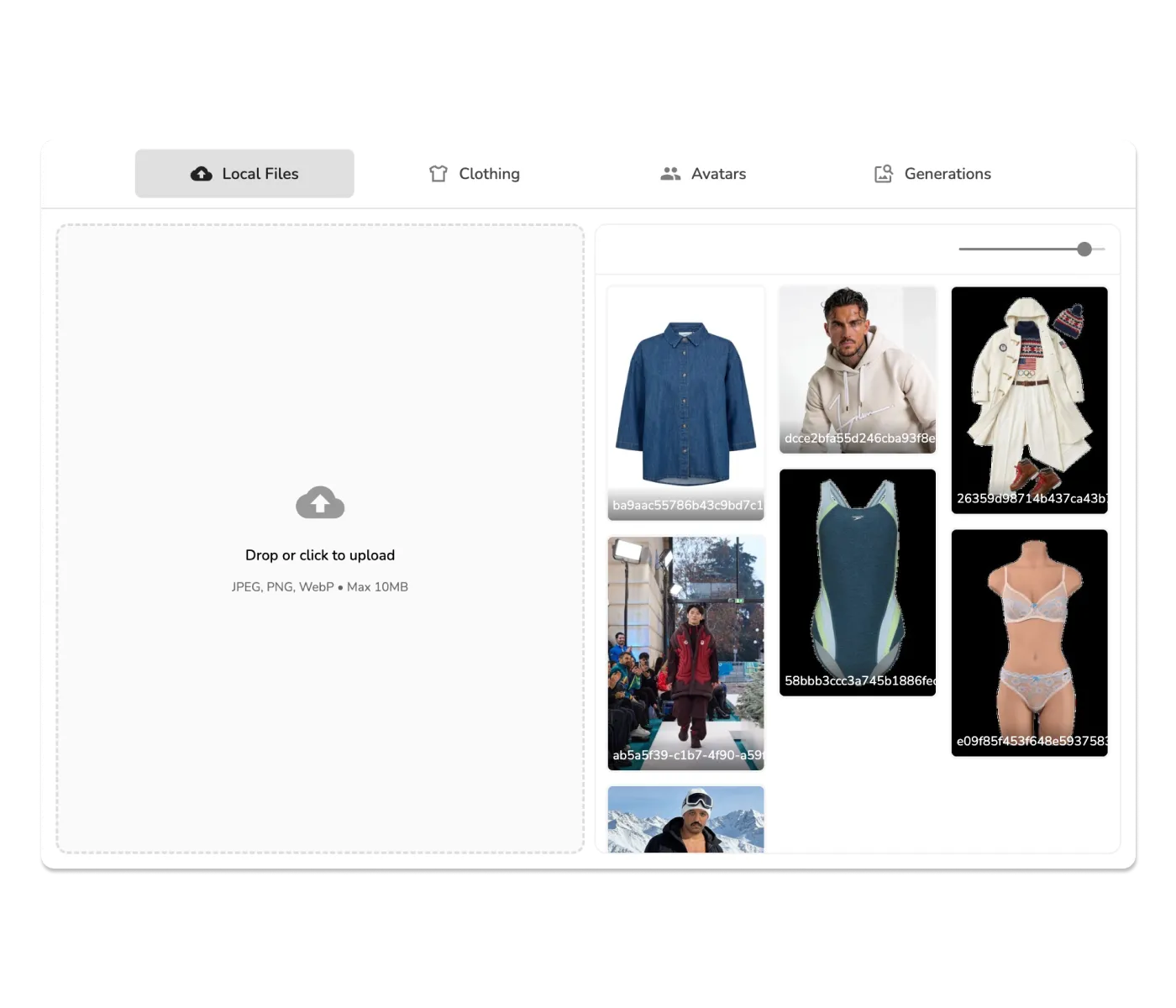
Two improvements to the Uwear Studio workspace today. Your uploaded reference images now live in a proper gallery — browse, select, and delete them without leaving the app. And batch generation results display in a cleaner masonry grid with a zoom slider for comfortable browsing.
Uploaded Files Gallery: Your Reference Library, Always at Hand
Until now, the Local Files tab was a basic list. Once you uploaded reference images, there was no easy way to review what you had, reuse an image from a previous session, or clean up files you no longer needed.
The new Uploaded Files Gallery changes that. Every reference image you've uploaded is now displayed in a grid — hover any image to reveal actions for selection or deletion, upload more files inline, and navigate your library without switching contexts.
What's new
- →Image grid view — All uploaded reference images displayed visually, not just as a file list
- →Hover actions — Select or delete any image directly from the grid
- →Multi-upload inline — Add more files without navigating away
- →Per-account isolation — Each company account sees only its own uploaded files; switching accounts clears the view correctly
For brands working with consistent AI models, this is a meaningful time saver. One brand operator told us they were re-uploading the same reference photos every session because there was no way to see what was already stored. That's no longer the case — your reference library is right there, ready to reuse.
The gallery works alongside the rest of the consistent models workflow — upload your model reference photos once and select them for any generation going forward.
Batch Results: Masonry Grid + Zoom Slider
The batch generation results view now uses a masonry layout — images fill the grid naturally based on their proportions, making it easier to scan a large batch at a glance without the uniformity of a rigid column grid forcing every image into the same box.
Alongside that, a zoom slider lets you adjust thumbnail size on the fly. Reviewing hundreds of outputs from a large batch generation run? Pull the slider down to see more images at once. Inspecting details? Pull it up for larger thumbnails. It's a small control that makes browsing large batches noticeably more comfortable.
This is particularly useful after running multi-step batch pipelines where you might have hundreds of outputs across different camera angles and edits to review.
Deployment Stability
One more change worth noting: blank screens after new deployments are now replaced by a user-friendly reload prompt. If your browser loads stale JavaScript chunks after an update, you'll see a clear message to refresh instead of a blank page. No action required — just a cleaner experience when we ship updates.
Try It in Studio
The Uploaded Files Gallery and batch masonry grid are live in your Uwear Studio account now. Open the Local Files tab to see your reference library, or run a batch and explore the new grid view.