Batch Step 2 Pipeline & Widget UX Overhaul
Two big updates today. Batch generation on the Uwear Platform now supports multi-step production workflows — generate, then chain camera edits, custom edits, upscale, and video, all in one CSV. And the Shopify try-on widget got a comprehensive UX overhaul that shoppers will actually notice.
Batch Generation: Full Production Pipeline
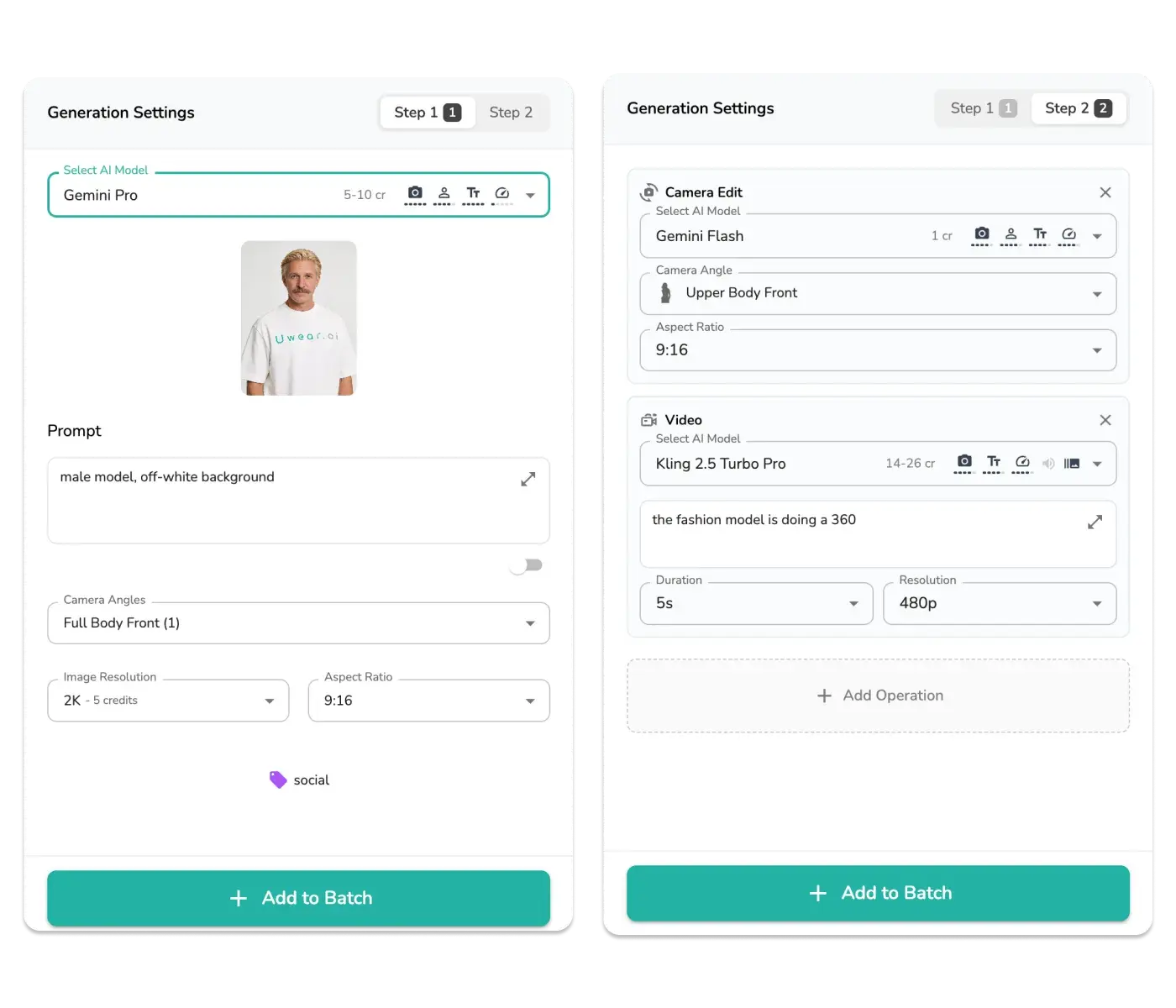
Until now, batch generation was a single step: upload your items, get on-model photos. Useful, but most brands need more. They want to adjust camera angles, apply edits, upscale to 4K, and generate video — all at scale. That used to mean multiple manual passes.
Not anymore. Step 2 operations turn batch generation into a full content production pipeline.
How It Works
- 1Generate — Upload your CSV with clothing items, prompts, and model settings as usual. This is Step 1.
- 2Chain operations — Add Step 2 columns to the same CSV: camera angle edits, custom edits, upscale, or video generation. They run automatically after Step 1 completes.
- 3Get final content — Your results come back fully processed. One upload, complete production-ready content.
Step 2 Operations
Camera Angle Editing
Select specific camera angles — front, side, back, three-quarter — for each item in your batch. Choose output resolution per item. The BatchUploadModal now shows all valid camera angles as selectable chips.
Custom Edits
Apply text-based edits to your generated results at scale. Change backgrounds, add accessories, adjust poses — the same AI Edits you use in the studio, but across thousands of images.
Upscale
Automatically upscale results to 4K as part of the pipeline. No second pass needed. Your batch output arrives print-ready.
Video Generation
Chain video generation directly onto your batch results. Go from flat-lay photos to on-model videos without touching the UI.
All Step 2 columns are documented in the BatchUploadModal and in our CSV batch upload guide. If you're already using CSV uploads, just add the new columns — everything is backwards compatible.
Why this matters: Enterprise customers processing thousands of items can now go from flat-lay to final, production-ready content — photos at the right angle, upscaled to 4K, with video — in a single CSV upload. One file, full pipeline.
New AI Models in Batch: SeedDream 4.5 & P-Image
Two new AI models are now available in batch CSV uploads. Use seedream_4_5 or p_image as your ai_model value. Both support reference images (up to 3) and aspect ratio control. SeedDream 4.5 also supports resolution selection up to 4K.
Shopify Widget: UX Overhaul
The Uwear Try-On widget on Shopify stores got a comprehensive polish. These are the details that make shoppers trust the experience and come back.
What Changed
- →Shimmer loading animations: No more blank states while try-on images generate. Shoppers see smooth shimmer placeholders that signal progress.
- →Size display on items: Clothing items in the widget now show their size, so shoppers always know what they're looking at.
- →Responsive result images: Try-on results now scale properly across screen sizes with improved object-fit handling.
- →Redesigned quota messaging: When shoppers hit their try-on limit, they see clear, friendly messaging with custom SVG icons instead of plain text.
- →Adaptive share overlay: The share feature now adjusts to screen size, working cleanly on both mobile and desktop.
- →Email consent disclaimer: Consent section now includes an email disclaimer for transparency.
These aren't flashy headline features — they're the polish that separates a tool shoppers tolerate from one they enjoy using. If you're a Shopify merchant using Uwear Try-On, the update is live now. Your shoppers are already seeing the improved experience.
Try the Batch Pipeline Today
Upload a CSV with Step 2 columns and watch your flat-lays become production-ready content — camera angles, edits, 4K upscale, and video, all in one pass.
Questions? Get in touch — we're happy to walk you through the new pipeline.