How to Upload Batch Requests with CSV for Faster AI Fashion Generation
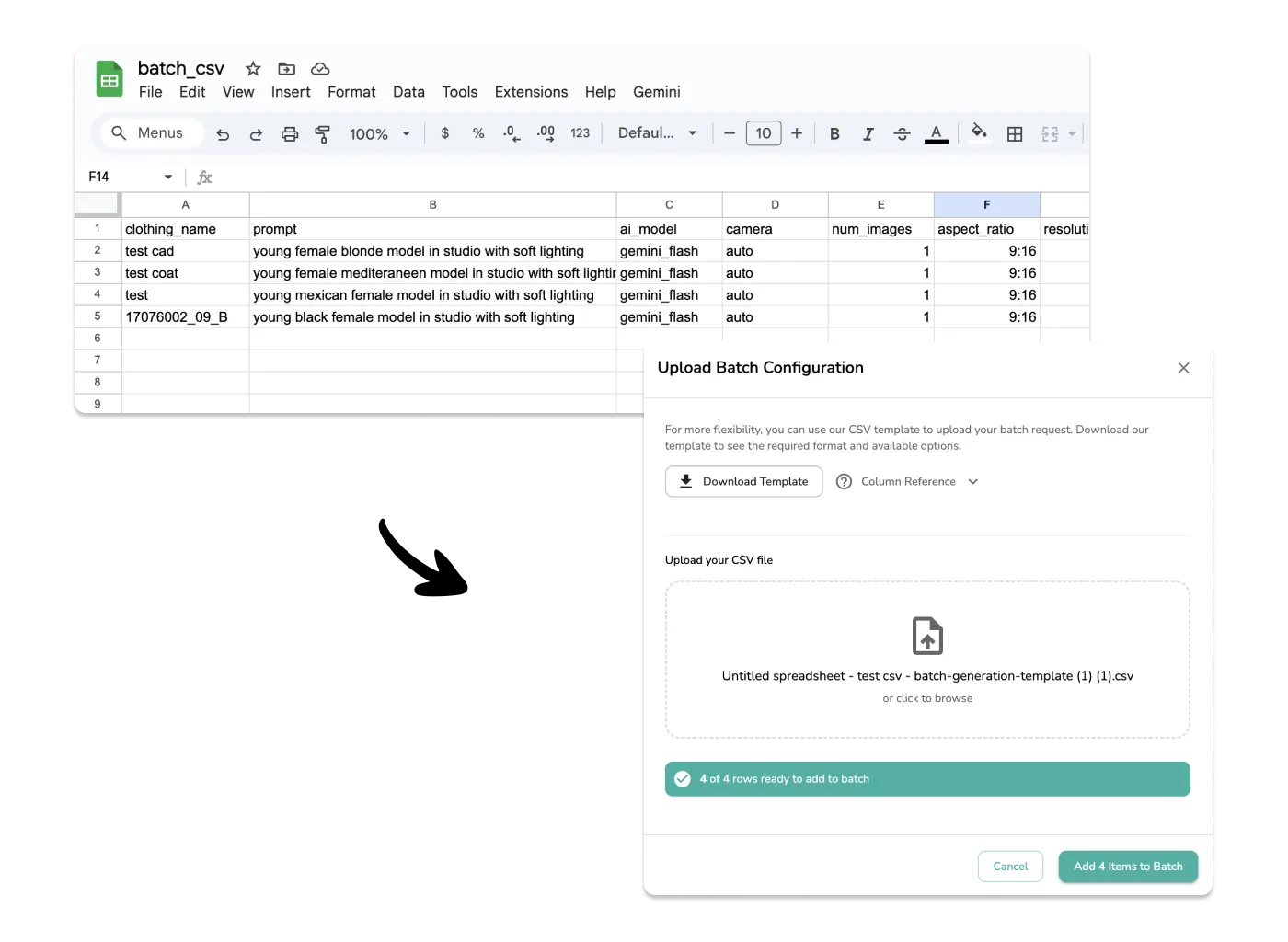
Managing large product catalogs just got easier. With our new CSV upload feature, you can configure hundreds of batch generation requests in a spreadsheet and upload them all at once. No more clicking through the interface for each item—just prepare your CSV, upload, and let the AI do the rest.
Video Tutorial
Why Use CSV Upload?
The CSV upload feature is designed for power users who need maximum control over their batch generation. Instead of manually selecting items and configuring settings one by one, you can:
- • Configure different AI models for different products
- • Set unique prompts for each clothing item
- • Specify different aspect ratios and resolutions per item
- • Assign specific AI models (avatars) to specific clothing
- • Process everything in one upload
Step 1: Download the CSV Template
Start by downloading our CSV template from the platform. This template includes all available columns with example values and comments explaining each field.
How to Get the Template
- 1. Go to the Batch Generation page
- 2. Click "Upload Batch Configuration"
- 3. Click "Download Template" to get the CSV file
- 4. Open it in Google Sheets, Excel, or any spreadsheet app
Step 2: Understanding the Columns
The CSV has several columns you can configure. Here's what each one does:
Required Columns
clothing_name
Must match exactly the name of an existing clothing item in your library (case-insensitive). This links your CSV row to the uploaded product image.
prompt
The description of the model and scene you want. Example: "young female blonde model in studio with soft lighting"
ai_model
Which AI model to use for generation. Options: gemini_flash, gemini_pro, seedream4, drape_2_5
Optional Columns
camera
Controls the shot type:
auto | full_body | upper_body | lower_body | upper_body_back | lower_body_back
aspect_ratio
Image dimensions (not supported by drape_2_5):
1:1 | 2:3 | 3:2 | 3:4 | 4:3 | 4:5 | 5:4 | 9:16 | 16:9 | 21:9
resolution
Output quality (only gemini_pro and seedream4):
1k | 2k | 4k
num_images
Number of variations to generate per row: 1 to 5 (default: 1)
model_name
Use a specific AI model/avatar from your library. Must match the name exactly (case-insensitive).
enhance_prompt
Let AI improve your prompt: true or false (default: true)
backdrop_color
Hex color for background (drape_2_5 only). Example: #ffffff
reference_images
Comma-separated URLs in quotes for style reference. Max 2 for gemini_flash, max 3 for gemini_pro and seedream4.
Feature Support by AI Model
Not all features work with every AI model. Here's a quick reference:
| Model | Resolution | Aspect Ratio | Backdrop | Ref Images |
|---|---|---|---|---|
| gemini_flash | — | ✓ | — | ✓ (max 2) |
| gemini_pro | ✓ | ✓ | — | ✓ (max 3) |
| seedream4 | ✓ | ✓ | — | ✓ (max 3) |
| drape_2_5 | — | — | ✓ | — |
Values May Update
The available AI models, aspect ratios, and other options may be updated as we add new features. Always download the latest template from the platform to see the current available options and check the "Column Reference" dropdown in the upload modal.
Step 3: Fill Out Your CSV
Open the template in your preferred spreadsheet application and add your batch requests. Each row represents one generation request.
Example CSV Configuration
| clothing_name | prompt | ai_model | camera | num_images |
|---|---|---|---|---|
| summer_dress_01 | young female model in sunlit studio | gemini_flash | full_body | 3 |
| denim_jacket | male model urban street style | seedream4 | upper_body | 2 |
| silk_blouse | elegant female model minimal backdrop | drape_2_5 | auto | 1 |
Step 4: Upload Your CSV
Open the Upload Modal
Go to Batch Generation and click "Upload Batch Configuration"
Drag & Drop Your CSV
Drop your CSV file into the upload area or click to browse
Review Validation
The system validates your CSV and shows how many rows are ready to add. Any errors or warnings will be displayed.
Add to Batch
Click "Add X Items to Batch" to add all valid rows to your batch queue
Smart Validation
The system automatically validates your CSV and provides helpful feedback. Invalid rows are skipped with clear error messages, and warnings help you understand when features aren't supported by your chosen AI model.
Pro Tips for CSV Batch Uploads
Match Clothing Names Exactly
The clothing_name column must match your uploaded clothing items exactly (though it's case-insensitive). Double-check for typos or extra spaces.
Use Different Models Strategically
Use gemini_flash for quick iterations, gemini_pro or seedream4 for high-quality finals, and drape_2_5 when you need precise backdrop control.
Combine with Regular Batch Generation
CSV uploads add to your existing batch queue. You can combine CSV uploads with manually added items for maximum flexibility.
Need help with your CSV? Our team can help you set up your first batch CSV or troubleshoot any issues. Contact us for personalized support.