How to Run an AI Fashion Photoshoot Without Leaving ChatGPT or Claude
Ask ChatGPT or Claude for an AI solution for fashion photoshoots and you usually get a list of tools to go sign up for. Connect the Uwear MCP server and the assistant stops recommending and starts producing: it reads your garments, picks a model, plans the looks, and comes back with one costed brief. You approve it, the shoot runs, and the finished product photos land in your Uwear workspace. You never leave the chat.
The film above runs the whole thing in 37 seconds: Introducing Uwear MCP shows a collection folder uploaded from chat, an art direction set in one message, and the finished on-model photos coming back.
This guide follows the production sequence from brief to art direction, generation, and QA, then shows the install for each client: ChatGPT, Claude, Claude Code, and Codex. All four connect to the same remote server with the same Uwear login, so start with the one your team already has open.
Short version: paste https://api.uwear.ai/mcp into your assistant, log in with your Uwear account, and ask for a shoot in plain language. The assistant prepares a costed photoshoot brief, nothing generates until you confirm, and every install path below also lives on the Uwear MCP page.
What a Fashion Photoshoot in Chat Looks Like
The run starts with three moves: ask, confirm the context, approve the cost. The first three screenshots below come from one real session with the Uwear MCP connected. The generation and QA captures are held behind a publish gate until the same staging session can be recorded end to end.
Step 1: Ask for the shoot
Start with one message. No brief template, no upload form, no new tab. The run in these screenshots started with a single line asking for an urban photoshoot.

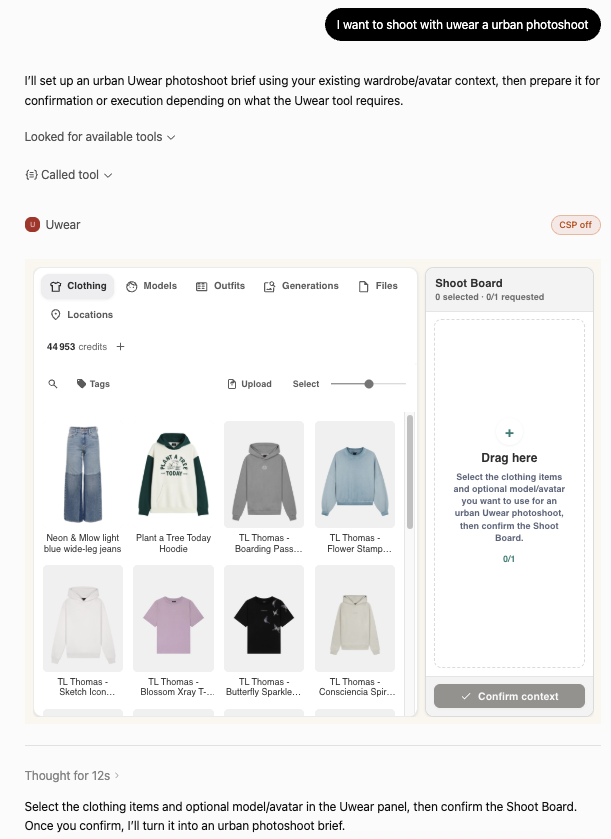
Step 2: Confirm the context in chat
The assistant calls the Uwear tools and opens your actual workspace inside the conversation: your clothing, your models, your credit balance. Drag the pieces you want onto the Shoot Board and confirm. On a local agent like Claude Code or Codex, this step can come straight from a product folder or a line sheet instead.
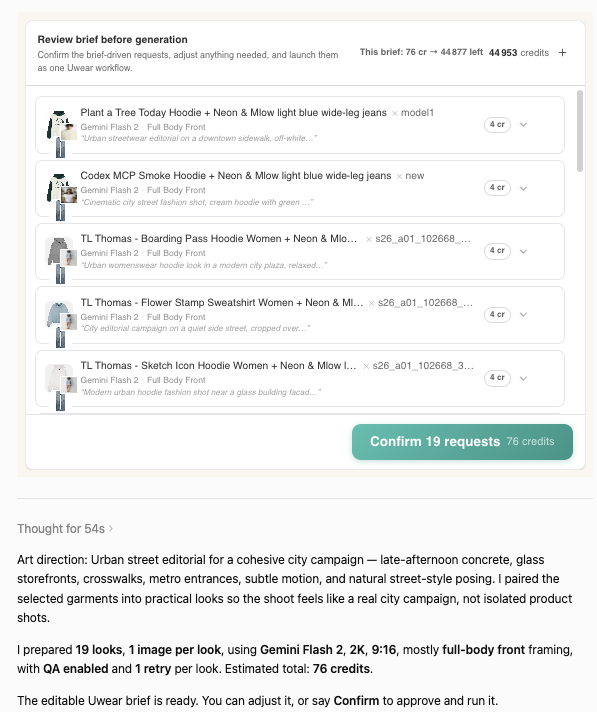
Step 3: Set the art direction and approve the costed brief
The assistant does the production thinking and comes back with an itemized brief: the looks it paired, the model, the framing, the art direction per look, and the exact credit cost of the run. Adjust any line, or confirm and let it run. Nothing spends a credit before you approve.
Step 4: Run the approved brief
After you confirm, the agent sends the approved requests to Uwear and follows their status until the results are ready. Each result stays tied to its garment, model, art direction, and generation settings. The finished images land in the same library Studio uses, so you can keep iterating in chat, review everything in Studio, or pull the files through the API.
Step 5: Let QA review the results
With QA on, the reviewer checks each result against the prompt, model, and garments in the look. Approved images are ready for delivery. A rejected result returns with the reason attached, and the agent can retry that exception instead of rerunning the whole shoot.
Run It From ChatGPT
In ChatGPT, Uwear is a plugin in the plugin directory, so there is nothing to configure and no developer mode: Uwear in ChatGPT.
- Open Plugins in the ChatGPT sidebar and search for Uwear.
- Click Install plugin and log in with your Uwear account.
- In any chat, ask Uwear for a photoshoot plan. The brief comes back for approval before any run.
Run It From Claude
In Claude, Uwear MCP installs as a custom connector, and it works on both Claude web and Claude desktop.
- Open Settings, then Connectors, then Add custom connector.
- Name it Uwear and paste the server URL:
https://api.uwear.ai/mcp - Log in with your Uwear account, then enable the connector in a conversation.
Run It From Claude Code
Claude Code runs on your machine, which changes what the photoshoot can touch: the agent reads garments straight from your product folders and writes finished images back to disk, exactly where your pipeline expects them.
claude mcp add --transport http uwear https://api.uwear.ai/mcp
- Add the server with the command above.
- Run /mcp inside Claude Code and complete the OAuth login with your Uwear account.
- Ask for a Uwear photoshoot plan. The brief comes back for approval before any run.
Run It From Codex
Codex connects with two lines of configuration and works straight from your folders, CSVs, and line sheets.
# ~/.codex/config.toml
[mcp_servers.uwear]
url = "https://api.uwear.ai/mcp"
- Add the server to ~/.codex/config.toml with the block above.
- Authenticate:
codex mcp login uwear - Point Codex at a product folder, CSV, or line sheet and ask for a Uwear photoshoot plan.
Using a different agent? Any client that supports remote MCP servers connects with the same URL and OAuth login, and the Uwear MCP page has a copyable install prompt the agent can follow on its own. Agents that prefer flat files can read llms.txt or UWEAR.md, both kept in sync with the product. The agent skills package repeatable workflows, while the JSON blog API gives assistants a machine-readable feed of Uwear product guides and updates.
What to Ask For Once Connected
Start with one message in the chat where you installed Uwear. These short examples show how a prompt becomes a plan, a quality check, or a folder of finished photos.
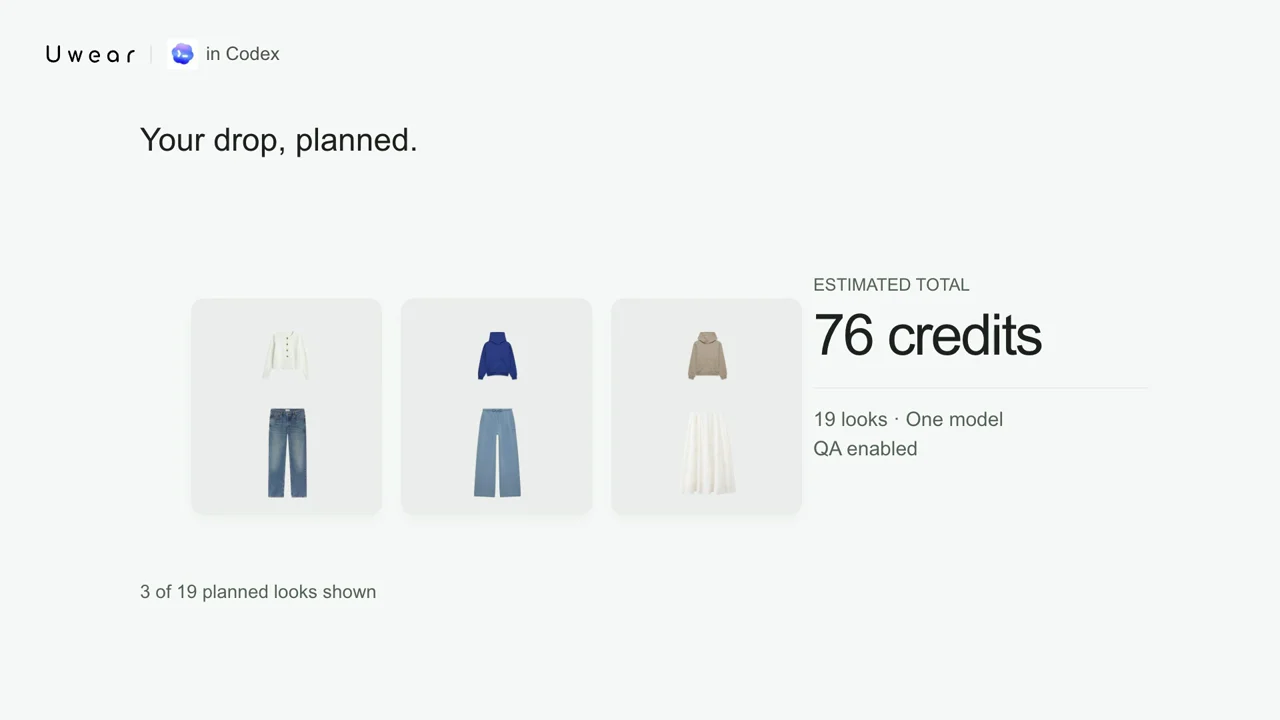
One prompt becomes a costed brief.
“Shoot this drop as an urban editorial. One model across every look.”
 0:11
0:11I prepared 19 looks, one image per look, QA enabled. Estimated total: 76 credits. The brief is ready to review; nothing runs until you confirm.
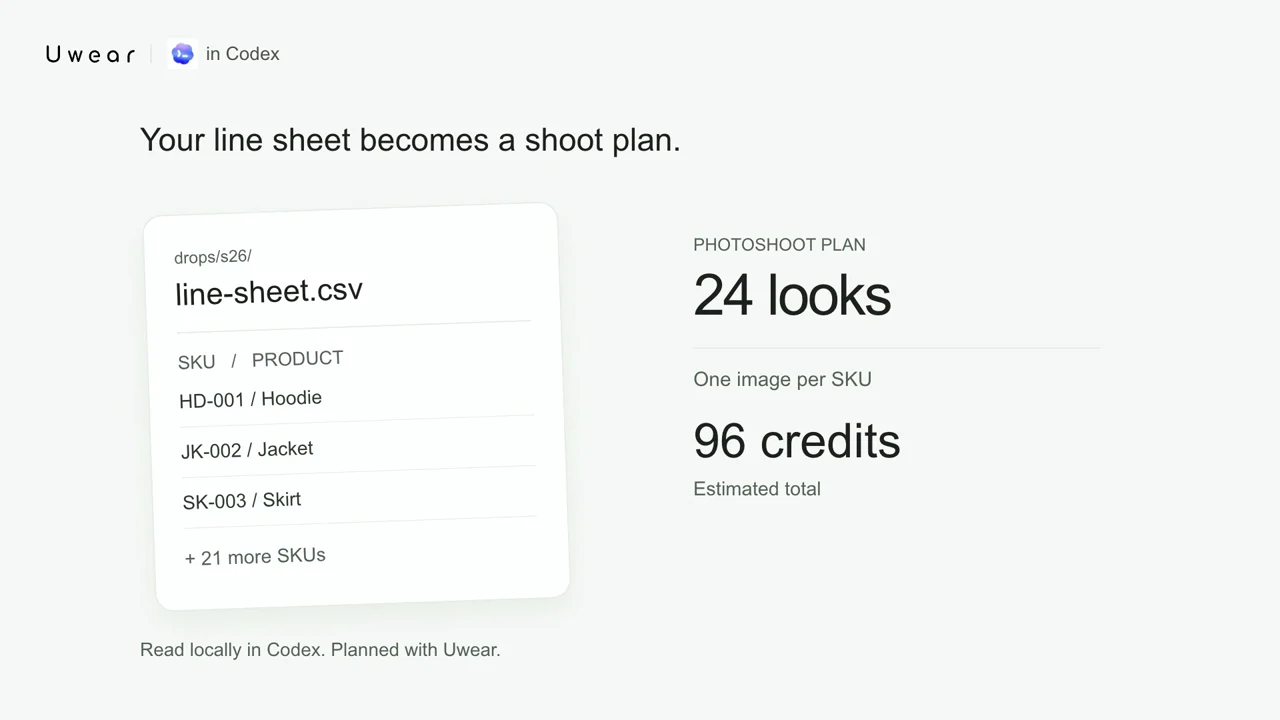
Local agents read your files.
“Here is drops/s26/line-sheet.csv. Prepare a photoshoot plan for every SKU and show me the cost first.”
 0:11
0:11Read 24 SKUs from the line sheet and matched them to the workspace. One image per SKU comes to 96 credits. Want the itemized plan?
QA comes back with reasons.
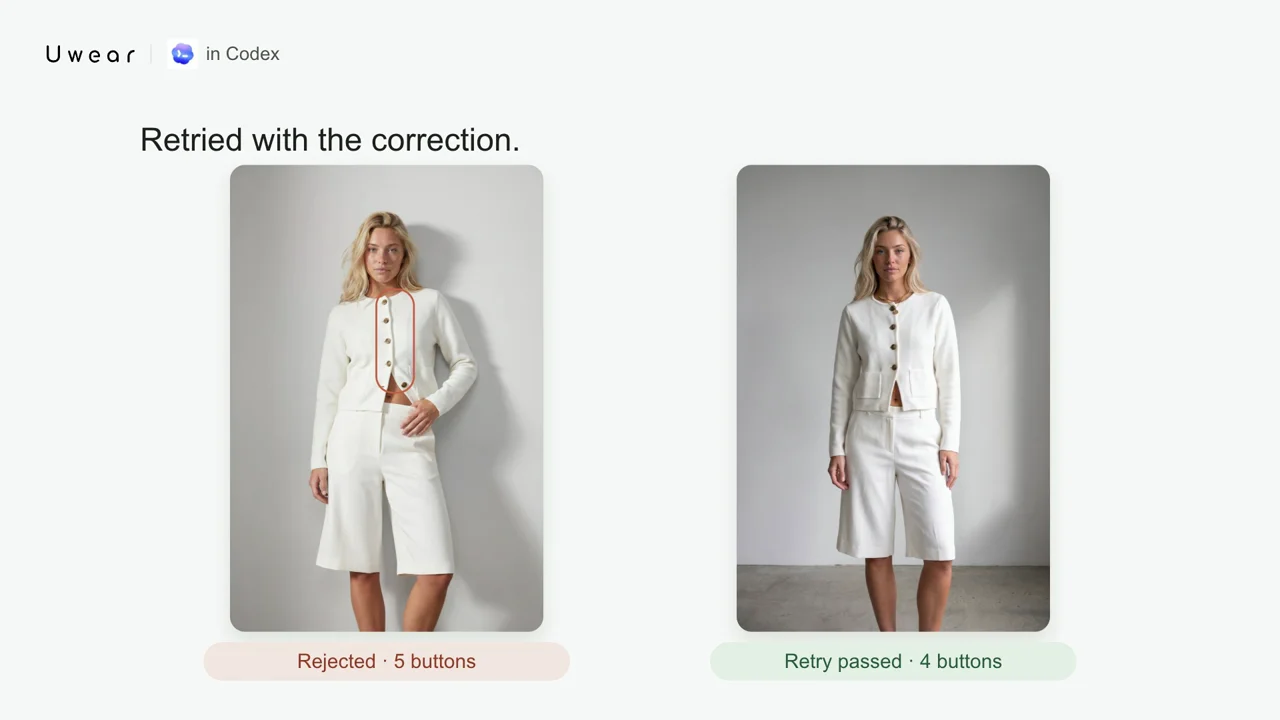
“Run QA on the finished results and retry anything rejected.”
 0:11
0:11Queued QA on 3 results. 2 approved, 1 rejected: five visible buttons instead of the four on the reference jacket. I re-ran it with the fix; the retry passed every check.
Results land where you work.
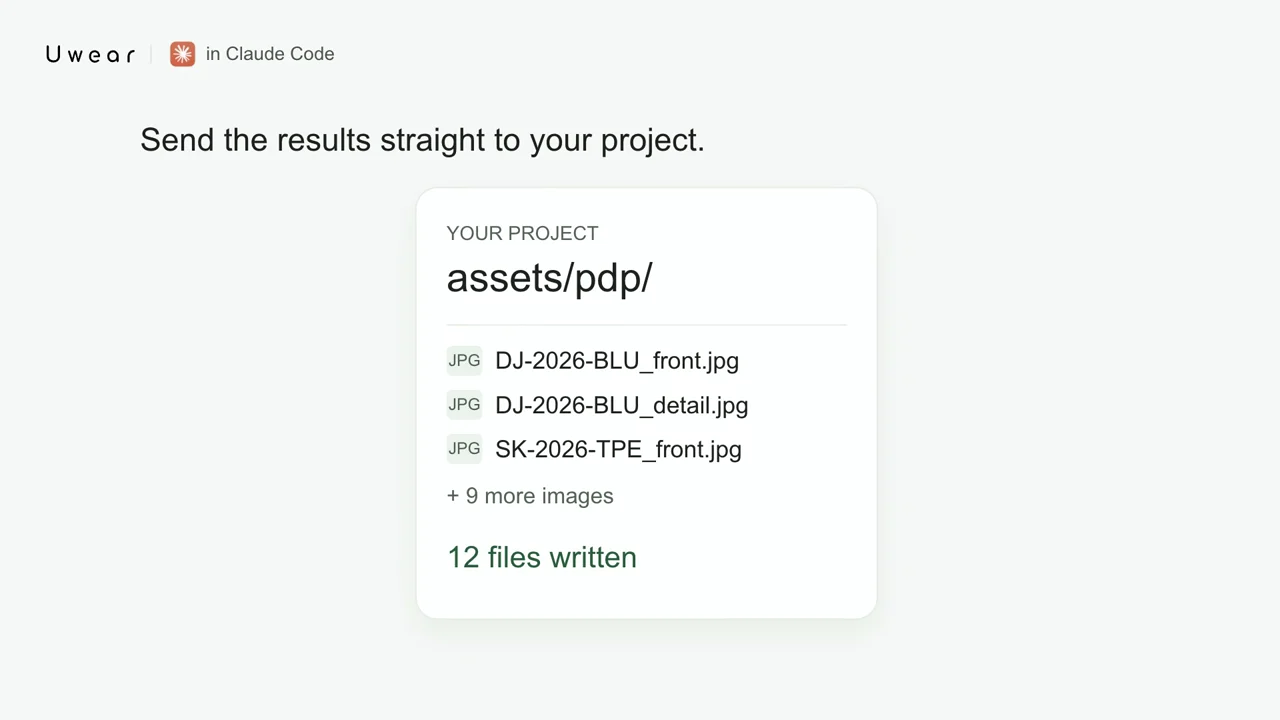
“Download the approved images into assets/pdp, named by SKU.”
 0:12
0:12Done. 12 files written to assets/pdp, named from the metadata on each garment.
Every top meets its best bottom.
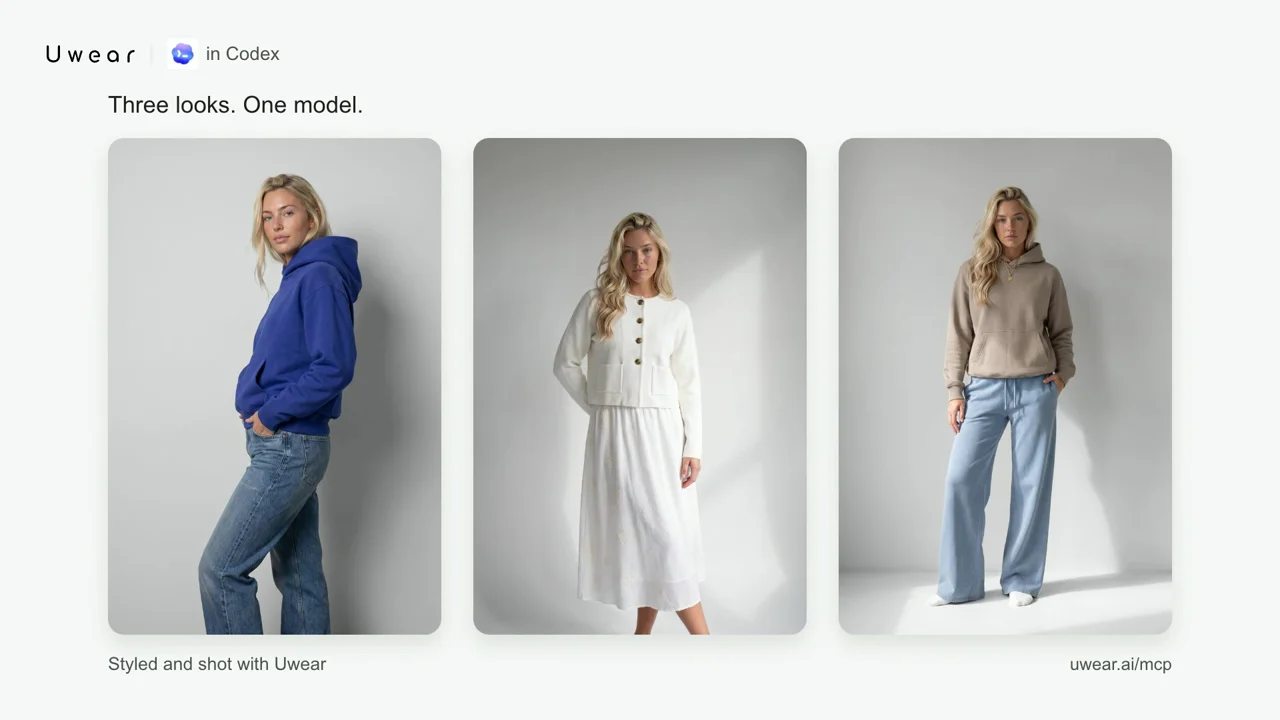
“Pair these tops with the right bottoms, then shoot the set on one model.”
 0:12
0:12Paired 3 tops with 3 bottoms and shot three looks on the same model. The finished set is in your workspace.
Turn On QA and an AI Reviewer Checks Every Result
QA rides in the same conversation, and it is a switch you flip, not a gate you wait behind. Turn it on, and the AI reviewer checks each result against your model, your prompt, and every garment in the look. What passes ships. What fails retries with the reason attached, like a jacket rejected for showing five buttons where the reference has four, then retried and approved.
Retries are generations, so they cost credits, and the brief prices all of it up front. The 76-credit run above already included QA with one retry per look, so the number you approve is the number you spend. The QA and retries page shows how the AI reviewer works in detail.
Start on the MCP Page
Everything in this post starts at the Uwear MCP page: install tabs for every client, the copyable agent install prompt, and the FAQ on approvals, credits, and where results land. If you would rather build against HTTP than chat, the same production runs over the REST API. The agent skills page packages repeatable workflows for agents that read instructions instead of tools. The UWEAR.md reference documents the production contract, llms.txt explains the product to AI crawlers, and the JSON blog API exposes the latest guides as structured data. Uwear MCP runs the same conversation inside the product, no external assistant needed.
Run Your First Shoot From Chat
Install the Uwear MCP server in ChatGPT, Claude, Claude Code, or Codex, or book a demo and we will run one collection brief with you.