Integration · WooCommerce
Generate on-model photos for your WooCommerce products
Select products with your assistant, generate a Product page set, then upload the images to WordPress and assign them with the WooCommerce REST API.
Use cases
What can you build?
Generate photos by product and variation
Build virtual try-on in your storefront
Assistant workflow
How do you run this from your assistant?
Proposed integration, not a preinstalled connection. Connect WooCommerce’s developer-preview MCP and Uwear MCP, then use assistant-executed REST or a built adapter for media. A dedicated media ability is a proposal.[6][7][8][9][10][11]
WooCommerce Model Context Protocol (MCP) Integration
Uses WordPress MCP Adapter. The inspected woocommerce/products-query, woocommerce/product-create and woocommerce/product-update schemas have no image fields. Read photos and write media through REST.[6][7][8][9][10][11]
Developer preview. Use a WordPress username and Application Password over HTTPS, or WP-CLI locally with --user; discover the installed tools first.[6][7][8][9][10][11]
MCP on WordPress.com
Approve the Product page set brief
Load Product page set on its Pure White studio at 2:3 with the AI reviewer on. Review the costed brief in credits before generating. QA is automatic and toggleable: when on, an AI reviewer compares results with source photos and retries flagged results.
Run it from your assistant
Run this photoshoot from your AI assistant with a Uwear template.
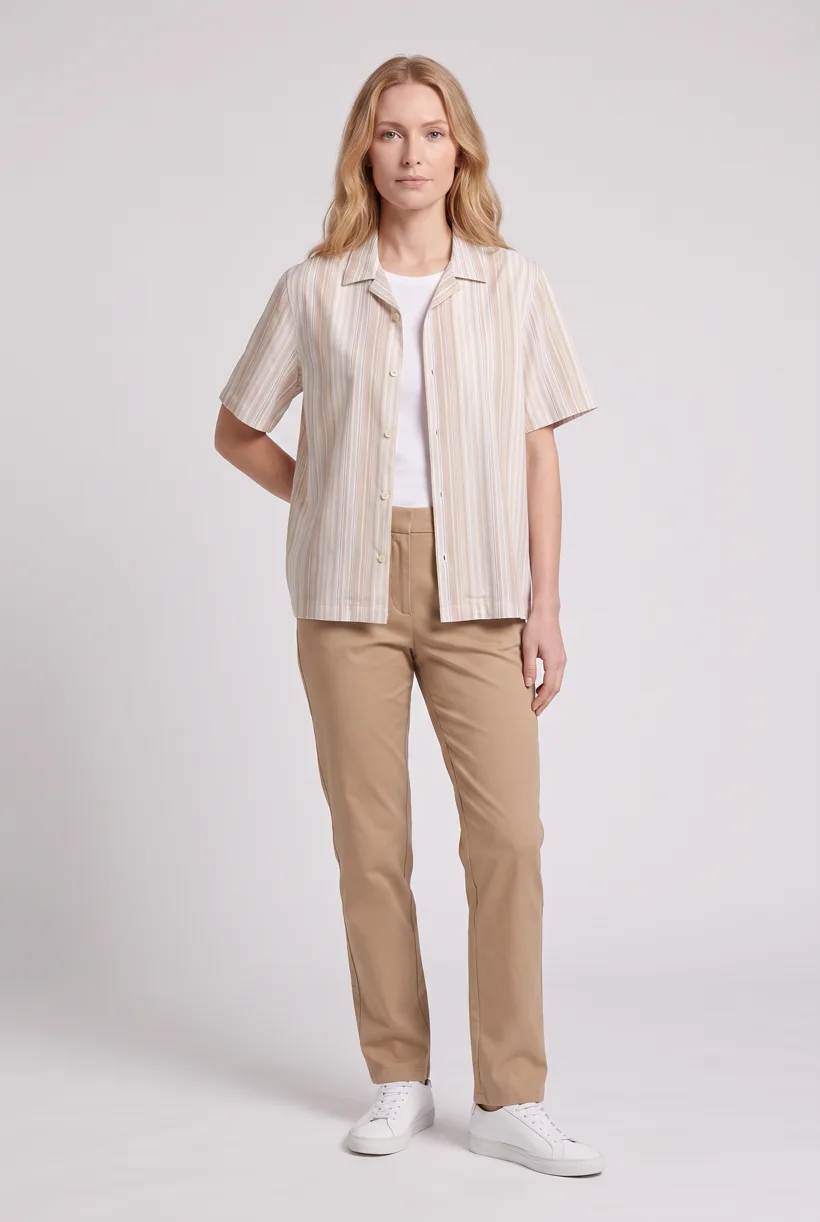
Connect the Uwear MCP server to ChatGPT, Claude, or Codex and ask for the Product page set template. It is a batch workflow that runs once per garment: front, upper-body, and back product-page shots on a white studio background, plus a 360-degree video, from one garment photo. Any Uwear account can load it by name, and the assistant shows a costed brief in credits before generation starts.
Copy this prompt into your assistant
Connect the WooCommerce Model Context Protocol (MCP) Integration through WordPress MCP Adapter and the Uwear MCP server in this session. Inspect the installed abilities, select products with woocommerce/products-query, read photos through Woo REST, and keep product, variation and attachment IDs. Load "Product page set" on its Pure White studio setup at 2:3, turn the AI reviewer on, and show me the costed brief in credits before generating. After I approve, use authorized REST operations or a built adapter to POST /wp-json/wp/v2/media, set alt_text, then PUT /wp-json/wc/v3/products/{id} with images containing attachment id and alt while retaining existing IDs. Wait for readiness and verify product and variation galleries before reporting.
What one run does, per garment
Generate the front hero
One full-body front photo of the garment on the template model, in the Basic white photoshoot art direction on the Pure White studio location.
Edit to the upper-body crop
A camera edit that reframes the front result to an upper-body front frame instead of generating a new image, so the crop comes from the same session as the hero.
Edit to the back view
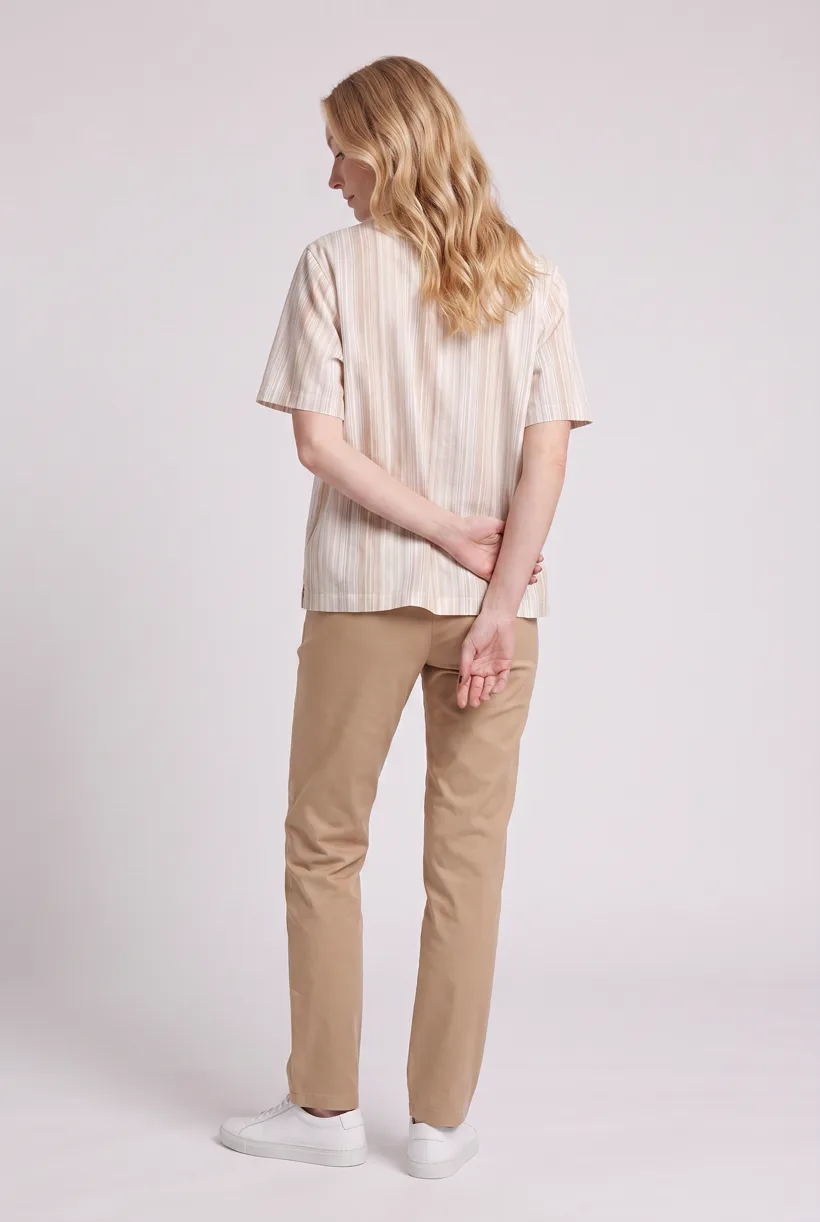
A second camera edit of the front result to a full-body back frame, so the product page gets the back of the garment from the same session.
Render the 360 turn
A 5-second Kling 3 Pro video from the front photo: the model turns a slow, full 360 degrees in place, garment readable throughout.
Outputs per garment
- Full-body front photo, 2K, 2:3
- Upper-body front photo, 2K, 2:3
- Full-body back photo, 2K, 2:3
- 5-second 360-degree video
The setup the template pins
- Template kind
- Batch workflow: runs once per garment row
- System key
- demo_full_pdp_test_white_studio
- Art direction
- Basic white photoshoot (system art direction)
- Location
- Pure White (system studio location)
- Model
- The Uwear system model by default; the assistant can swap in one of your saved models when it proposes the brief
- Image model
- nano-banana-pro, 2K, 2:3
- Video model
- Kling 3 Pro, 5 seconds
- QA
- Optional. With the AI reviewer on, each result is checked against the source product photo and flagged results are retried
- Approval
- The assistant shows a costed brief in credits before anything generates
Pure automation
How does API delivery work?
POST /wp-json/wp/v2/media with file bytes, Content-Type and Content-Disposition filename. Write alt_text through POST /wp-json/wp/v2/media/{id}, then PUT /wp-json/wc/v3/products/{id} with images entries containing attachment id, name and alt. Retain existing IDs: the submitted array replaces the featured/gallery assignment.[2][16][17][20]
Receive product events
A worker receives Woo product webhooks, validates the hash and keeps the product/variation mapping. Deduplicate events and ignore gallery updates caused by the worker itself.[40]
Run generation without an assistant
Submit Uwear REST API jobs and receive completion webhooks or poll. A published Production Automation can also start when a garment is processed, a tag is added or an outfit is created. These are Uwear workspace triggers; platform delivery still needs an adapter.
Platform requirements
What image specifications apply?
| Specification | Requirement or guidance |
|---|---|
| Source dimensions | Woo recommends at least 800 × 800 px; this is not a mandatory upload minimum.[21] |
| Ratio and crop | Square, custom and uncropped display options depend on the theme. They do not require a square source image.[22] |
| File limits | There is no verified universal WooCommerce byte ceiling. Check the host and PHP upload_max_filesize setting.[23] |
| Formats | Confirm the site’s allowed MIME types before selecting JPEG, PNG, WebP or AVIF; allowed types can be filtered.[24] |
| Variation images | Use image for the featured attachment and gallery_image_ids for additional attachments where supported. Check the installed version.[3] |
| Video | The documented core gallery-video beta uses the editor and excludes REST, CSV and variation galleries. Use a separately tested video display path.[21] |
Existing options
Which AI image tools are already available?
Documented features from the linked sources. These are not independent quality tests.
AI Product Image Generator for WooCommerce, W7S
A fit for quick concept images in the editor. Its FAQ says only the text prompt is sent to Gemini. The listing shows $39 for one year, plus separate API usage; currency and plugin-specific review totals were not verified.[26]
Fotogenic AI – AI Image Studio
A fit for existing-photo catalog work inside WordPress, including gallery publishing. The directory shows fewer than 10 active installations and 5/5 from one rating. Eligible accounts receive trial credits, not a verified number of free generations.[27]
VividCart – AI Product Images for WooCommerce
A fit for source-photo editing with direct OpenAI or Gemini billing and an apply-to-product action. The plugin is free; provider usage is separate. Fewer than 10 active installations and no reviews were shown.[29]
AnyDress – AI Virtual Try-On for WooCommerce & AI Product Photos
A fit for teams that want shopper try-on and an Admin Virtual Photoshoot dashboard in one plugin. Requires an AnyDress API licence. Fewer than 10 active installations and no reviews were shown; fit and returns claims were not validated.[30]
AI Virtual Try On for WooCommerce, Addify
A fit for shopper photo/camera try-on with placement and usage controls. The listing showed $59 for one year and localized to CAD $83 on direct fetch; confirm checkout currency. No own review total was verified.[32]
Frequently asked questions
The inspected core gallery-video beta guide excludes REST, CSV and variation-gallery support. Keep the clip separate and test the editor route or a custom video block.[21]
Uwear uses credits at $0.10 per credit; model rates are on /models. The assistant shows a costed brief before generation. QA is automatic and toggleable: when on, an AI reviewer compares results with source photos and retries flagged results.
Research
Sources and access dates
- [2]product CRUD endpoints and image fields
Accessed 2026-09-07
- [3]variation endpoints, image object and gallery attachment IDs
Accessed 2026-09-07
- [4]10.9 introduction, initial opt-in, REST support and theme support
Accessed 2026-09-07
- [5]current migration guide, stated 11.1 rollout and extension replacement
Accessed 2026-09-07
- [6]
- [7]official Adapter description and transports
Accessed 2026-09-07
- [8]exact query ability, filters, permissions and variation exclusion
Accessed 2026-09-07
- [9]exact update ability and permissions
Accessed 2026-09-07
- [10]exact create ability and permissions
Accessed 2026-09-07
- [11]mutation/output schemas, supported types and missing media fields
Accessed 2026-09-07
- [12]hosted MCP availability, endpoint and OAuth 2.1
Accessed 2026-09-07
- [13]
- [15]Woo REST key scopes and HTTPS Basic Auth
Accessed 2026-09-07
- [16]core media creation, update, metadata and readback
Accessed 2026-09-07
- [17]binary upload, filename headers and upload checks
Accessed 2026-09-07
- [18]WordPress Application Password authentication
Accessed 2026-09-07
- [20]remote image import, image ordering/replacement, alt and name writes
Accessed 2026-09-07
- [21]image-size recommendation, manual publishing and beta video restrictions
Accessed 2026-09-07
- [22]display sizes, cropping and theme-controlled presentation
Accessed 2026-09-07
- [23]configurable PHP upload/request limits
Accessed 2026-09-07
- [24]site/user-dependent, filterable allowed MIME types
Accessed 2026-09-07
- [26]W7S features, price, API context and vendor disclosure advice
Accessed 2026-09-07
- [27]Fotogenic workflow, gallery publishing, installations and rating
Accessed 2026-09-07
- [29]VividCart workflow, free plugin/provider billing and adoption
Accessed 2026-09-07
- [30]AnyDress catalog/try-on workflows, account requirement and adoption
Accessed 2026-09-07
- [32]Addify features, displayed/localized price and listing inconsistency
Accessed 2026-09-07
- [34]Single Product block templates and theme overrides
Accessed 2026-09-07
- [35]block registration metadata and relative block insertion
Accessed 2026-09-07
- [36]classic product actions and add-to-cart placement
Accessed 2026-09-07
- [39]custom REST routes and permission callbacks
Accessed 2026-09-07
- [40]product event delivery, secrets, hashes and logs
Accessed 2026-09-07
Next step
Connect your catalog to Uwear.
Start with an assistant-led test, then build the API delivery your catalog needs.