Integration · Salesforce Commerce Cloud
Generate on-model photos for your Salesforce Commerce Cloud catalog
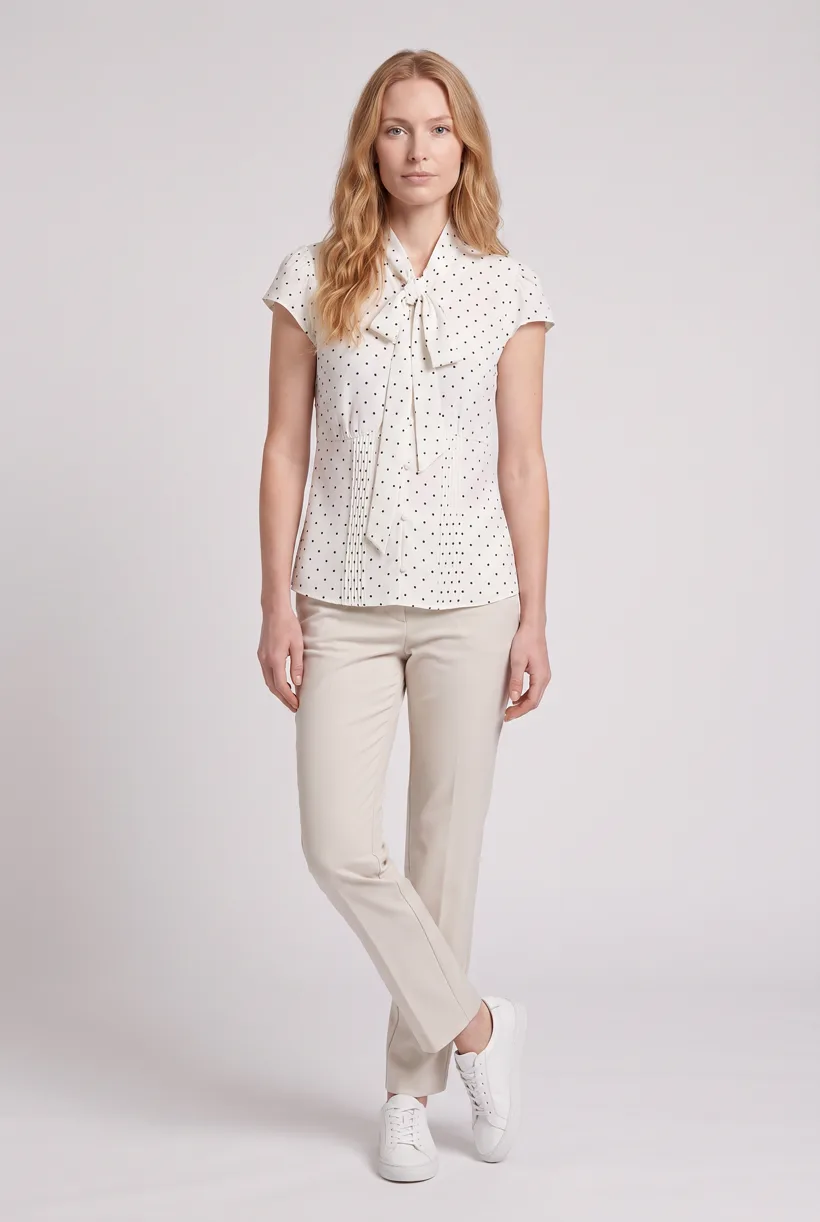
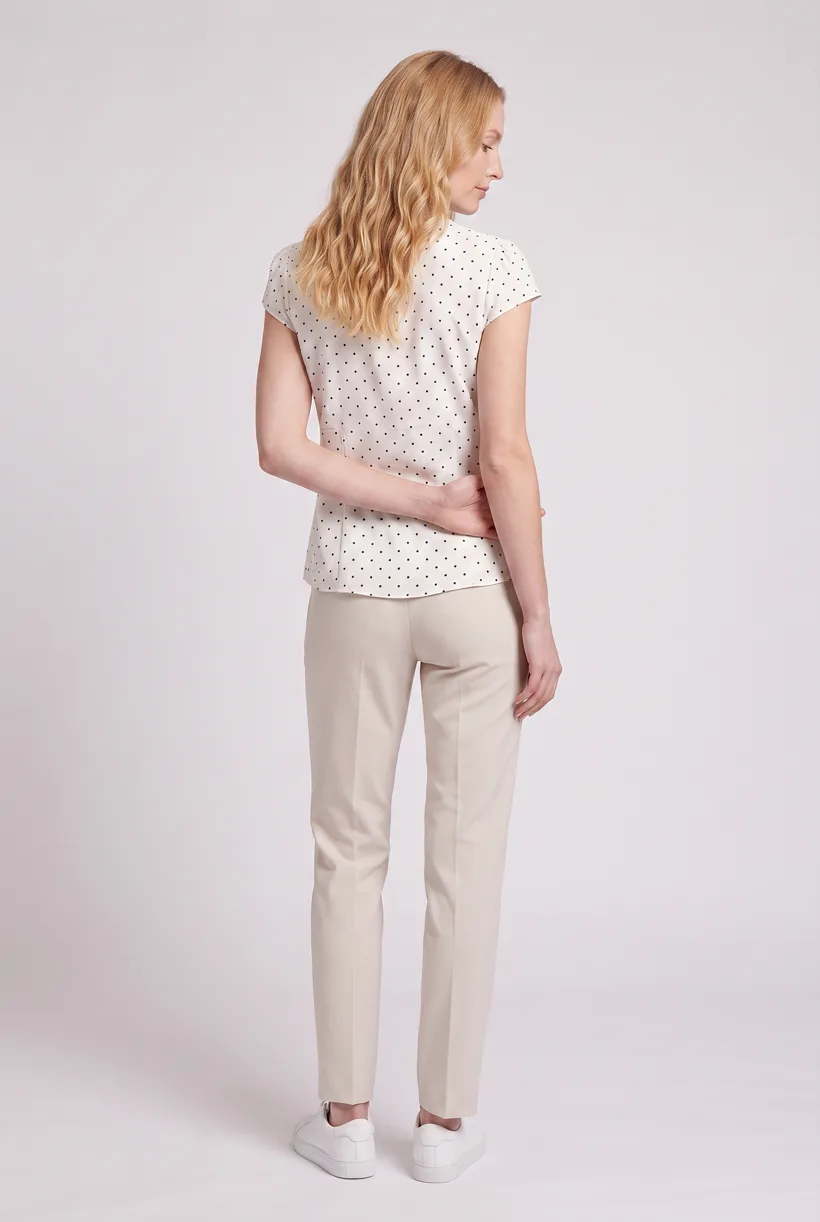
Generate Product page set views with your assistant, then publish through a built B2C catalog-import adapter that maps images to products and color variations.
Use cases
What can you build?
Generate catalog sets by color variation
Build virtual try-on for your storefront
Assistant workflow
How do you run this from your assistant?
Proposed integration, not a preinstalled connection. Use Uwear MCP plus authorized Salesforce API or file operations and an explicit catalog-import adapter. The shopper MCP cannot publish these images.[7]
B2C Commerce MCP Shopper Service
Merchant Agent for B2C Commerce
B2C DX MCP Server
Approve the Product page set brief
Load Product page set on its Pure White studio at 2:3 with the AI reviewer on. Review the costed brief in credits before generating. QA is automatic and toggleable: when on, an AI reviewer compares results with source photos and retries flagged results.
Wait for the import and verify the storefront
Under https://{instance}/s/-/dw/data/{version}, POST /jobs/{job_id}/executions and poll GET /jobs/{job_id}/executions/{id}. Read images through SCAPI and check the selected variation. Confirm the tenant’s staging-to-production publication process.[14][17][18][23]
Run it from your assistant
Run this photoshoot from your AI assistant with a Uwear template.
Connect the Uwear MCP server to ChatGPT, Claude, or Codex and ask for the Product page set template. It is a batch workflow that runs once per garment: front, upper-body, and back product-page shots on a white studio background, plus a 360-degree video, from one garment photo. Any Uwear account can load it by name, and the assistant shows a costed brief in credits before generation starts.
Copy this prompt into your assistant
Connect B2C DX MCP Server for developer context, the Uwear MCP server and authorized Salesforce API/file operations with an explicit catalog-import adapter. Read my B2C products and image groups and keep master product IDs, color variation values and view types; use B2C Commerce MCP Shopper Service only for supported reads if pilot access is enabled. Load "Product page set" on its Pure White studio setup at 2:3, turn the AI reviewer on, and show me the costed brief in credits before generating. After I approve, propose the image assignments, upload files to the discovered Catalogs/{catalogId} image directory over WebDAV, upload catalog XML to IMPEX/src and run the configured ImportCatalog job with reviewed merge settings. Poll OCAPI job execution, wait for readiness, read images back through SCAPI and verify the storefront and tenant publication steps before reporting.
What one run does, per garment
Generate the front hero
One full-body front photo of the garment on the template model, in the Basic white photoshoot art direction on the Pure White studio location.
Edit to the upper-body crop
A camera edit that reframes the front result to an upper-body front frame instead of generating a new image, so the crop comes from the same session as the hero.
Edit to the back view
A second camera edit of the front result to a full-body back frame, so the product page gets the back of the garment from the same session.
Render the 360 turn
A 5-second Kling 3 Pro video from the front photo: the model turns a slow, full 360 degrees in place, garment readable throughout.
Outputs per garment
- Full-body front photo, 2K, 2:3
- Upper-body front photo, 2K, 2:3
- Full-body back photo, 2K, 2:3
- 5-second 360-degree video
The setup the template pins
- Template kind
- Batch workflow: runs once per garment row
- System key
- demo_full_pdp_test_white_studio
- Art direction
- Basic white photoshoot (system art direction)
- Location
- Pure White (system studio location)
- Model
- The Uwear system model by default; the assistant can swap in one of your saved models when it proposes the brief
- Image model
- nano-banana-pro, 2K, 2:3
- Video model
- Kling 3 Pro, 5 seconds
- QA
- Optional. With the AI reviewer on, each result is checked against the source product photo and flagged results are retried
- Approval
- The assistant shows a costed brief in credits before anything generates
Pure automation
How does API delivery work?
Build a catalog-import adapter. Upload images with WebDAV PUT under https://{instance}/on/demandware.servlet/webdav/Sites/Catalogs/{catalogId}/ into the discovered image directory. Upload catalog XML under Sites/Impex/src/{workingFolder}/{file}.xml. Assign image-group view types, color variation values, image path, alt and title, then run an ImportCatalog job.[19][20][21][22][38]
Run generation without an assistant
Submit Uwear REST API jobs and receive completion webhooks or poll. A published Production Automation can also start when a garment is processed, a tag is added or an outfit is created. These are Uwear workspace triggers; platform delivery still needs an adapter.
Platform requirements
What image specifications apply?
| Specification | Requirement or guidance |
|---|---|
| DIS dimension ceiling | Salesforce Help’s indexed text states a maximum transformable size of 3,000 × 3,000 pixels. This is a transformation ceiling, not a required square ratio; the direct Help page returned a shell.[24] |
| DIS file threshold | Images over 6 MB are not transformed. This is not an upload rejection rule; confirm the Help guidance in the target deployment.[24] |
| Image-matrix size | The product-image JSON structure must not exceed 10 MB. This limit is not a limit on each image file.[4] |
| Delivery formats | Current responsive-image guidance recommends AVIF or WebP with JPEG or PNG fallback. Check the storefront’s delivery configuration.[25] |
| Image assignments | Use the merchant’s view types and variation values with image path, localized alt and title. Test merge behavior before changing an existing color group.[21] |
| Video | The catalog image-group schema does not establish video attachment. Use a separately confirmed player, DAM or content component for the 360 clip.[21] |
Existing options
Which AI image tools are already available?
Documented features from the linked sources. These are not independent quality tests.
Cloudinary B2C Commerce Cartridge; Cloudinary for Page Designer
A fit for media management, transformation and delivery after generation. The certified cartridges do not by themselves establish that every Cloudinary AI operation is available in Business Manager.[27]
Amplience Salesforce Commerce Cloud integration
A fit for CMS/DAM content planning and publishing, with an integration certified for SiteGenesis and SFRA. Current Salesforce-specific pricing and installation or review counts were not verified.[30]
Amplience Image Studio
A fit for AI product and campaign imagery within Amplience. The product material does not establish a ready-made garment-to-model action inside Salesforce.[31]
Amplience Studios + Salesforce Einstein Copilot preview
A 2024 preview of custom creative actions, a proposed fit for creative updates in a commerce interface. Future-tense launch language is not evidence of a released Agentforce image feature; current packaging and price remain unverified.[32]
Frequently asked questions
No. Salesforce Help’s indexed text describes a DIS transformation ceiling of 3,000 × 3,000 pixels, not a required ratio. The direct Help body was not accessible; confirm limits and gallery crops in your deployment.[24]
Uwear uses credits at $0.10 per credit; model rates are on /models. The assistant shows a costed brief before generation. QA is automatic and toggleable: when on, an AI reviewer compares results with source photos and retries flagged results.
Research
Sources and access dates
- [2]Composable Storefront, PWA Kit, MRT, React, API integration
Accessed 2026-09-07
- [3]SFRA cartridges, templates, controllers, third-party-call caution
Accessed 2026-09-07
- [4]
- [5]Product image view types, variation values, `getImage`/`getImages`
Accessed 2026-09-07
- [6]June 24, 2026 agent availability, Agentic Commerce Channels, PacSun example
Accessed 2026-09-07
- [7]
- [8]Merchant Agent scope and Business Manager access
Accessed 2026-09-07
- [9]
- [10]Official B2C DX MCP purpose, project detection, credential configuration
Accessed 2026-09-07
- [11]Actual built-in developer MCP tool inventory
Accessed 2026-09-07
- [12]Account Manager, WebDAV, SCAPI, and MRT authentication setup
Accessed 2026-09-07
- [14]Shopper Products endpoints, image response, SLAS scope
Accessed 2026-09-07
- [15]Admin Products search/read paths, authentication, read-only image groups
Accessed 2026-09-07
- [17]OCAPI product read-only media fields and job execution resources
Accessed 2026-09-07
- [18]OCAPI Data API URL construction and configurable version
Accessed 2026-09-07
- [19]
- [20]Exact WebDAV base URL and file client implementation
Accessed 2026-09-07
- [21]Catalog image-assignment XML, variants, paths, alt/title, merge behavior
Accessed 2026-09-07
- [22]Built-in catalog import step and IMPEX working-folder contract
Accessed 2026-09-07
- [23]CLI job execution and monitoring
Accessed 2026-09-07
- [24]
- [25]Current AVIF/WebP delivery and JPEG/PNG fallbacks; article body fetched
Accessed 2026-09-07
- [27]Certified B2C Commerce and Page Designer cartridges
Accessed 2026-09-07
- [30]Certified Salesforce integration and content publishing capabilities
Accessed 2026-09-07
- [31]Amplience Image Studio product and campaign image-generation claims
Accessed 2026-09-07
- [32]Historical preview of Copilot image actions, not current GA evidence
Accessed 2026-09-07
- [34]
- [35]Storefront Next Page Designer decorators and component loading
Accessed 2026-09-07
- [36]Local stdio installation and non-GA tool flag
Accessed 2026-09-07
- [38]Catalog WebDAV root mapping and directory discovery
Accessed 2026-09-07
Next step
Connect your catalog to Uwear.
Start with an assistant-led test, then build the API delivery your catalog needs.