Retouch Presets, Default Parameters, and CSV Export: Changelog March 21-27, 2026
Six releases landed between March 21 and March 27. The theme: speed up the repetitive parts. Set your defaults once. Save your retouch settings as presets. Export your analytics to a spreadsheet. Here is everything that shipped.
Set Your Default Generation Parameters Once
If you always generate at the same aspect ratio, with the same model, at the same resolution, you were clicking through those dropdowns every single time. That is done now.
Settings now has a Preferences tab (replacing the old AI Models tab) with five operation cards: Image Generation, Image Edit, Upscale, Video, and Batch. Set your defaults per operation type. The next time you open Studio, those fields pre-fill automatically.
What you can set as defaults
- →Image Generation: aspect ratio, resolution, number of images, camera zoom, model
- →Image Edit: aspect ratio, resolution, edit mode, model
- →Upscale: target resolution
- →Video: duration, resolution, generate audio toggle
- →Batch: model selector
The available options for each parameter are driven by the selected model's capabilities, not hardcoded. Switching models updates the dropdown options automatically. To revert a field to its page default, set it to the "Not set" placeholder.
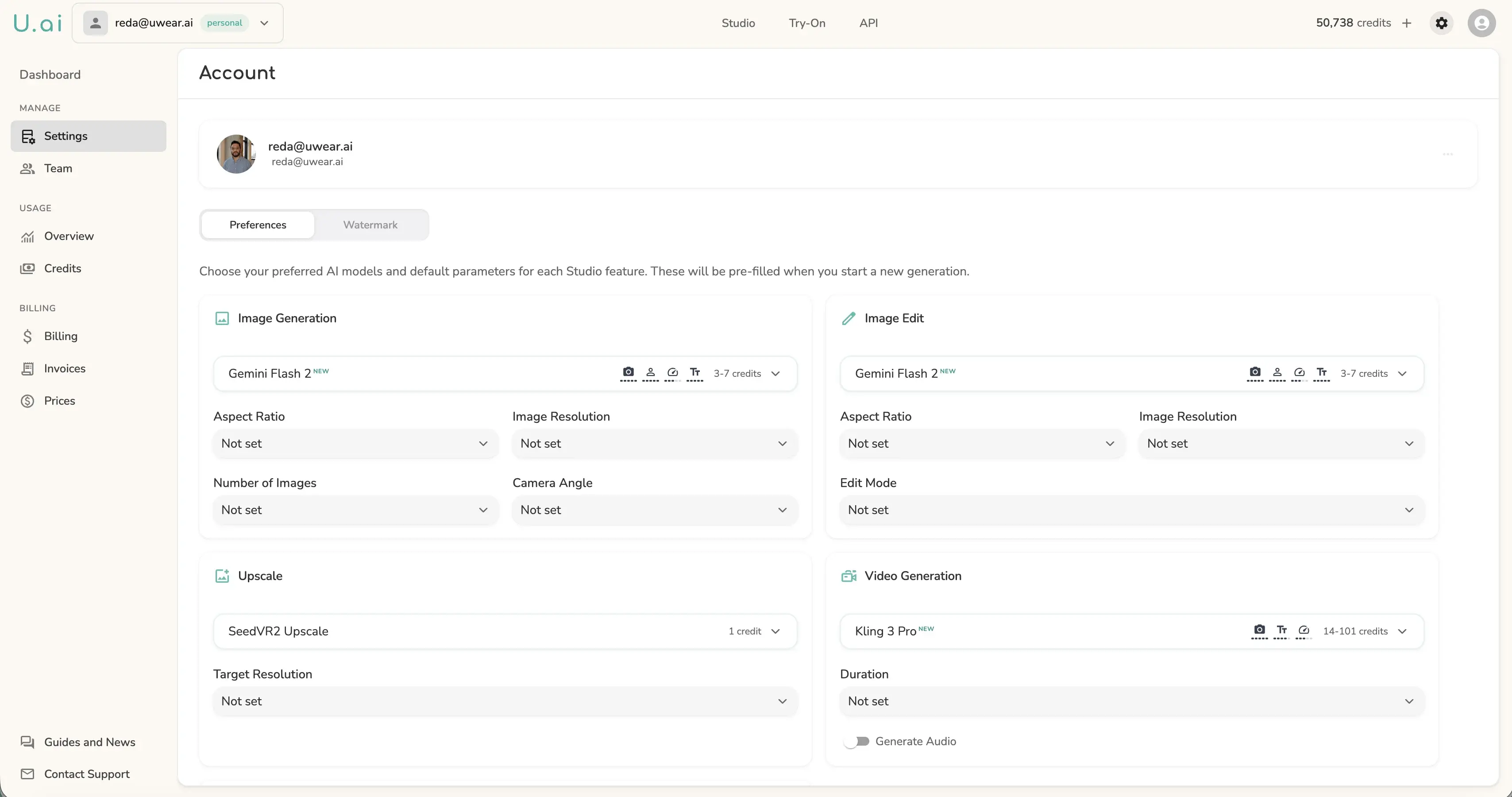
Note: preferences save to your browser via localStorage. They are per-device, not synced across machines.
Retouch Presets: Save and Reuse Your Adjustments
The Retouch Editor now supports named presets. If you have a consistent set of adjustments you apply to product shots, you can save that state as a preset and apply it to the next image in one click.
How presets work
- →Save: Name your current slider state and save it. Default name is "Quick Retouch". Saving with an existing name overwrites it.
- →Apply: Open the Presets tab in the toolbar, pick a preset, and all sliders jump to the saved values instantly.
- →Remove: Delete individual presets you no longer need.
- →Dimensions overlay: The current image dimensions (W x H) now display on the canvas while you retouch.
This pairs with the retouch save feature from earlier this month: adjust, save the preset for next time, then save the image directly to your platform library.
Retouch Save Now Works on Uploaded Files
Previously, the retouch editor's Save button was disabled if the image came from Files Manager (an upload, not a generation). You could retouch it, but you had to download it manually. That restriction is gone.
Saving a retouched upload now creates a new file in Files Manager with the original tags carried over. The saved file is named {originalName}-edited.png and the confirmation reads "Saved as new file" instead of "Saved to gallery" so you know exactly what happened.
Four Batch CSV Templates Instead of Two
The Batch Upload Modal now has four CSV template types, up from two. Each covers a distinct workflow:
| Template | Use case |
|---|---|
| Try-On + Camera Edits | Try-on combined with re-shoots from different angles |
| Try-On + Custom Edits | Try-on combined with prompt-based custom editing (new) |
| Generation + Operations | Generate images then chain follow-up operations |
| Image + Model Swap | Swap the person in an uploaded image with a different avatar or model (new) |
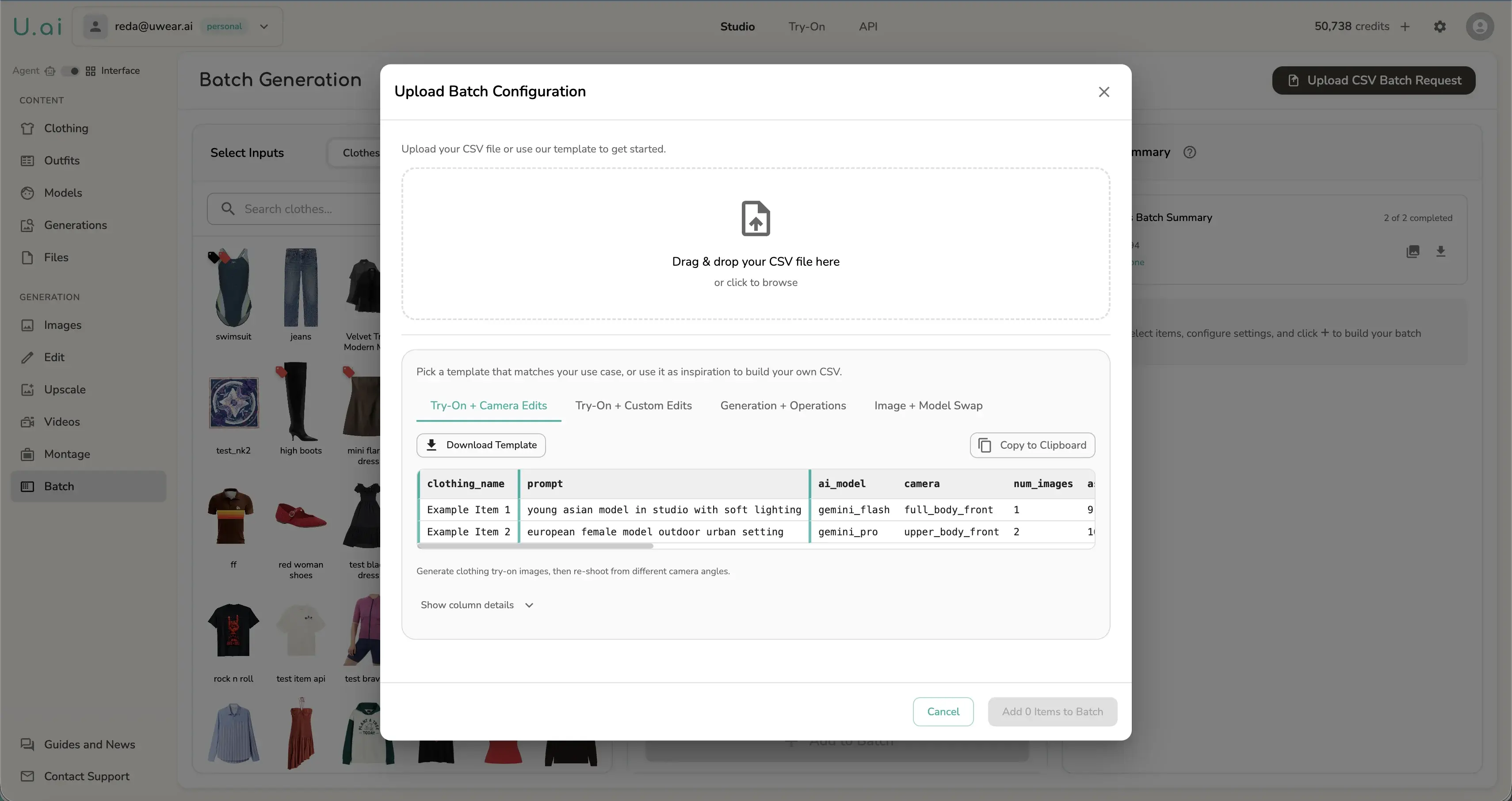
The credit count preview in the modal now tracks the swap-model operation type alongside existing types. Tabs are scrollable so the modal stays usable as more templates are added.
Bulk Download: 50-Image Cap with a Counter
Bulk ZIP download previously failed silently if you selected more than 50 images. The backend returned a 422 error and nothing visible happened on your end.
Now the frontend enforces the limit before you submit. Entering Select mode shows a 0/50 counter in the Cancel button. The counter turns red and bold at 50. If you try to select past the limit via shift-click, a toast fires and selection stops. No more silent failures.
Delivery also changed: zips now arrive via presigned S3 URLs instead of blob streaming, which is faster and more reliable for large batches.
CSV Export for Team Usage Analytics
The Team Usage Dashboard now has a Download CSV button. It sits in the section header controls alongside the Credits/Count toggle and the period selector.
What gets exported
- →Members view: Per-user credit breakdown with per-use-case columns
- →Activity view: Per-use-case data with per-member breakdown columns
- →Models view: Per-model data with per-member breakdown columns
The export respects whichever metric toggle you have active (Credits or Count). The filename includes the view name and the current period label, for example team-usage-members-last-30-days.csv. The file includes a UTF-8 BOM for clean Excel compatibility.
Under the Hood: Stability Improvements
Two reliability fixes shipped alongside the user-facing features:
- →Reduced redundant API calls per generation event. Previously, three separate stores each polled the API and subscribed to WebSocket events independently, causing 3-4 duplicate calls per completed generation. Each store now coordinates through a single WebSocket connection. The asset picker also snapshots state when it opens instead of making a fresh API call, so browsing your results while a batch runs no longer resets the picker scroll position.
- →Analytics chart timezone fixes. Day boundaries in the Team Usage time-series chart now align with your local timezone. Previously, users west of UTC saw bars shifted one day back because the chart was bucketing by UTC midnight. Two fixes landed: UTC date methods for client-side bucketing, and the browser's IANA timezone now passes to the backend so the API truncates dates correctly on its end.
Billing Now Supports ~250 Countries
The country selector on the billing address page previously listed 44 countries. It now covers the full ISO 3166 list of approximately 250 countries via a searchable autocomplete field. If your country wasn't available before, it is now.
All of This Is Live Now
Default parameters, retouch presets, new batch templates, CSV export, and bulk download improvements are all in Uwear Studio. Log in to try them.
Questions or feedback? Reach out. We read everything.