Studio Update: Download Batch Results, Inline Renaming, and a Cleaner Workflow
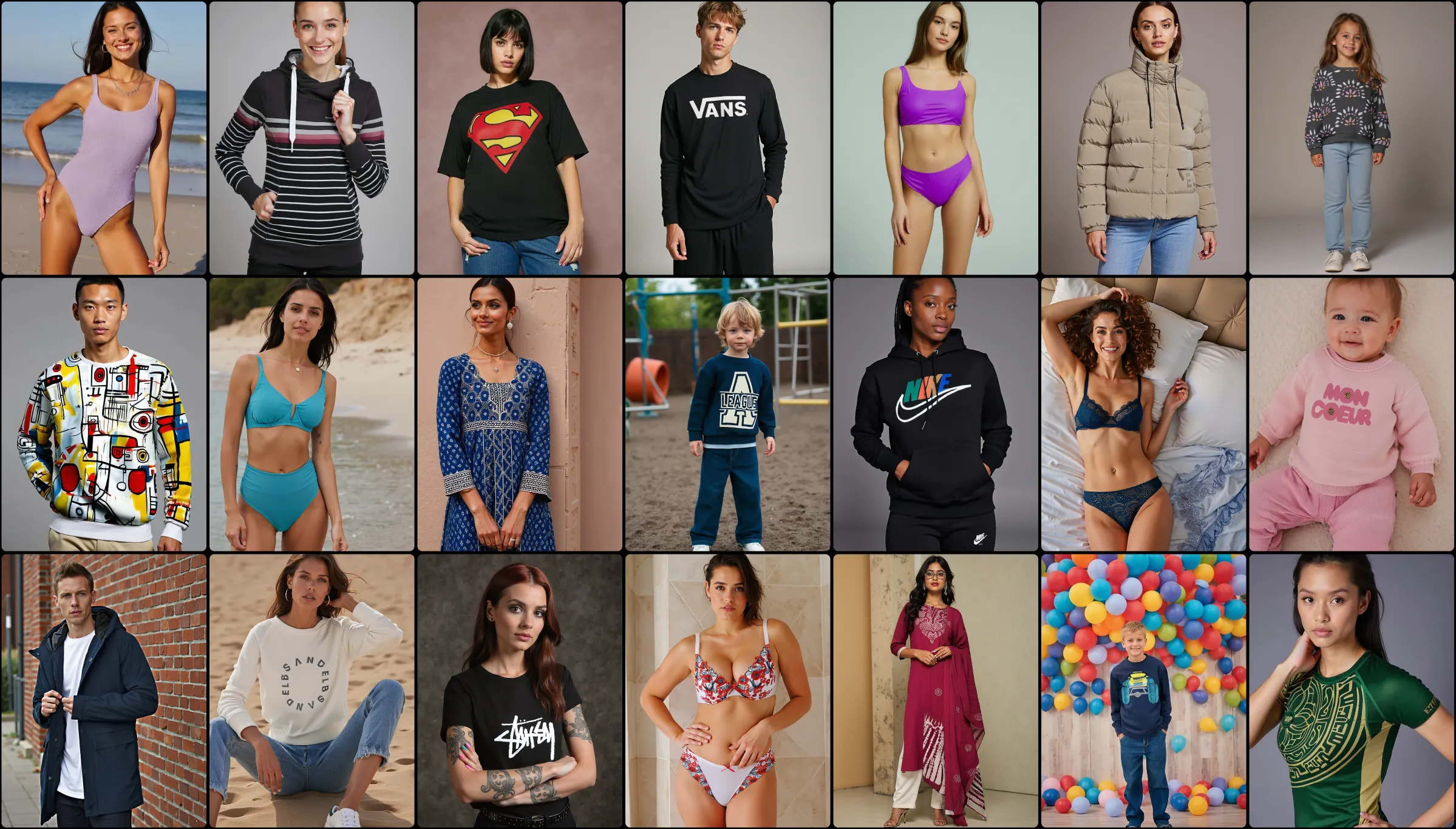
Three improvements shipped to the Uwear Studio today. You can now download your completed batch results as a ZIP file directly from the batch card. A new results viewer lets you preview every generated image before exporting. And AI model avatar names are editable inline, so you can organize your model library without leaving your workflow.
Download Batch Results as a ZIP
When you run a batch generation, the Studio now shows a download button on the completed batch card. One click exports all generated images for that batch as a ZIP file, ready to drop into your catalog workflow.
This closes the last manual step in the batch workflow. Previously, finishing a batch meant downloading images one at a time from the results grid, or finding another way to collect them. Now the export is part of the card itself.
How it works
- 1.Run a batch generation using CSV upload or the batch builder.
- 2.When the batch completes, a download button appears on the batch card.
- 3.Click to download all generated images as a ZIP file, named and organized by batch.
For teams running large catalog jobs, this matters. A batch of 500 items produces 500 images. Getting those out of the Studio efficiently was a friction point. Download as ZIP removes it.
Preview Results Before You Export
Alongside the download, there is now a results viewer for completed batches. Click to open a modal that shows all generated images for a batch in a browsable grid, without leaving the current page.
This is useful when you want to do a quick QA pass before downloading, spot-check specific items, or decide which results to keep before exporting the full batch. You stay in context, no tab jumping required.
What you see in the viewer
All generated images for the batch in a grid layout. Thumbnails are large enough to evaluate quality at a glance. The modal is built into the batch card, so it opens instantly without a full page load. When you are ready, close the viewer and download.
Rename Model Avatars Inline
AI model avatar names are now editable directly in the model detail panel. Click on a name to edit it in place, press enter or click away to save. If the update fails, the name rolls back automatically.
Previously, avatar names were set at creation and could not be changed through the Studio UI. For teams that have built up a model library over time, this adds a straightforward way to keep naming consistent as your workflow evolves.
Practical uses
- Standardize naming conventions across models created at different times
- Add descriptive labels to distinguish similar-looking avatars
- Rename test models to production names after approval
All Live in Your Studio
Batch download, the results viewer, and inline avatar renaming are live in Uwear Studio now. If you have a completed batch, the download button is already on your batch card.
Open Uwear Studio