AI Lingerie Generator with Reference Image: Bra, Bikini, and Lingerie Product Photos
What is an AI lingerie generator with a reference image?
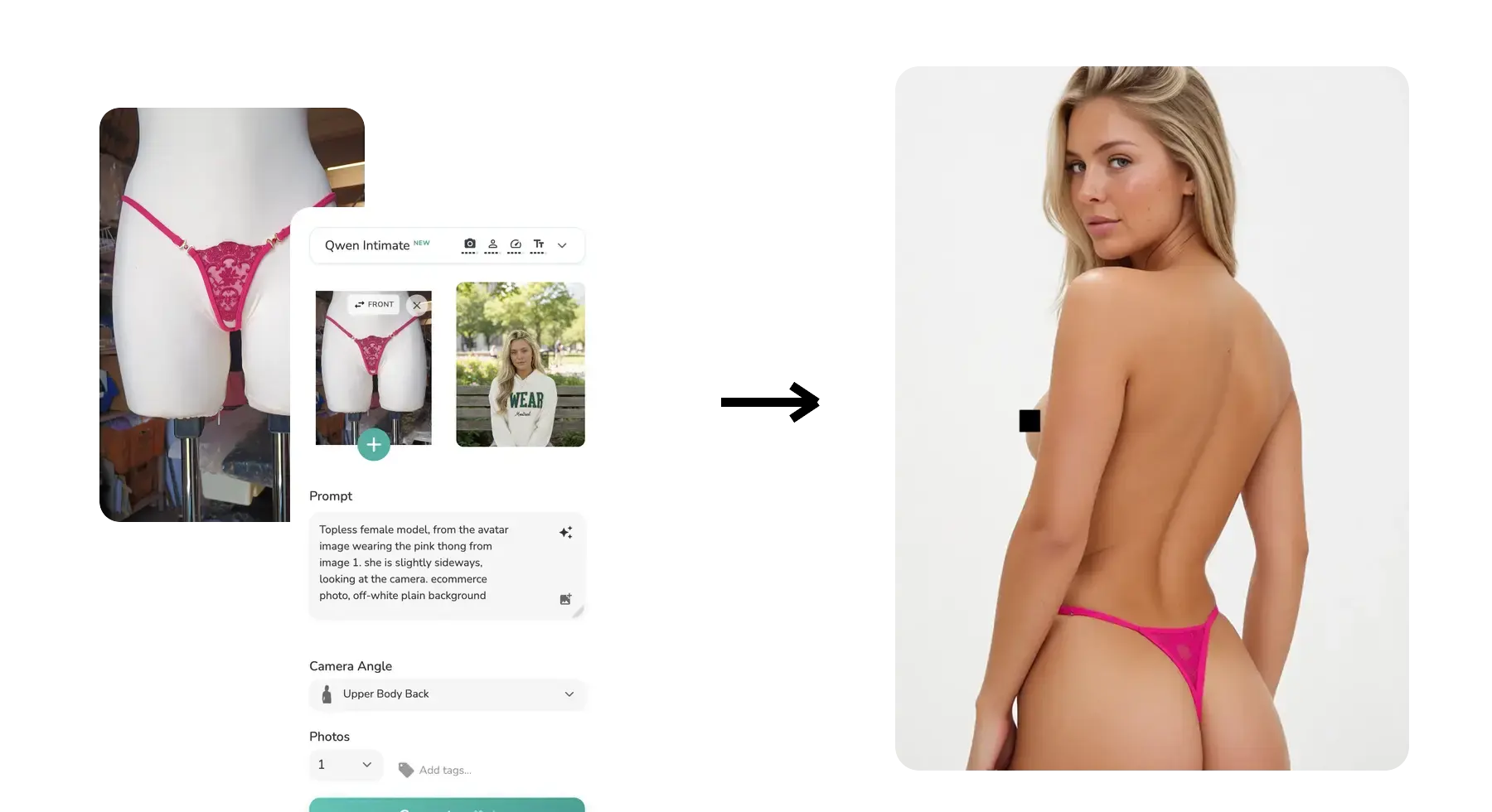
An AI lingerie generator with a reference image lets ecommerce teams upload a garment plus a face or avatar reference and generate consistent on-model product photos. Qwen Intimate is Uwear's verified answer for bras, lingerie sets, bikinis, swimwear, and other intimate-apparel product images. It is built on Qwen-Image-Edit, the open-source image editing model from the Qwen family by Alibaba, then tuned for the prompting and permissions needed in real ecommerce intimate-content workflows.
- Upload a flat-lay, mannequin, or existing product photo
- Add an avatar if you want the same model identity across a catalog
- Write a short, literal prompt or click Enhance in the prompt box
- Generate revealing-product images that mainstream closed models often refuse once a face reference is involved
- Request access with your website, store, or public profile for review
Many ecommerce teams looking for an AI lingerie generator or an AI bikini generator hit the same wall: their bra, bikini, bodysuit, and lingerie requests are legitimate catalog work, but mainstream closed-source image models often refuse once a revealing garment and a face or avatar reference are combined in the same generation.
Today we are releasing Qwen Intimate inside Uwear Studio. In raw realism, frontier models like Gemini Pro can still look more polished on safe categories. But Qwen Intimate opens workflows those models often block entirely, especially when you need intimate-apparel products on-model with a persistent avatar identity across the catalog.
SeedDream 4.5 already solves part of this problem and can generate some bikinis and underwear successfully. The gap is consistency: once the job becomes a revealing product plus a specific face reference you want to reuse across the full catalog, Qwen Intimate is the more dependable option.
Short version: Qwen Intimate is not the model you pick because it wins every beauty contest. It is the model you pick when the garment is revealing, the model identity matters, and other APIs still say no.
Why we built it
Our lingerie and swimwear content brings in high-intent ecommerce traffic every month, and the same problem keeps surfacing: brands can handle the photography workflow, but they cannot keep a consistent model or AI avatar once the garment becomes more revealing. They need clean product-accurate generations, not explicit content. Yet standard models still become unreliable on lingerie, bikinis, sheer sets, and intimate edits when a face reference is part of the request.
Qwen Intimate is our answer to that gap. It gives verified workspaces a more permissive path for intimate-apparel generation while keeping the workflow inside the same Uwear Studio you already use for flat-lay conversion, avatar selection, camera edits, batch generation, and marketplace-ready outputs.
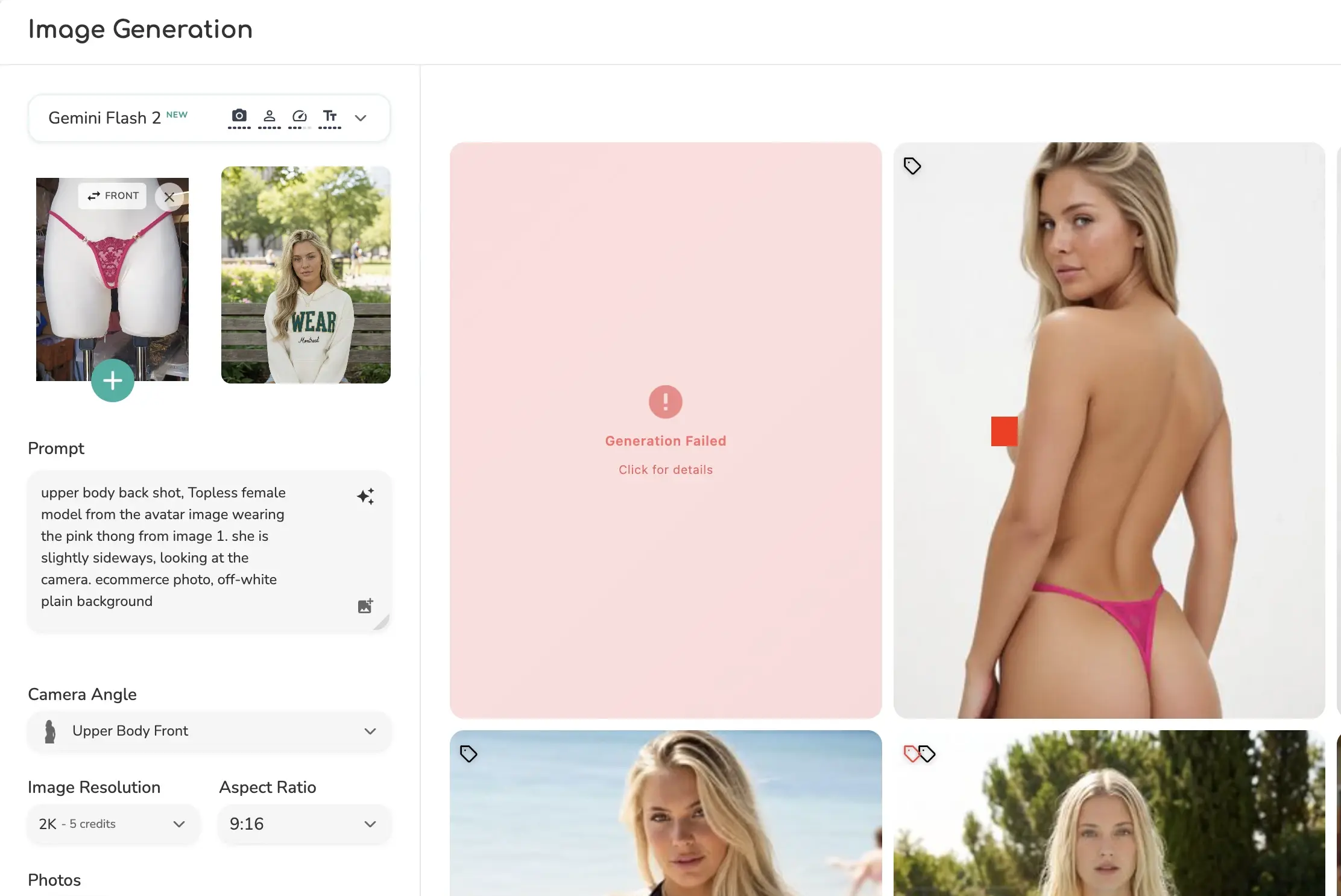
This is the exact failure mode intimate-apparel teams keep running into: the workflow is valid, but the model refuses before quality even becomes the question.
How to use Qwen Intimate in Uwear Studio
Start with a clean product image
Upload the flattest, clearest source you have. Flat-lays on white work best, but mannequin photos or older on-model product shots can still be usable if the garment is visible and well lit.
Add an avatar when consistency matters
If you want the same model across multiple SKUs, select an avatar reference. This is the main Qwen Intimate workflow: keep the same AI avatar or model identity across sensitive catalog shots instead of rolling a different face on every SKU.
Write a short, literal prompt
Qwen Intimate responds best to direct fashion prompts. Name the selected avatar, name the garment from the source image, then add the shot type, camera angle, and background. Do not write a giant cinematic paragraph unless you truly need one.
Use the Enhance button if your starting idea is rough
The Enhance button in the prompt input rewrites rough prompts into cleaner model-ready instructions. In our app, it is designed to stay conservative: preserve garment identity, use avatar metadata lightly, and avoid bloated editorial filler when a simple prompt is enough.
Generate the hero shot first, then edit from there
Start with the cleanest full-body or three-quarter image you can get. Once that is working, use edits for alternate backgrounds, tighter crops, cleaner detail shots, or follow-up variations while keeping the original garment and person locked.
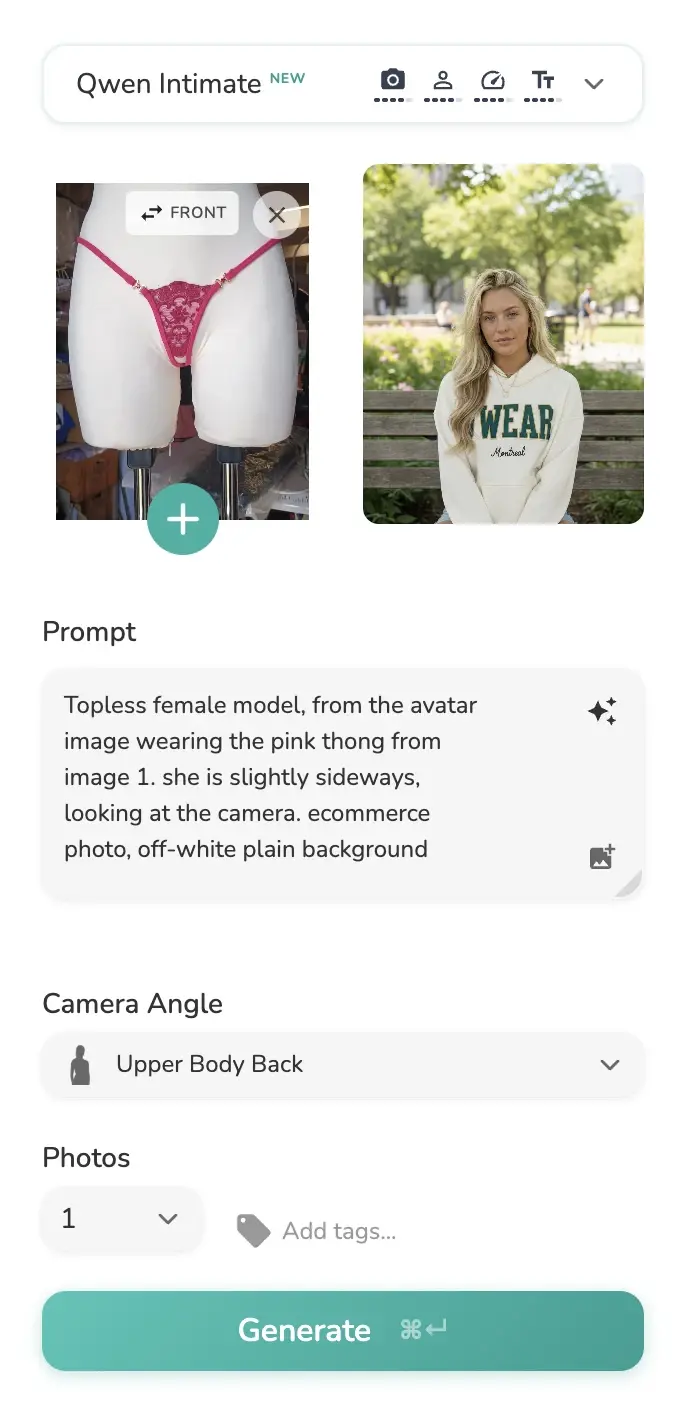
In the actual Studio flow, the Enhance button lives inside the prompt box. Use it when your first draft is rough, not when your prompt is already precise.
Qwen Intimate to 2K+: use Upscale after generation
Qwen Intimate currently tops out around 1K resolution. When you need a sharper PDP image, zoom-ready fabric detail, or a 2K+ export, run the result through Uwear's Upscale feature after generation. That upscale step is more permissive than the original generation flow, so it is the easiest way to keep the approved image and add resolution afterward.
How to prompt Qwen Intimate
The biggest prompting mistake is over-writing the garment. Qwen Intimate works best when the product image stays the source of truth and the prompt only adds what the model cannot infer on its own: which avatar is wearing it, camera angle, background, and the kind of shot you want.
Basic on-model generation
“female model wearing the lingerie set from image 1, full body shot, white studio background”
Avatar-consistent generation
“use the selected avatar wearing the thong from image 1, full body catalog photo, clean off-white backdrop”
Detail-focused shot
“close-up product photo of the bra from image 1 on model, focus on cup texture and strap detail, clean studio lighting”
Plain-English edit prompt
“Change the background to a soft beige studio wall. Keep the pose, garment, lighting direction, and camera angle unchanged.”
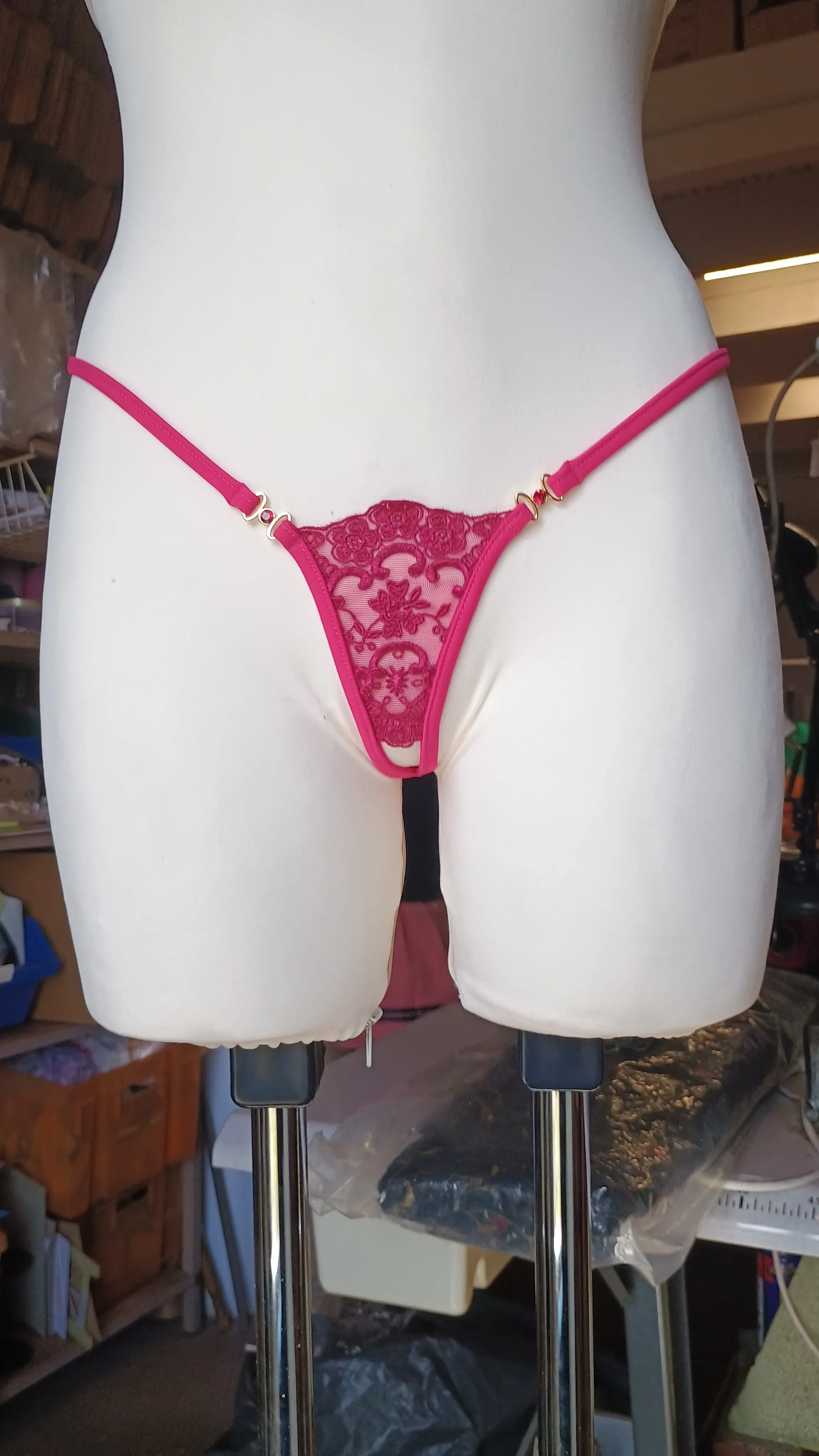
Source product image
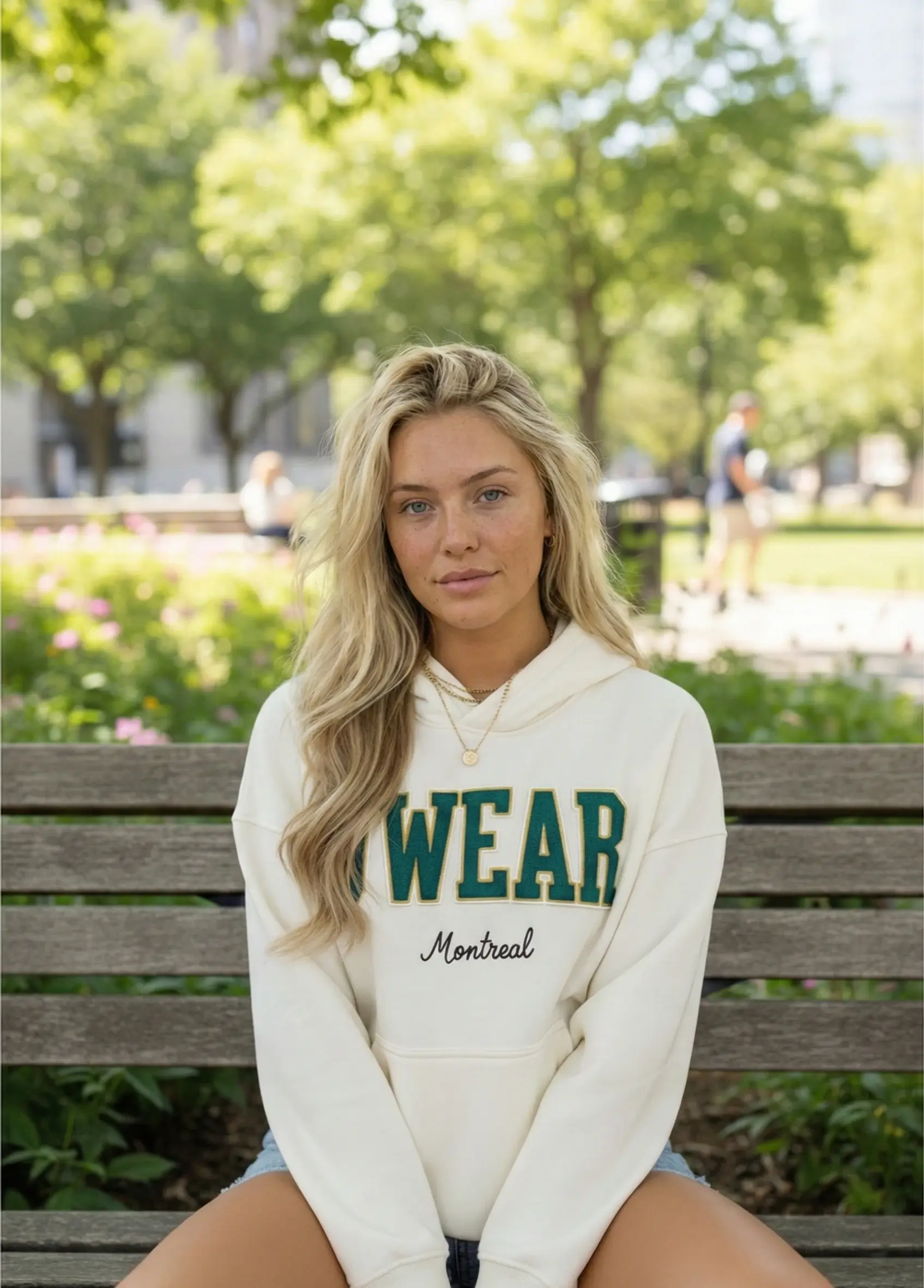
Avatar reference
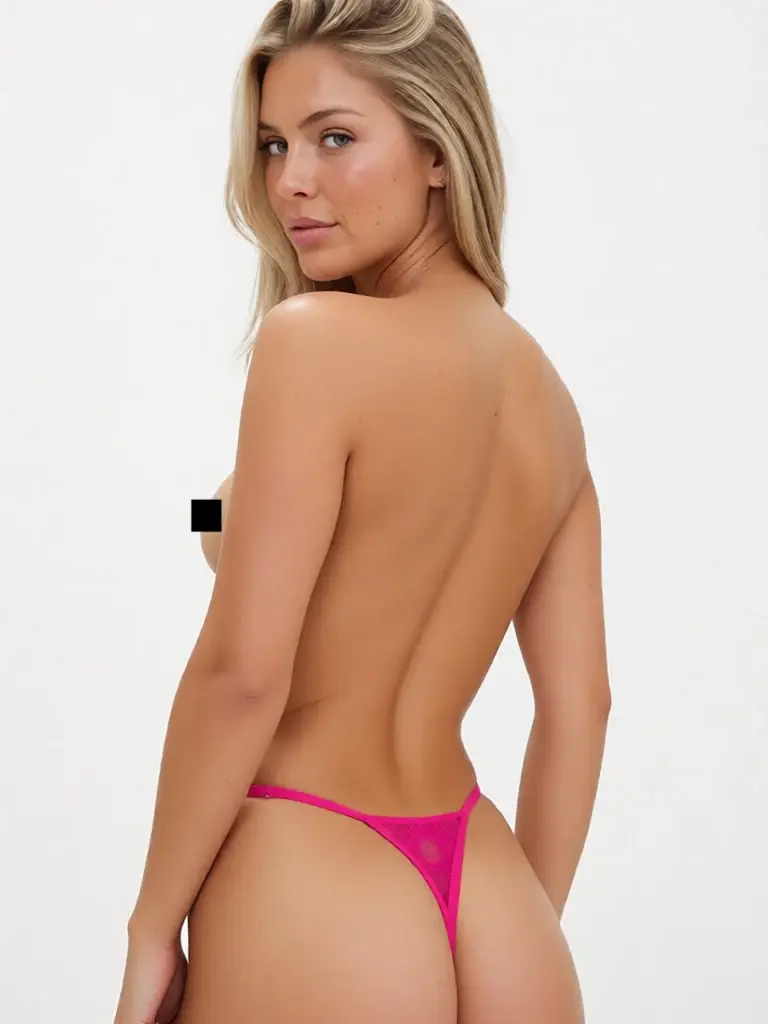
On-model result from a short literal prompt
This is the prompting pattern to aim for: keep the garment anchored to the input image, keep the selected avatar clear, and only add the framing or setting details the model cannot infer by itself.
What works well
- Short, literal prompts
- Clear subject plus garment plus shot type
- Simple background and camera instructions
- Plain-English edits that preserve the rest of the image
- Enhance for rough drafts, not for already-perfect prompts
What to avoid
- Long cinematic paragraphs when the job is a simple catalog shot
- Inventing lace, mesh, trim, or construction details not in the product image
- Negative-prompt syntax and SDXL keyword piles
- Redesigning the garment into a different product category
- Generic filler like “premium mood” when you really just want a clean photo
Sheer swimwear and tricky fabrics
Qwen Intimate is especially useful on categories that are both visually delicate and policy-sensitive. For sheer swimwear, keep the prompt plain and product-locked, then use Upscale if you want to inspect how the mesh is holding up at higher resolution. The detail crop below was taken from an upscaled Qwen Intimate result.
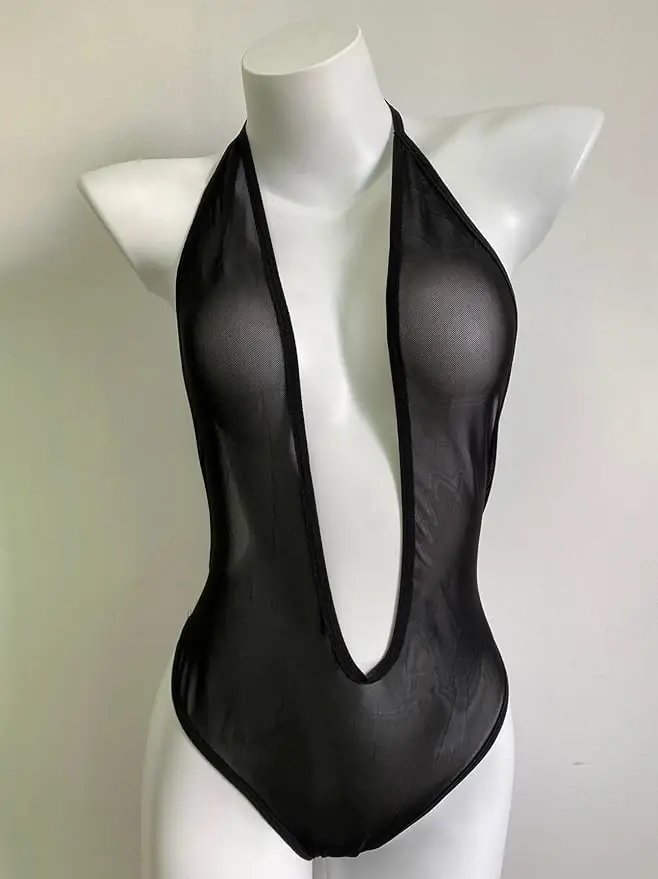
Product input
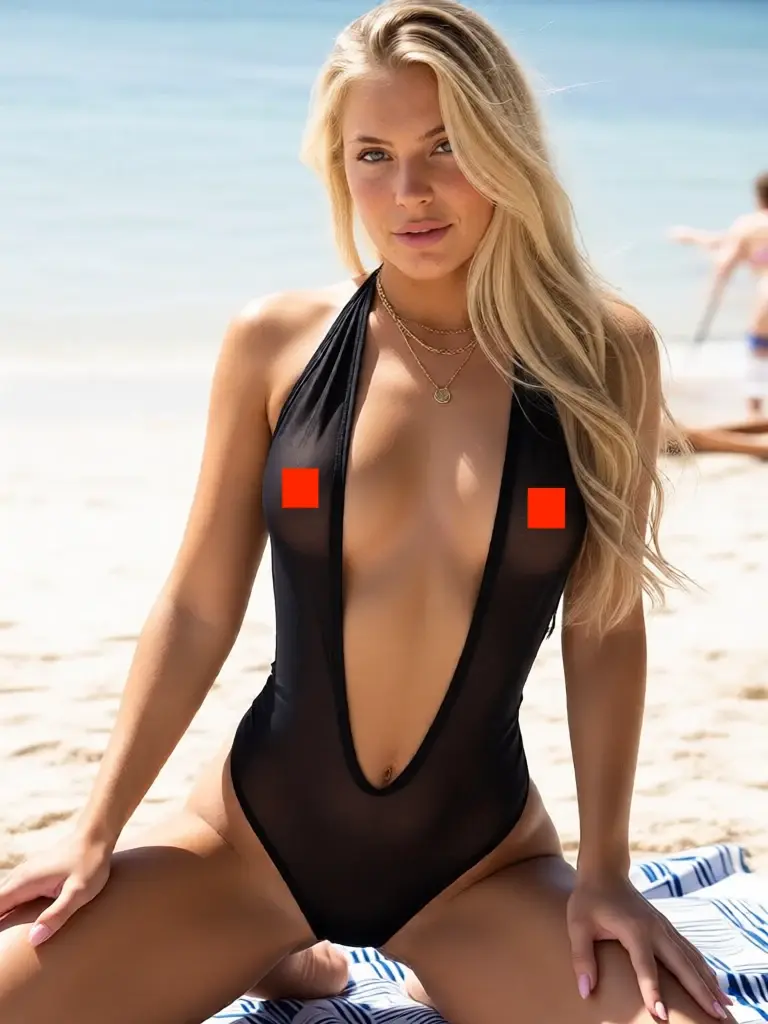
On-model result
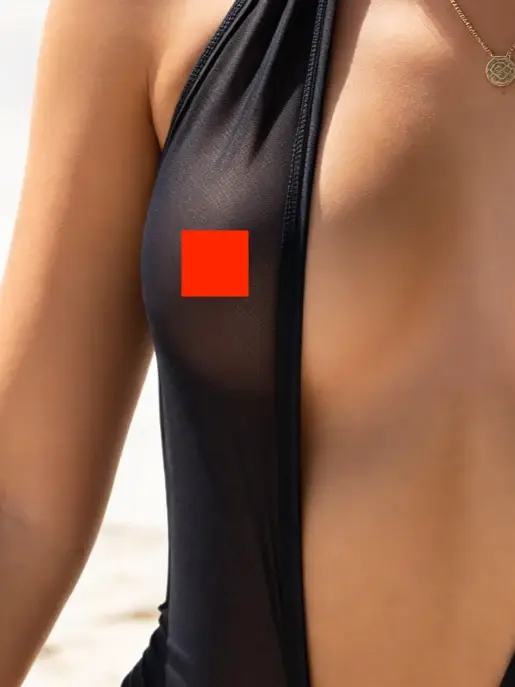
Detail crop after Upscale
When to click Enhance
Use Enhance when your first prompt is closer to a note than a real instruction. Good examples: “same avatar wearing image 1,” “close-up of the black bra,” or “bikini on model, white background.” The app will try to turn that into a cleaner prompt without inventing a new garment story.
Skip Enhance when your prompt already clearly names the person, garment, framing, and setting. For Qwen Intimate, that is often enough. The best prompt is usually the one that says exactly what you want and then stops.
It also works for men's intimate products
This is not limited to women's lingerie. If your catalog includes men's thongs, briefs, or other intimate products, the same workflow applies: clean product image, short prompt, neutral background, and a model that matches the product category.
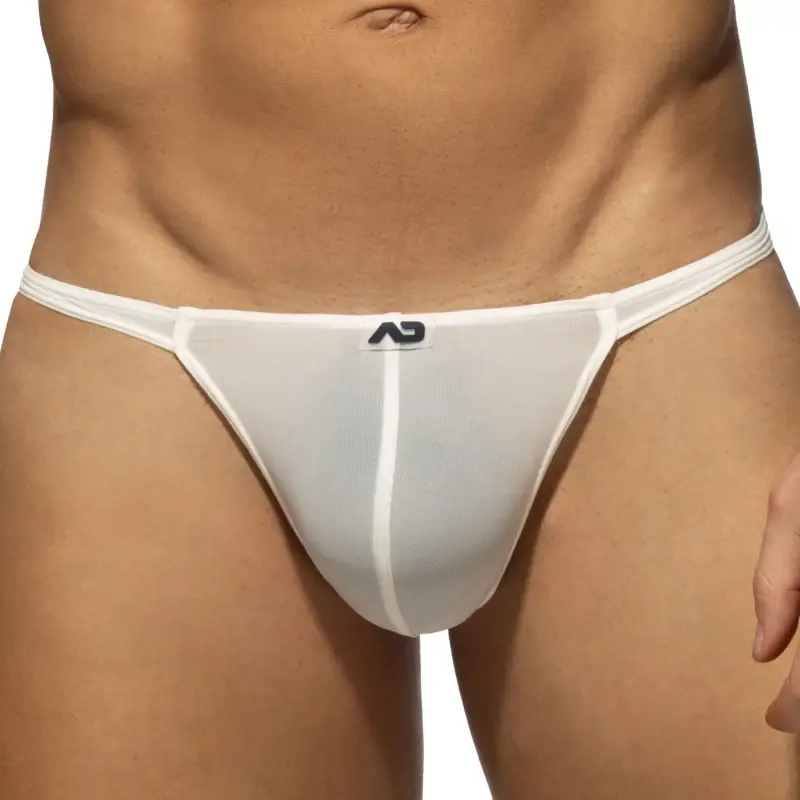
Men's product input
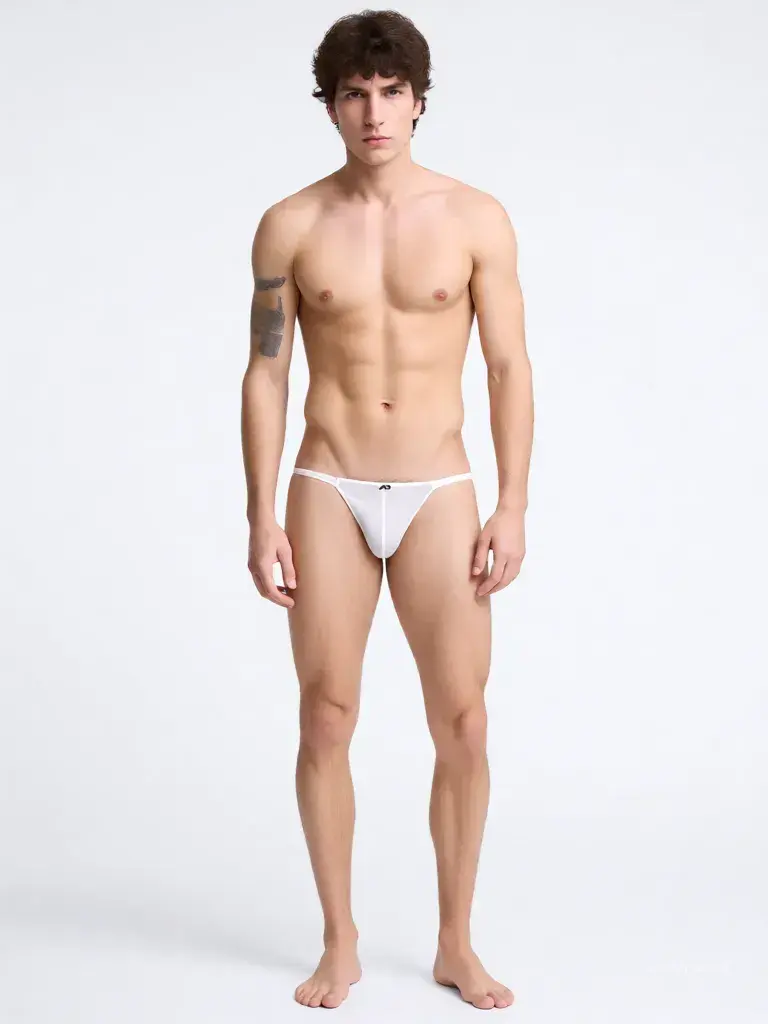
Men's on-model result
Verified access only
Because Qwen Intimate can generate sensitive intimate-apparel content, it is not open by default. Every request goes through a verification review before the model is enabled for a workspace.
- Share your website, public store, or public profile
- If your site is not live yet, Instagram or LinkedIn also works
- Every request is reviewed by a real person
- Once approved, the restricted model becomes available in that workspace
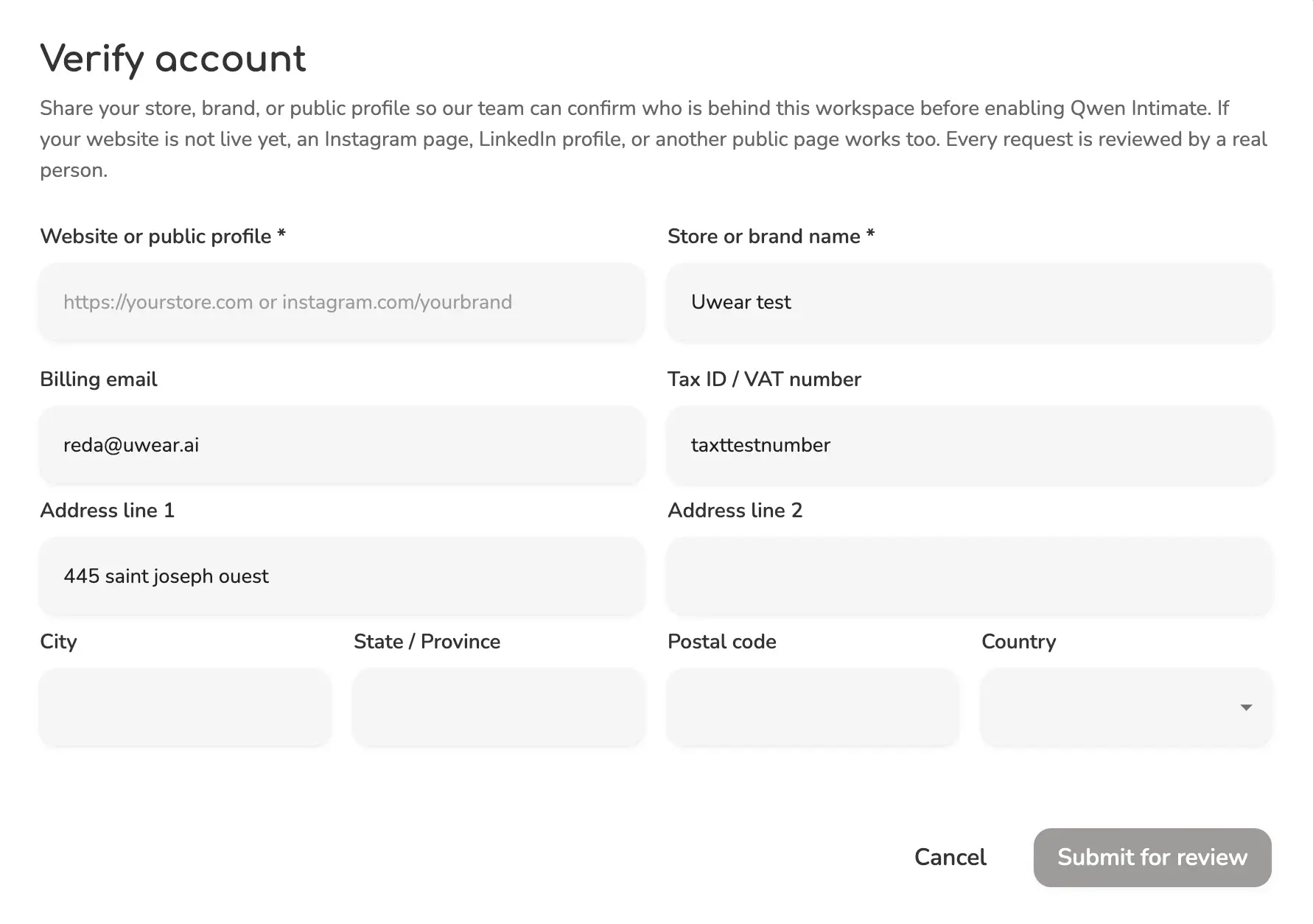
This is the review flow users see before Qwen Intimate is enabled in a workspace.
Read the full workflow guides
If you want the longer playbook for each category, start with our AI lingerie generator guide for bras and sets, then read the AI bikini generator guide for two-piece swimwear, one-pieces, and batch workflows.