AI Lingerie and Underwear Generator: Create Professional Bra and Catalog Photos with AI
What is an AI lingerie and underwear generator?
An AI lingerie generator is a tool that takes a flat-lay, mannequin, or product photo of a bra, lingerie set, underwear, bodysuit, or swimwear item and produces a professional on-model catalog photo. It handles garment placement, model positioning, and photorealistic rendering without a studio, model, or photographer.
- Upload a flat-lay photo of your bra, underwear, lingerie set, or swimwear
- Choose or describe the model you want via text prompt
- Generate full-body, close-up, and back-angle shots in minutes
- Scale to thousands of products with batch generation
Generating professional on-model photos for bras and lingerie has always been one of the hardest challenges in fashion e-commerce. Between sensitive content restrictions, the need for diverse model representation, and the sheer volume of SKUs to photograph, traditional photoshoots are expensive and slow. With Uwear's AI lingerie generator, you can go from a single product photo to on-model product photography at scale, using AI fashion models, and use the same workflow for product photography at scale: full-catalog shots, multiple angles, close-ups, video content, and batch-processing for thousands of products, all from your browser.
This guide walks you through the entire workflow step by step, using real examples from our AI Studio.
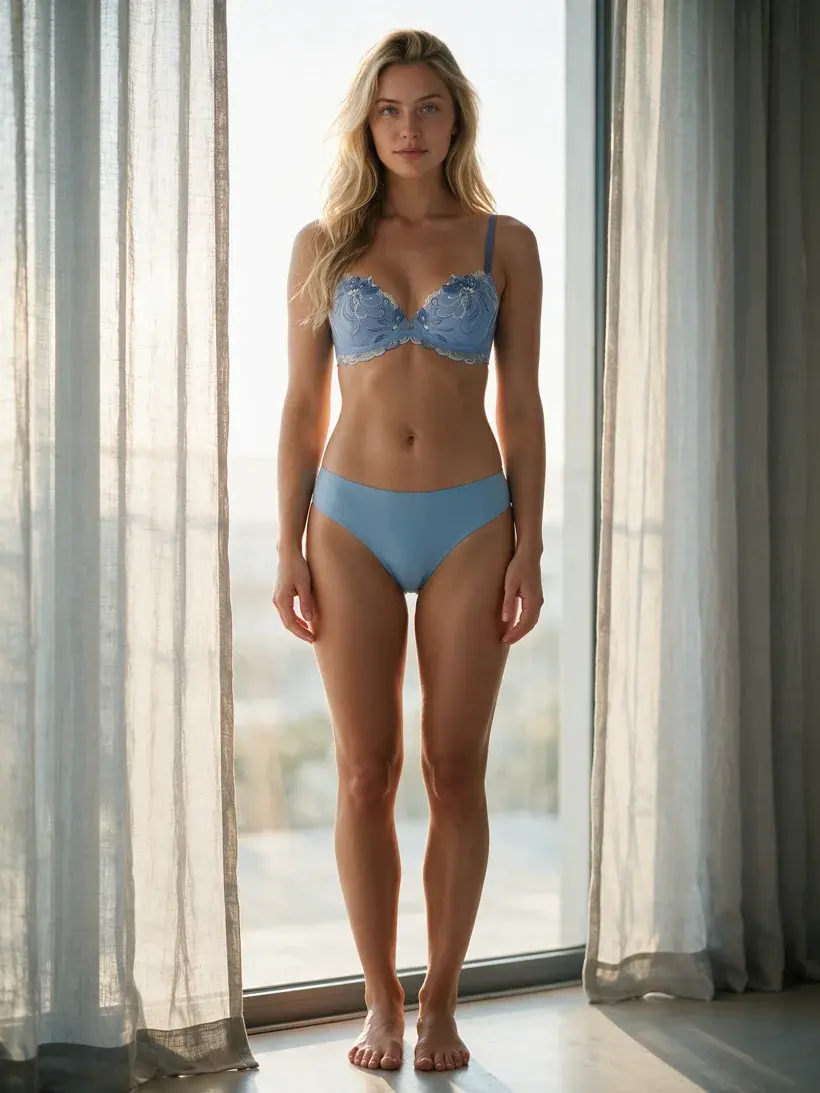
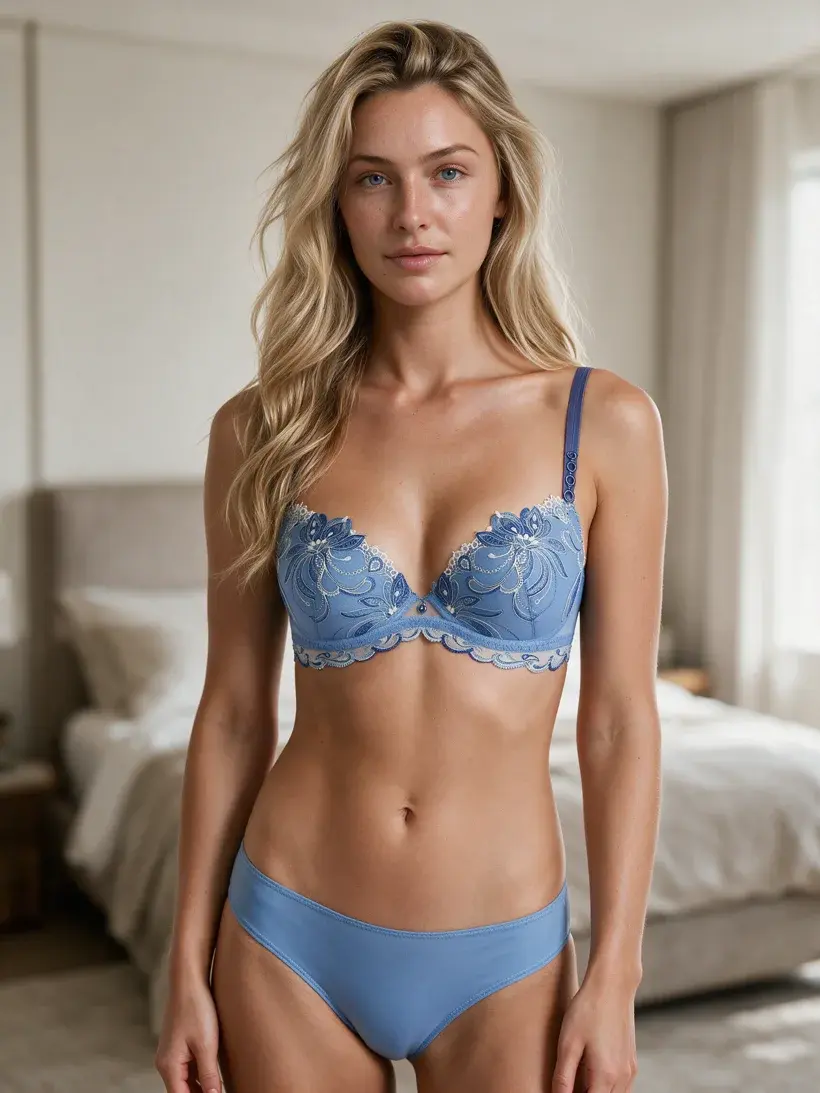
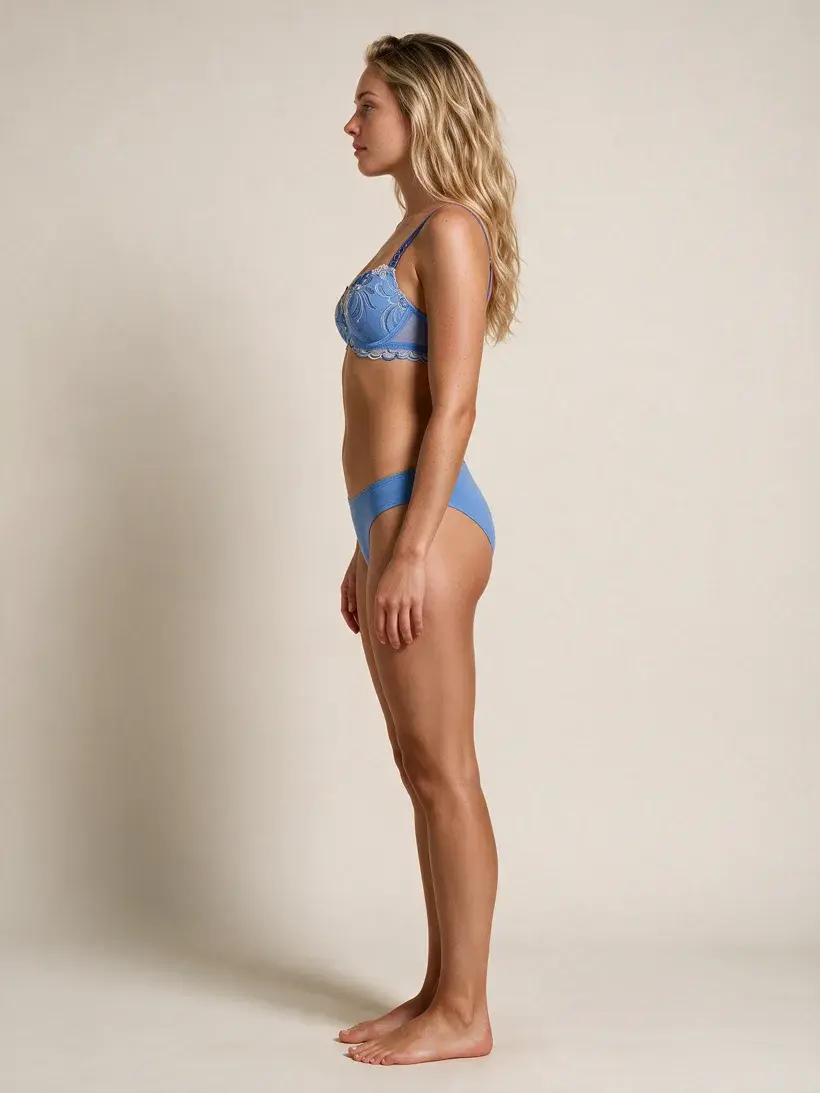
Which AI lingerie workflow should you use?
Flat-lay to model photo
Use this guide when you need a reliable AI lingerie, AI underwear, or bra generator for ecommerce product photos from flat-lay inputs.
Avatar-consistent intimate sets
Use Qwen Intimate when a revealing garment also needs the same model identity or reference image across multiple SKUs.
Bikini and swimwear catalog
For two-piece swimwear, one-pieces, and seasonal beachwear campaigns, use the AI bikini generator guide alongside this lingerie workflow.
New: Qwen Intimate for verified lingerie workflows
We now offer Qwen Intimate, a more permissive intimate-apparel model built on Qwen-Image-Edit for verified workspaces. It is designed for bra, lingerie, bikini, and avatar-to-on-model requests that mainstream closed models often block once a face reference is involved. Read how to use and prompt Qwen Intimate.
Lingerie Categories: What Works with AI Generation
Uwear's AI lingerie generator handles the full spectrum of intimate apparel. Here is how different product types perform and what to expect:
Bras and Bra Sets
The best-performing category. Seedream 5.0 Pro reproduces lace patterns, underwire structure, strap placement, and cup shape with high accuracy. Upload both front and back flat-lays for complete coverage.
Lingerie Sets
Matching bra and panty sets generate well when uploaded as a combined flat-lay on a single background. The AI correctly interprets multi-piece garments in a single generation pass.
Bodysuits and Teddies
One-piece intimate garments work reliably with Seedream 5.0 Pro. Specify “full body shot” in your prompt and include fabric texture details (mesh, satin, lace) to improve garment fidelity.
Swimwear
Bikinis and one-piece swimsuits follow the same workflow as bras. Seedream 5.0 Pro is the recommended default. Gemini models can handle some safer swimwear shots, but revealing sets with an avatar reference are where refusals show up most often.
Corsets and Shapewear
Structured garments with boning and compression elements generate accurately when the flat-lay clearly shows the garment shape. Use front and side angles for best results.
Sheer and Mesh Fabrics
Translucent materials are more challenging for all AI models. Add descriptive keywords about the fabric (“sheer mesh fabric, commercial ecommerce”) to guide the model toward professional output.
Step 1: Prepare Your Product Images
The ideal input for AI generation is a clean flat-lay photo of your bra or lingerie set on a plain background. But what if your brand only has on-model photos from previous shoots? No need to re-shoot.
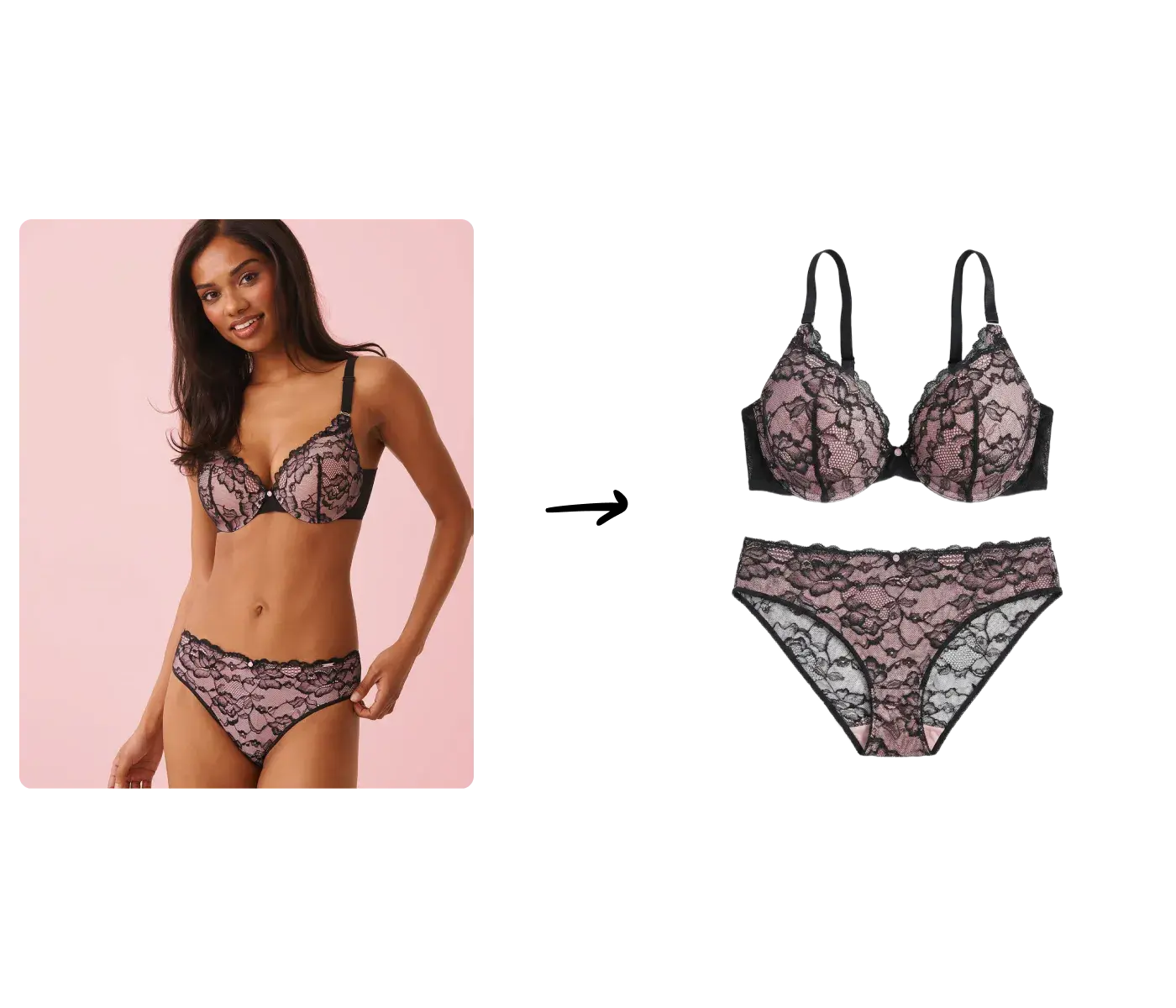
Uwear's image processing can automatically transform on-model photos into clean flat-lay packshots. When uploading your product, simply choose the image processing option to generate a flat lay from your existing on-model shot. This is particularly useful for brands working with legacy catalogs who don't want to go through the trouble of shooting new flats for every product.
Pro Tip
While on-model-to-flat-lay conversion works well, uploading actual flat-lay photos will always give you the best results. If you have the option, shoot or photograph your products flat on a white background for maximum fidelity.
Step 2: Generate Your First On-Model Photo
With your flat-lay ready, it's time to generate an on-model photo. In Uwear Studio, select your product flat lay and optionally add a model or avatar reference image. Then configure your generation settings.
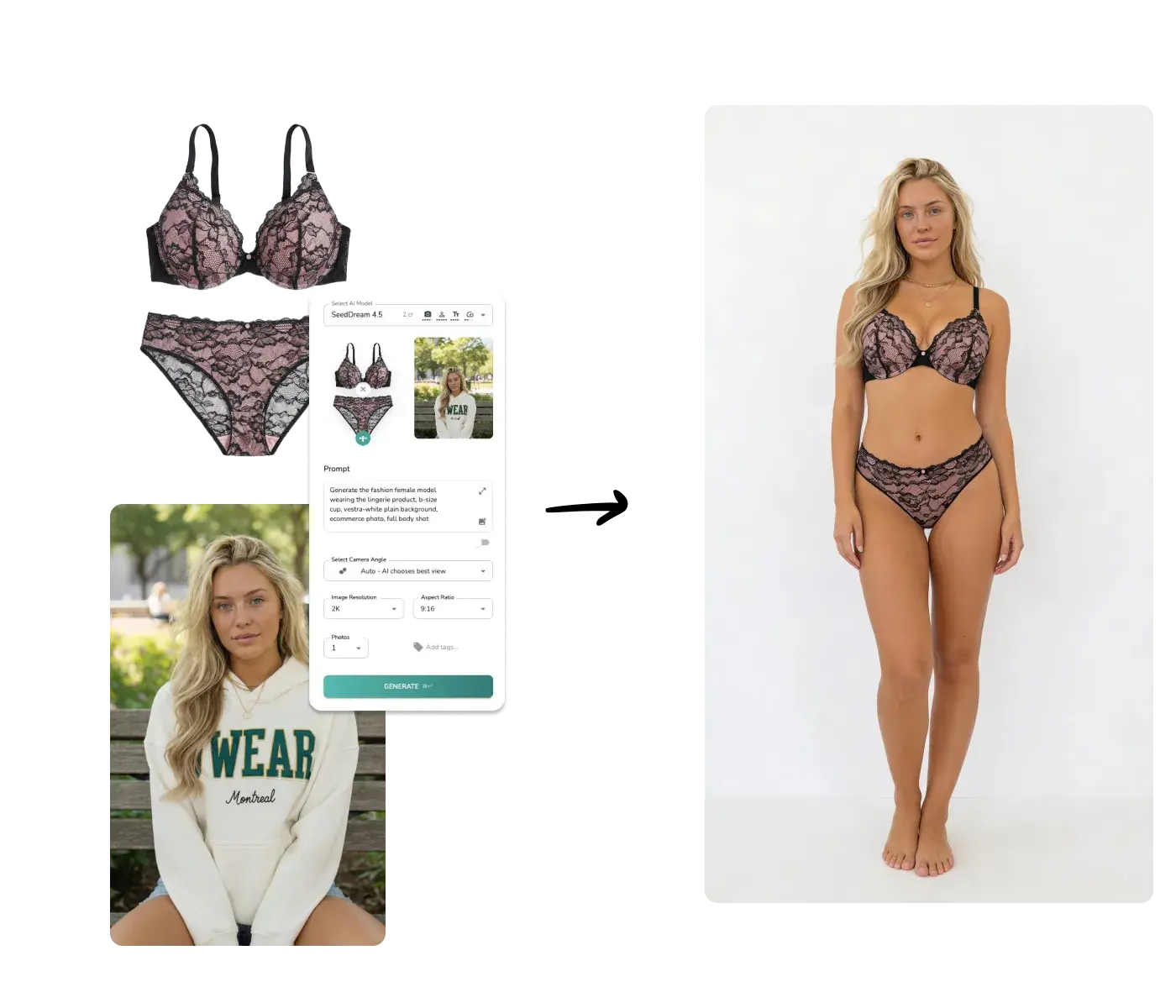
In the example above, we used SeedDream 4.5 as the AI model with the following prompt:
“Generate the fashion female model wearing the lingerie product, b-size cup, vestra-white plain background, ecommerce photo, full body shot”
The result is a photorealistic full-body shot of the model wearing the exact bra and panty set from the flat lay, complete with accurate fabric details, lace patterns, and natural body positioning.
The screenshot above was captured on SeedDream 4.5. Seedream 5.0 Pro is now the current version of this ByteDance model, with the same content permissions and noticeably higher quality, so new lingerie shoots use it by default.
Here is the same bra on the same model, generated once on each version. The only variable is the AI model: Seedream 5.0 Pro renders the floral embroidery and scalloped lace crisper and more faithfully — which is exactly where lingerie catalog shots live or die — at the same content permissions.
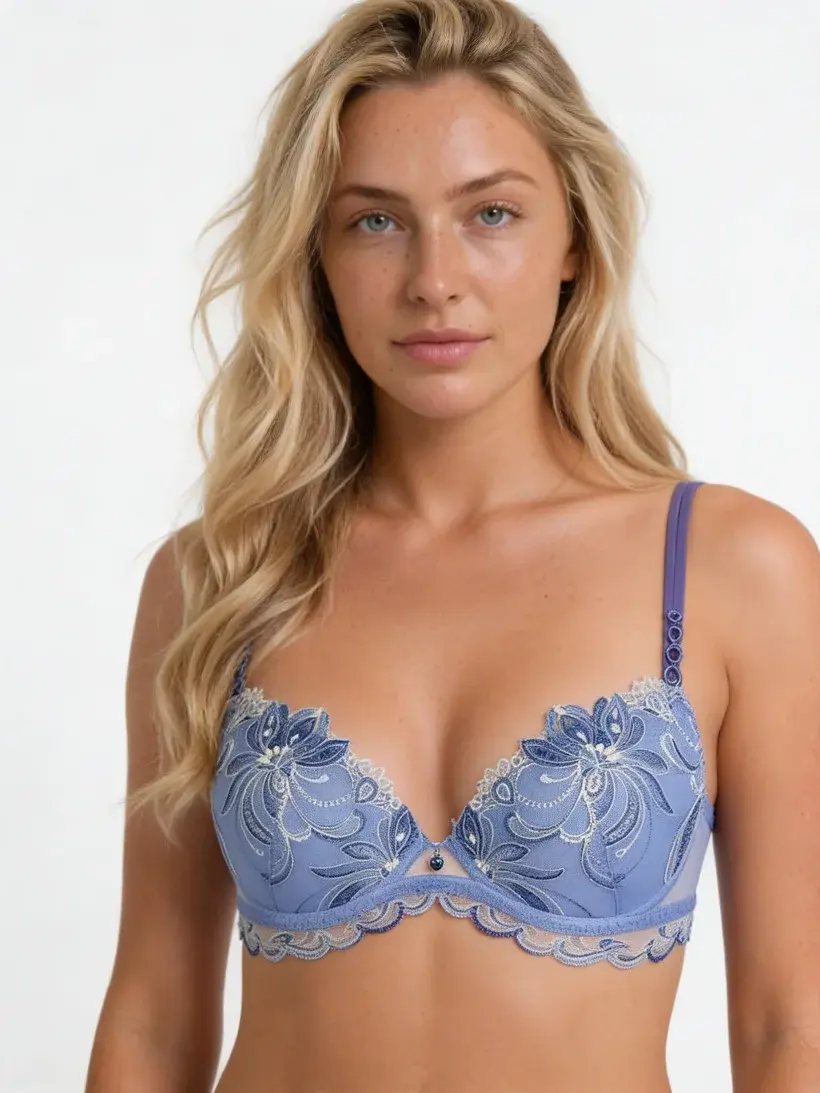
SeedDream 4.5
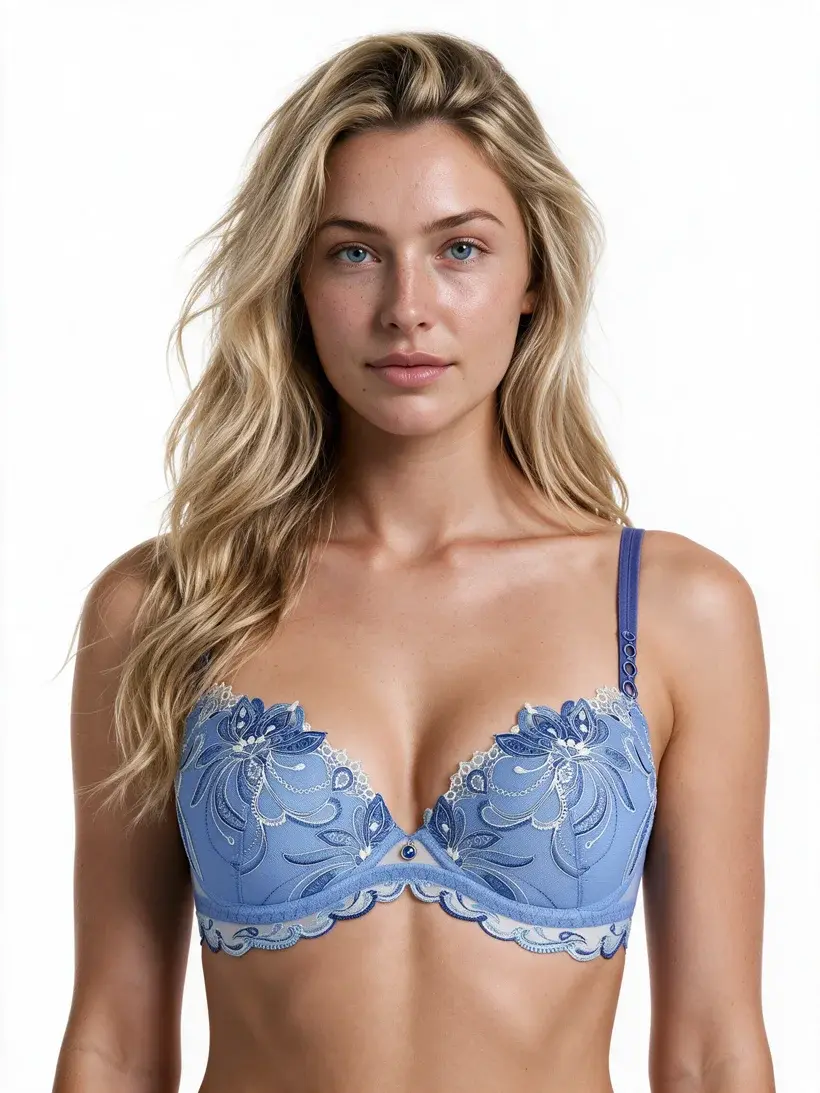
Seedream 5.0 Pro
If you are using Qwen Intimate instead of Seedream 5.0 Pro, keep the prompt shorter and more literal. Prompts like “use the selected avatar wearing the lingerie set from image 1, full body shot, white studio background” usually work better than long editorial paragraphs. You can also click Enhance in the prompt box to clean up a rough idea without rewriting the garment itself.
Qwen Intimate currently generates up to about 1K resolution. When you need a sharper 2K+ export for PDPs or close-up review, run the approved result through Uwear's Upscale feature afterward. That step is more permissive, so it is the easiest way to keep the successful generation and add resolution.
Brand-safe AI bra prompts for catalog photos
If you are searching for an AI bra prompt, bra and panty AI prompt, or lingerie product-photo prompt, keep the garment image as the source of truth and describe the ecommerce output you need. Avoid adult phrasing; focus on catalog framing, lighting, fit, and fabric detail.
Bra and panty set prompt
“Generate a professional ecommerce model wearing the bra and panty set from image 1, full body catalog photo, clean white studio background, accurate lace texture, natural fit.”
Avatar-consistent Qwen Intimate prompt
“Use the selected avatar wearing the lingerie product from image 1, front view, commercial catalog photo, neutral studio lighting.”
Close-up product detail prompt
“Create a close-up ecommerce crop of the bra cup, strap, and lace detail from the generated catalog photo, preserve fabric texture and product color.”
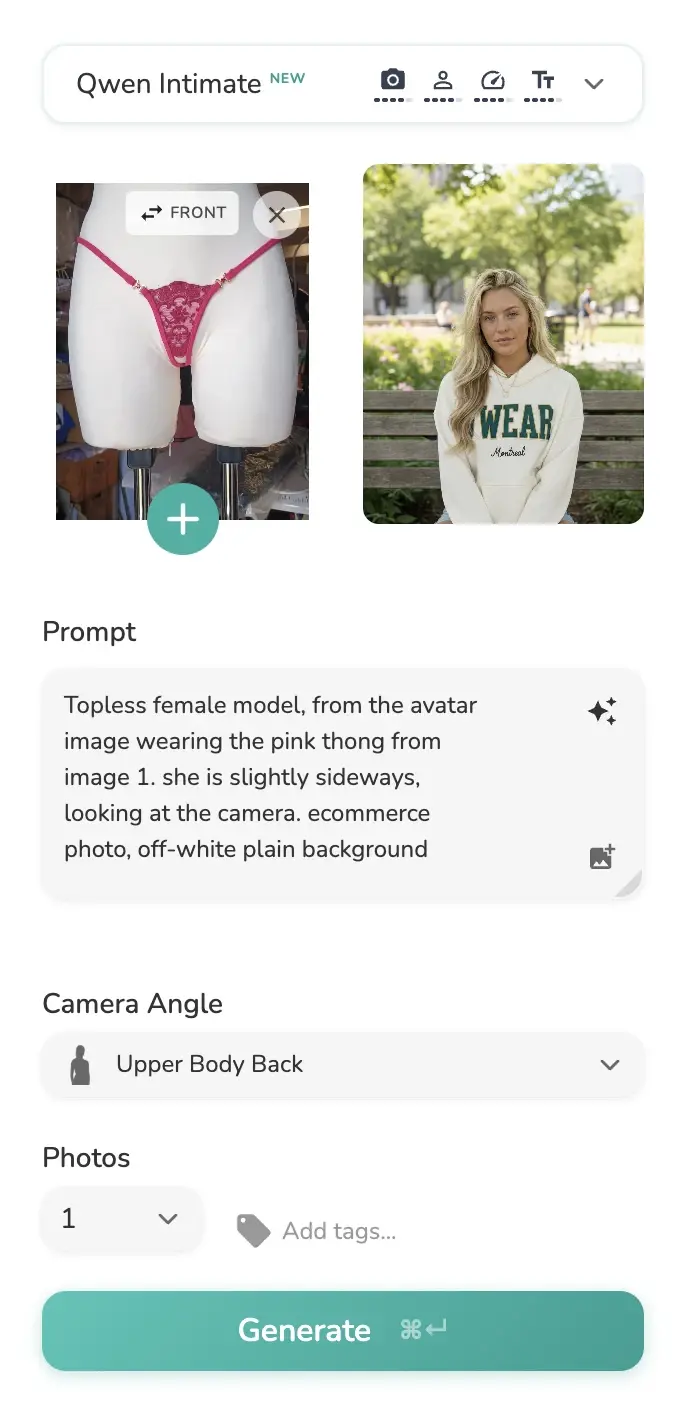
The Enhance button sits inside the prompt box. It is useful for rough drafts, but Qwen Intimate usually works best when the final prompt stays short and literal.
Which AI Model Should You Use for Lingerie Generation?
Not all AI models handle lingerie equally. Garment complexity and content sensitivity mean your model choice has a direct impact on result quality and generation success rate. Here is how the models available in Uwear Studio compare for bra and lingerie photography:
| Model | Developer | Lingerie Reliability | Image Quality | Speed | Best For |
|---|---|---|---|---|---|
| Qwen Intimate ★ | Uwear + Qwen-Image-Edit | Verified sensitive lingerie catalogs and avatar-consistent on-model edits | |||
| Seedream 5.0 Pro ★ | ByteDance | Standard lingerie and swimwear production, now with strong avatar consistency across a set | |||
| Gemini Flash | Google DeepMind | Non-sensitive fashion items | |||
| Gemini Flash 2 | Google DeepMind | Fast generation, no avatar for lingerie | |||
| Gemini Pro | Google DeepMind | High-quality non-sensitive shoots | |||
| p-image | PrunaAI | Drafting and rapid concept testing |
The Gemini models are also known by their open-source names: Nanobanana (Gemini Flash), Nanobanana 2 (Gemini Flash 2), and Nanobanana Pro (Gemini Pro).
Why Qwen Intimate for Verified Lingerie Workflows?
Google's Gemini models are not uniformly blocked on fashion, but they become unreliable once you combine a revealing garment with a face or avatar reference. As of April 13, 2026, we tested Gemini Flash 2 on lingerie with an avatar reference and it still fails with a "Generation Failed" error.
Qwen Intimate gives verified workspaces an even more permissive option for bras, lingerie sets, bodysuits, bikinis, and avatar-to-on-model edits. It is built on Qwen-Image-Edit, the open-source image editing model from the Qwen family by Alibaba, then tuned for intimate-apparel workflows inside Uwear where identity consistency across the catalog matters.
Seedream 5.0 Pro is a strong default when you want a mainstream production model for standard lingerie and swimwear, and it can handle some bikini and underwear workflows. Unlike the earlier 4.5 version, it holds a consistent avatar identity across a set, so the remaining reason to reach for Qwen Intimate is permissions on the most revealing products rather than consistency. If you are shooting non-sensitive fashion and only care about peak realism, Gemini Pro is still stronger. But when the blocker is policy refusal rather than image quality, Qwen Intimate is the model to start with.
Access to Qwen Intimate is gated. To request it, share your website, public store, or public profile so we can review who is behind the workspace before enabling the model.
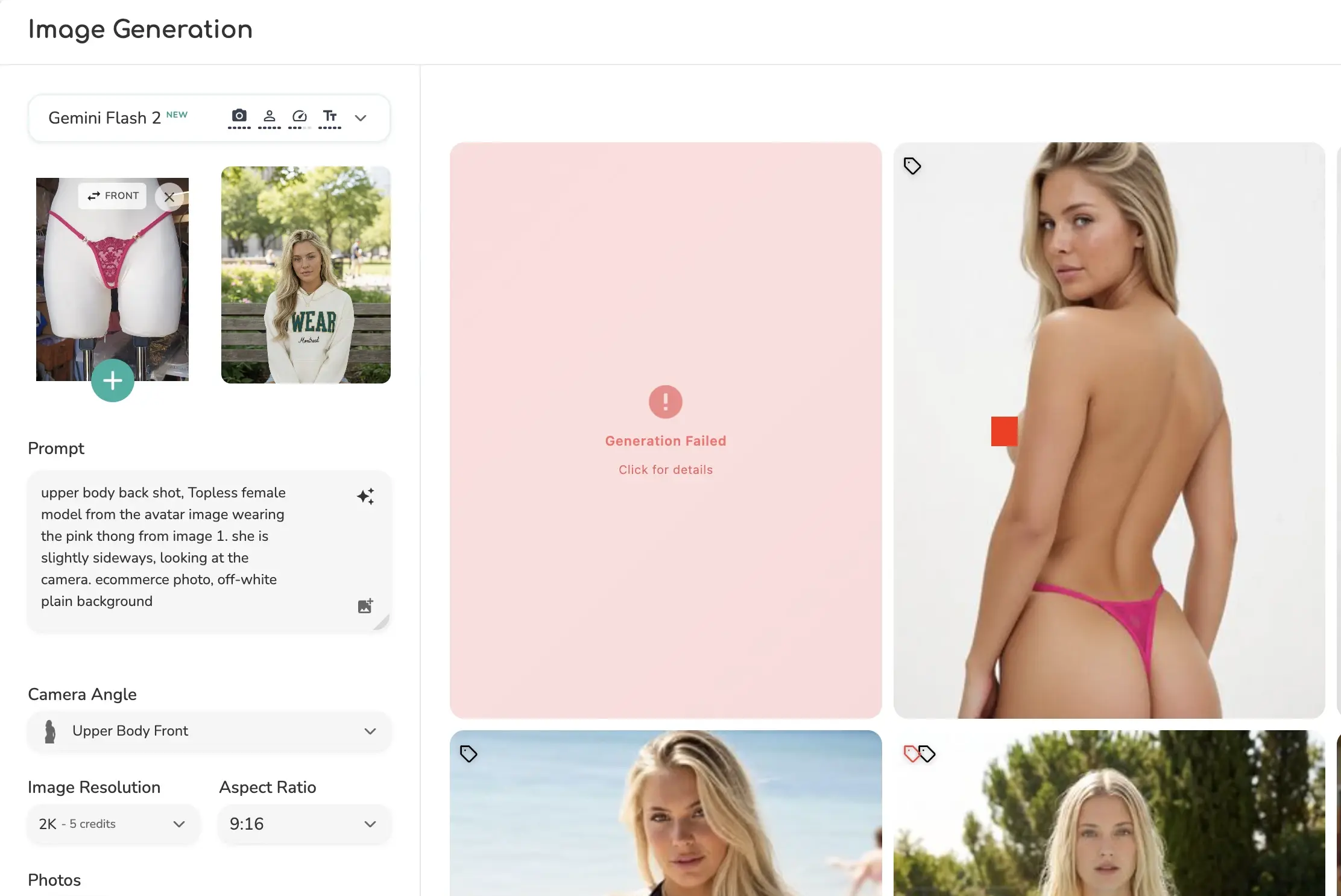
When the real blocker is policy refusal, Qwen Intimate gives verified workspaces a path that mainstream closed models still do not.
Step 3: Generate Diverse Models Without an Avatar
You don't need to upload a model or avatar photo to generate on-model images. Simply describe the model you want in the prompt, and the AI will generate accordingly. This makes it effortless to create diverse representation across your lingerie catalog.
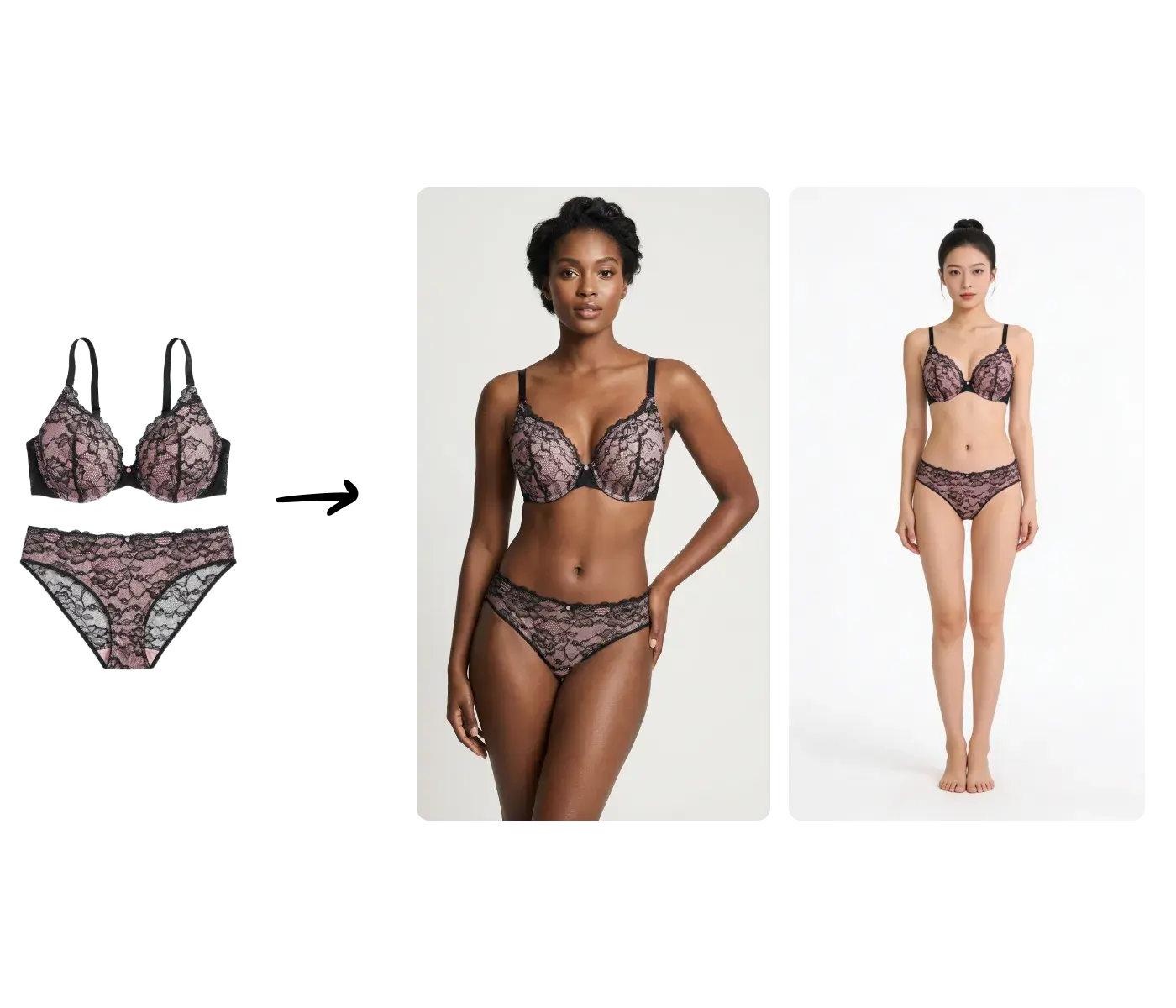
In the example above, we used the same flat-lay product image with the same base prompt, but specified different model descriptions: one for a Black woman and one for a Chinese woman. The AI faithfully generates each model while keeping the product perfectly consistent.
This prompt-driven approach gives brands complete control over model diversity without managing a library of avatar photos. You can specify ethnicity, body type, hair style, and more through text alone.
Step 4: Create Multiple Angles, Close-Ups, and Video
Once you have a full-body generation you're happy with, you can create a complete content set without starting over. Using the Step 2 pipeline in Uwear Studio, you can add multiple edit operations to your initial generation, each producing a different variation.
In the video above, we took the full-body front shot from Step 2 and created three additional variations plus a video, all in just a few clicks:
Upper Body Front
A camera angle edit cropping to the upper body for a closer product view
Full Body Back
A back-angle shot showing the product from behind
Close-Up Detail
A head-to-chin close-up to showcase fabric details, stitching, and texture
360 Video
A 5-second video of the model turning, perfect for product pages and social media
Every edit operation is fully customizable through prompts. You can adjust the camera angle, describe specific poses, change the background, or add any creative direction, all within the same generation pipeline.
Lock a Signature Style with Art Directions
One-off prompts are great for exploring. To make a look repeatable, save it as an Art Direction: a reusable recipe that captures the mood, lighting, set, color grade, and posing language of a shoot. Point it at any product and the same signature look comes back, so you iterate on the style once instead of re-prompting every SKU.
The three shots below all reuse a single saved Art Direction, “Noir Chrome Shadow Studio” (a moody, premium dark studio), on Seedream 5.0 Pro with the same Oli avatar and the same bra. Only the camera angle changes, yet the lighting, palette, and mood stay locked together.
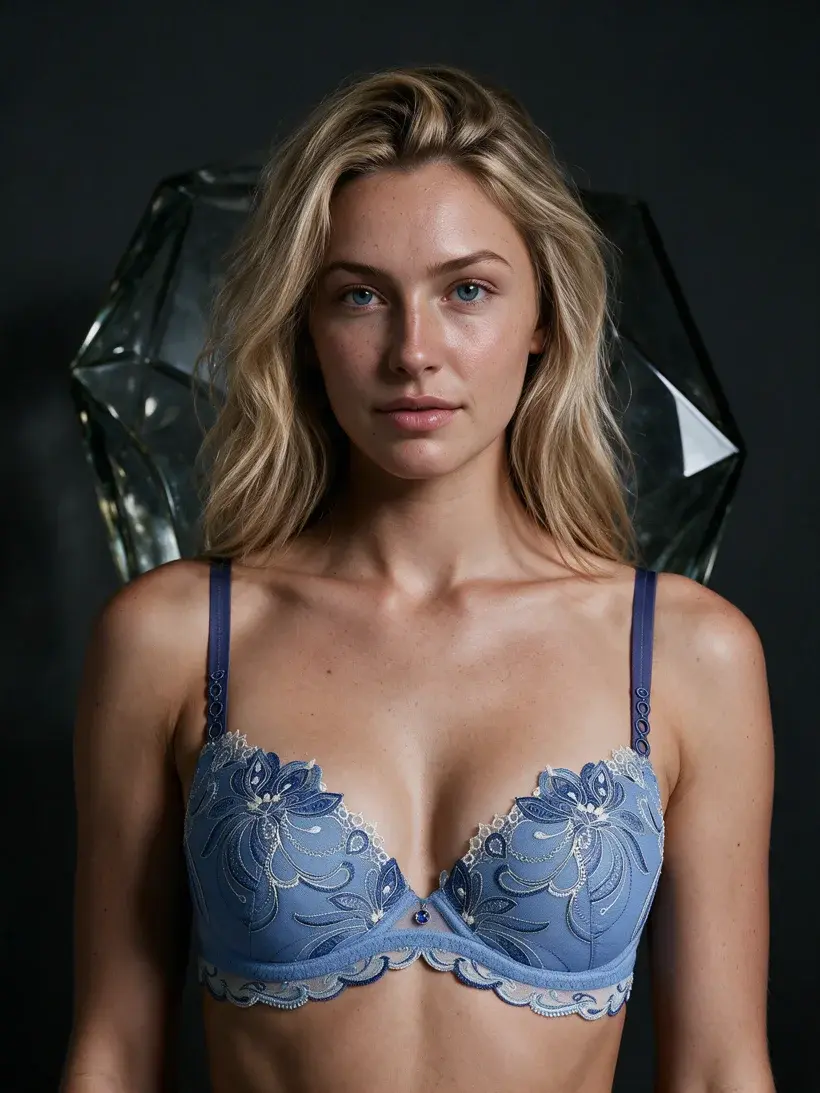
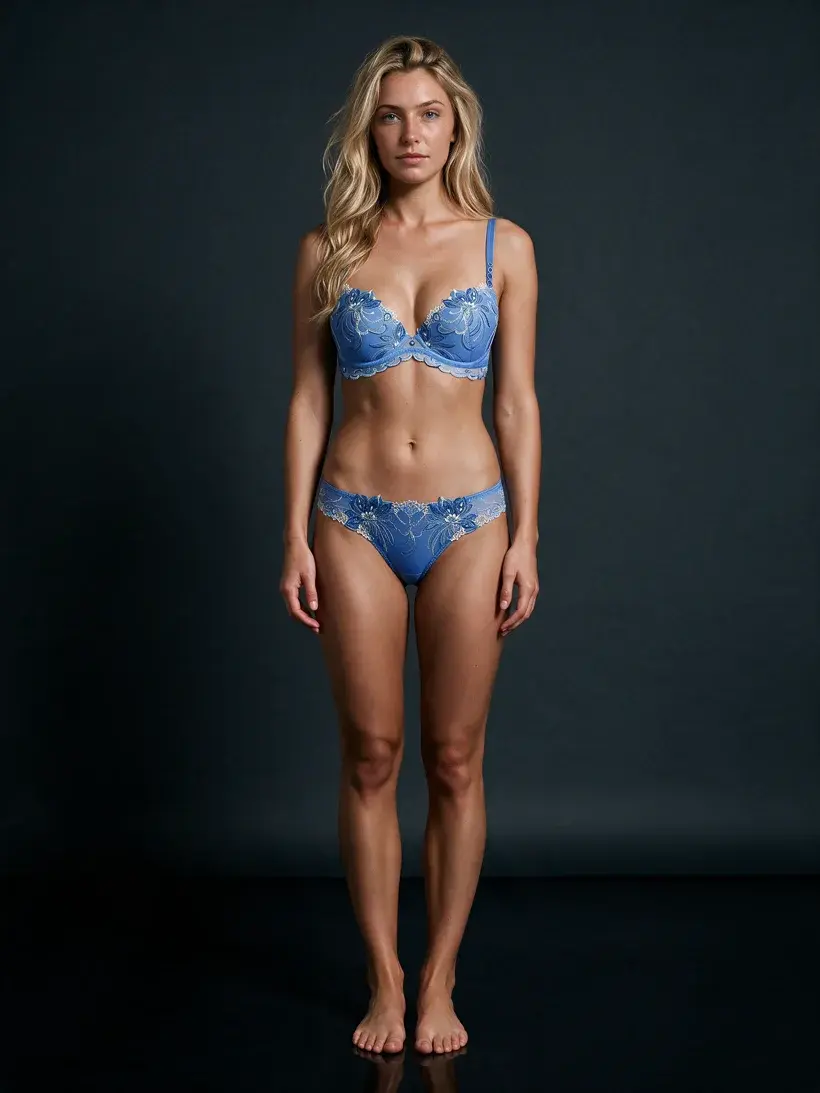
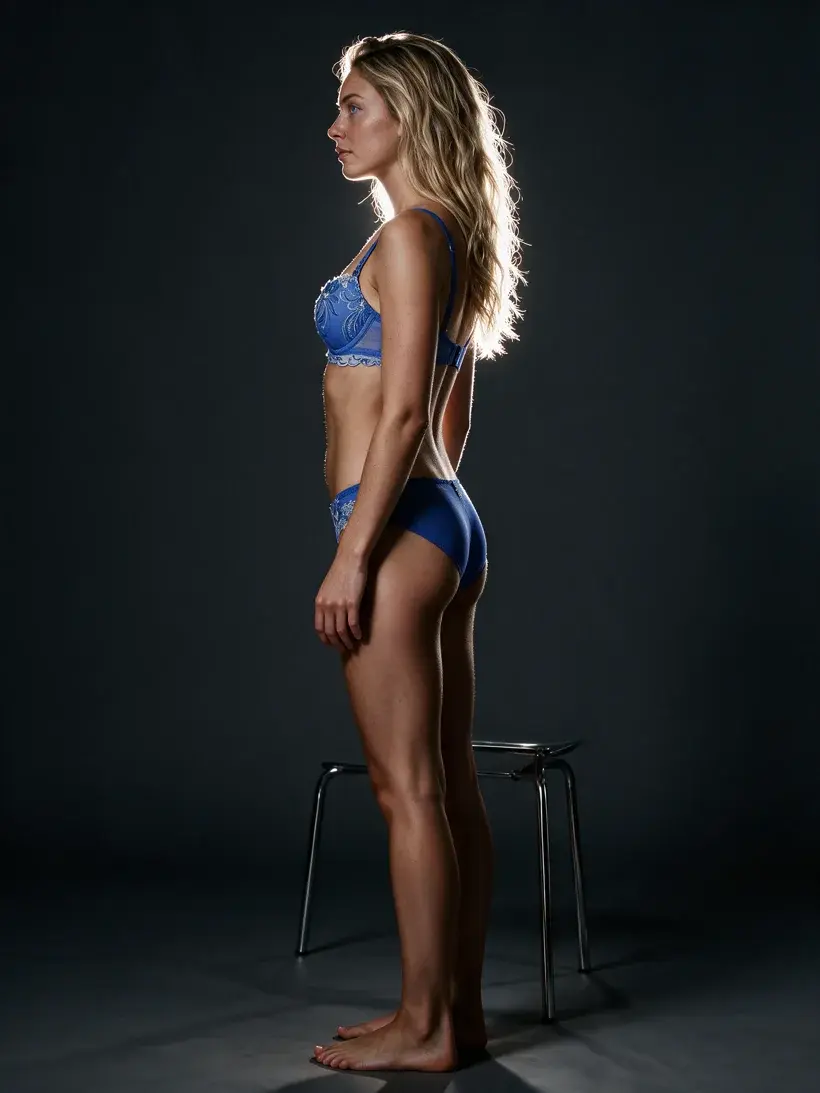
One saved Art Direction, three framings: same product, same model, one consistent style. The soft, sunlit set at the top of this guide and this dark, cinematic one are the same bra on the same model, under two different saved styles.
That is what makes a look scale. Pin the Art Direction once, and every product you run through it lands in the same visual world — exactly what you want before pushing a whole collection through batch generation.
Step 5: Scale to Thousands with Batch Generation
Here's where it all comes together. Once you're confident with the prompts, AI model selection, and edit pipeline you've built for one product, you can apply the exact same settings across your entire catalog using Batch Generation.
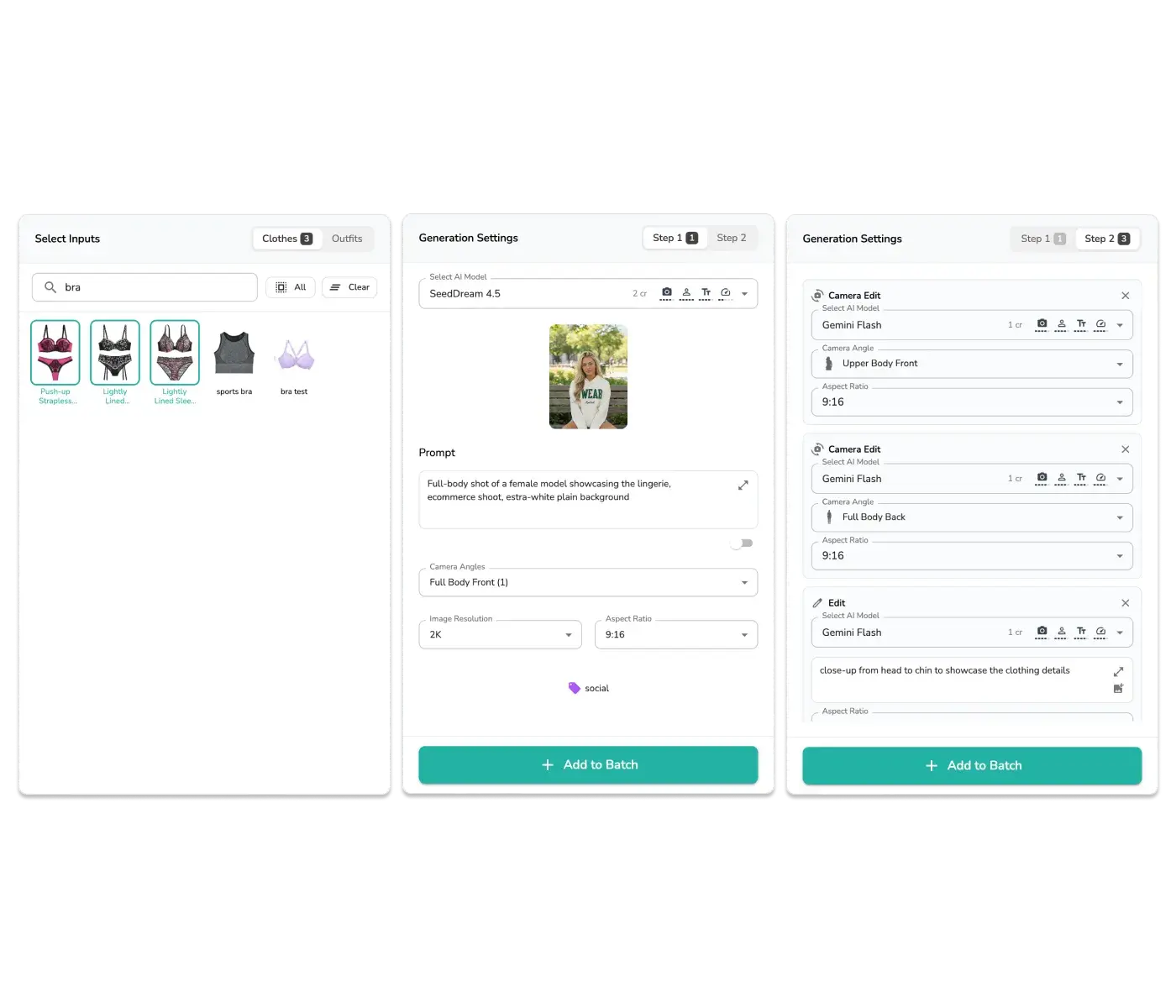
In the screenshot above, you can see our Batch Generation feature with multiple bra products selected and the same generation settings applied to each one: the same AI model, prompt, camera angles, and Step 2 edit pipeline. Select your products, configure once, and hit generate.
Scale Without Limits
Uwear's Batch Generation can process up to 10,000 images in a single generation run. Whether you have 10 bras or 10,000, the same workflow applies. Upload your products, configure your settings, and let the AI handle the rest. At enterprise volume, pair the batch with automated image QA and retry workflows so rejected fit, garment, or policy outputs are caught before publish.
The Complete AI Lingerie Generation Workflow
Upload flat lays
Or convert on-model photos to flat lays with image processing
Generate on-model photos
Use Seedream 5.0 Pro with a descriptive prompt for best lingerie results
Create diverse models
Describe different models in the prompt; no avatar upload needed
Add angles, close-ups, and video
Build a complete content set from a single generation
Batch process at scale
Apply the same settings to your entire catalog, up to 10,000 images at once
Frequently Asked Questions
What is the best AI lingerie generator for e-commerce brands?
For e-commerce brands that need product-accurate on-model photos at scale, Uwear is built specifically for this use case. Most tools marketed as AI lingerie generators are consumer-facing apps for personal use and do not offer batch generation, garment fidelity, or ecommerce-ready output. Uwear processes up to 10,000 lingerie products per batch run and offers Qwen Intimate for verified sensitive catalogs alongside Seedream 5.0 Pro for standard production.
What is Qwen Intimate and how do I get access?
Qwen Intimate is Uwear's verified intimate-apparel model built on Qwen-Image-Edit. To request access, share your website, public store, or public profile during verification so the team can review the workspace before enabling the model. If your website is not live yet, Instagram or LinkedIn also works.
Can AI generate realistic bra photos that show the actual fabric and lace details?
Yes, but model choice matters significantly. Seedream 5.0 Pro is strong for standard lingerie production, with high image quality and strong avatar consistency across a set, while Qwen Intimate is the best option for the most sensitive SKUs where a revealing product meets a face or avatar reference. Garment fidelity improves when you upload a high-resolution, well-lit flat-lay as input. If the AI struggles with back-side details, upload both a front and back photo and use specific camera angle prompts.
Do I need to hire models or photographers to use an AI lingerie generator?
No. Uwear's AI lingerie generator does not require real models or a photography studio. You upload your product flat-lay, describe the model you want in the prompt, and the AI generates a photorealistic result. For brands that want consistent model identity across a catalog, you can also upload a single reference photo to lock in the model's appearance. Qwen Intimate is the recommended model when that reference has to carry through more revealing lingerie images.
Is AI-generated lingerie photography allowed on Shopify and Amazon?
AI-generated product photography is generally permitted on Shopify and Amazon when the images accurately represent the actual product and comply with each platform's content policies for intimate apparel. Uwear generates ecommerce-standard photography such as white or neutral backgrounds, full-body shots, and detail shots that meet typical marketplace listing requirements.
How many lingerie photos can I generate at once?
Uwear's Batch Generation supports up to 10,000 items per generation run. You upload a CSV with your product list, configure your generation settings once, and submit. The platform processes the entire catalog with real-time progress tracking.
What is the difference between Qwen Intimate, Gemini Pro, and Seedream 5.0 Pro for lingerie?
Qwen Intimate is the most permissive option inside Uwear for verified intimate-apparel workflows and is the best place to start when the blocker is a revealing product plus a face or avatar reference. Seedream 5.0 Pro is a strong default for standard bras, lingerie sets, and some bikini or underwear production, now with high image quality and strong avatar consistency across a set. Gemini Pro still has the best peak realism for non-sensitive fashion, but it frequently refuses the more sensitive combinations.
Can I generate AI lingerie photos for multiple product types in a single batch?
Yes. Uwear's batch generation accepts mixed product types in a single CSV upload. Bras, lingerie sets, bodysuits, and swimwear can all be queued together. You can apply the same generation settings to the entire batch or configure per-product settings for different camera angles or prompts.
Ready to get started? Start the standard generation pipeline, then request Qwen Intimate access if your catalog needs verified sensitive-image permissions.